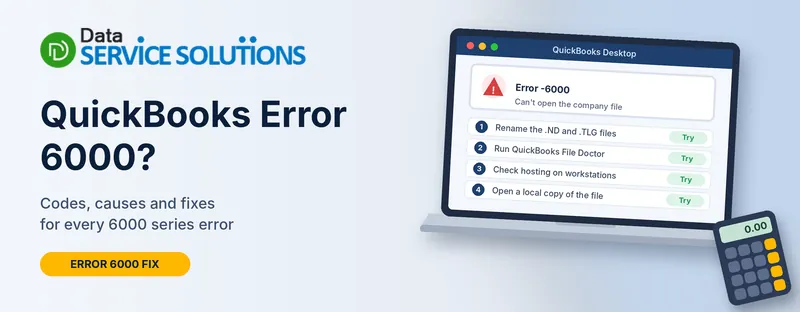
You try to open your company file and QuickBooks refuses. The message shows “Error -6000” followed by a few more numbers, like -83, -82 or -301, and says it can’t open the file. The data is probably still safe. Error 6000 is really a family of errors with one thing in common: QuickBooks can’t reach or read your company file.
This guide helps you work out which situation you’re in, then walks you through the fixes in a safe order. It starts with a backup, because several of the steps involve renaming files.
What Is QuickBooks Error 6000?
Error 6000 is the start of a series of errors QuickBooks shows when it can’t open a company file. The numbers after it narrow down the cause. They can happen when the file sits on your own computer, or when it’s on a server and you reach it over a network.
The most common causes are:
- A damaged .ND (network data) or .TLG (transaction log) file
- More than one computer hosting the company file
- A firewall or security program blocking QuickBooks
- Wrong folder permissions
- A file path that’s too long, or a file stored on an external, cloud-synced or mapped drive
- A damaged company file or QuickBooks installation
- A workstation in single-user mode when others are in multi-user mode
What Your Error Code Means
QuickBooks’ own page lists these codes and likely causes. Where we have a dedicated guide, the code links to it.
| Error code | Likely cause |
|---|---|
| -6000, -107 | A damaged .TLG file |
| -6000, -1076 | A damaged QuickBooks installation |
| -6000, -82 or -6144, -82 or -6012, -1061 | Wrong network setup |
| -6000, -305 | Wrong network setup, or a damaged company file |
| -6000, -832 | Hosting is on where it shouldn’t be, or the .ND file isn’t working |
| -6189, -83 or -6190, -83 or -6010, -100 | The file is hosted by a computer that isn’t the server |
| -6138, -105 | The file is hosted by a computer that isn’t the server |
| -6129, -101 | Folder permissions, or Database Server Manager isn’t working properly |
| -6120, 0 | A workstation is hosting, or port 8019 is blocked |
| -6073, -816 | More than one host, a firewall block, or file damage |
| -6087, 0 or -6131, 0 | The file is already open locally |
| -6176, 0 | A firewall is blocking the connection between computers |
| -6147, 0 | A problem opening a file or restoring a .QBB backup |
What about -77, -80, -301 and -34? QuickBooks’ page doesn’t list these under 6000. Guides commonly report them like this, but treat these as “usually”, not official:
- -6000, -83: a hosting or network problem, in the same area as the hosting codes above
- -6000, -77: folder access, often when the file is on an external or mapped drive. A related code is -6189, -77
- -6000, -80: damaged .ND or .TLG files
- -6000, -301: security or encryption software interfering with the file
- -6000, -34: a file or permission problem
The first steps below help with all of them, so you don’t have to be sure which one you have.
Before You Start: Make a Safe Copy
Do this first, because several fixes rename or move files.
- Find your company file. It ends in .qbw. Open File Explorer and look in the folder it lives in.
- Copy the .QBW and .TLG files to another folder, such as your Desktop, or to a USB drive. A plain copy is enough.
- Check where the file lives. Is it on this computer (local), or on a server or another computer (network)?
- Check the file path length. Copy the folder path from the address bar into Notepad. If it’s over 210 characters, including spaces, shorten it by moving the file to a shorter path.
- Don’t force-close QuickBooks while it’s writing data.
If QuickBooks says it can’t find the file at all, see QuickBooks company file not found.
Step 1: Update QuickBooks
An old release can cause file-open errors.
- Go to Help > Update QuickBooks Desktop, open Update Now and click Get Updates.
- Restart QuickBooks.
Our guide on how to update QuickBooks Desktop covers the steps in more detail.
Step 2: Run QuickBooks File Doctor
- Close QuickBooks.
- Download and open the QuickBooks Tool Hub. See our guide to downloading QuickBooks Tool Hub.
- Go to Company File Issues and click Run QuickBooks File Doctor. It can take a minute to open.
- Choose your company file, or click Browse to find it.
- Select Check your file and click Continue.
- Enter your QuickBooks admin password and click Next.
For more on the tool, see QuickBooks File Doctor. If the tool itself won’t run, read QuickBooks File Doctor not working. If the error remains, follow the section below that matches your setup.
If the File Is on Your Own Computer
Rename the .ND and .TLG Files
These helper files can get damaged, and QuickBooks rebuilds them.
- Close QuickBooks.
- Open the folder with your company file.
- Find the files with your company name ending in .qbw.nd and .qbw.tlg.
- Right-click each, choose Rename, and add .OLD to the end.
- Reopen QuickBooks and sign in.
QuickBooks says it recreates these files and no data is lost. Because you made a copy earlier, you’re covered either way. Rename only these two files. Never rename the .qbw file.
Open a Sample Company File
- In the No Company Open window, choose Open a Sample File and pick any sample.
- If the sample opens, the problem is with your company file, so continue.
- If the sample shows the same error, QuickBooks itself is damaged. Run the QuickBooks Install Diagnostic Tool, then repair QuickBooks by pressing Windows + R, typing appwiz.cpl, selecting QuickBooks and clicking Uninstall/Change, then Repair.
Copy the Company File to Your Desktop
- Copy the .QBW file and paste it on your Desktop.
- Hold the Ctrl key while you open QuickBooks to reach the No Company Open window.
- Choose Open or restore an existing company and open the Desktop copy.
If it opens, the original folder is the problem: its location, its permissions or a path that’s too long. Keep working from a safe local folder, and don’t keep company files in cloud-synced or external-drive folders.
Restore a Backup
If you have a recent backup, restore it to test whether the current file is damaged.
- Make sure the computer isn’t hosting. Open the file and go to File > Utilities. If you see Stop Hosting Multi-User Access, click it and choose Yes at both prompts.
- Keep the file path to 210 characters or fewer.
- Go to File > Open or Restore Company > Restore a backup copy and follow the prompts.
A backup won’t include anything entered after it was made, so you may need to re-enter those transactions.
Try Auto Data Recovery
If the file is damaged and you don’t have a good backup, QuickBooks Auto Data Recovery may help. It works from an automatic copy of your file.
- Create a new folder on your Desktop called QBTest.
- Copy your .TLG file into it.
- Find the .QBW.ADR file in the QuickBooksAutoDataRecovery folder next to your company file, and copy it into QBTest.
- In QBTest, rename the .QBW.ADR file by removing .ADR from the end.
- Open the file in QuickBooks, then go to File > Utilities > Verify Data.
If the File Is on a Server (Network)
Turn Hosting Off on Every Workstation
Only the server should host the file. Hosting on a workstation is behind many 6000 errors.
- On each workstation, open QuickBooks without opening the company file.
- Press F2 and look under Local Server Information, or go to File > Utilities.
- If you see Stop Hosting Multi-User Access, click it.
- On the server, go to File > Utilities. If you see Host Multi-User Access, click it.
Our guide on error H202 goes deeper into multi-user hosting, and QuickBooks not connecting to server covers connection problems.
Rename the .ND and .TLG Files, Then Rescan
- On the server, rename the .nd and .tlg files by adding .OLD, as above.
- Open the Tool Hub on the server and go to Network Issues > QuickBooks Database Server Manager.
- If your company file folder isn’t listed, click Browse and select it.
- Click Start Scan, then close it.
- Open QuickBooks on a workstation and sign in.
For more detail on the tool, see QuickBooks Database Server Manager. If it won’t open, see QuickBooks Database Server Manager not opening.
Open the File Locally From a Workstation
Copy the .QBW file from the server to the workstation’s Desktop and open it from there, as in the local steps above. If it opens, the network path or server settings are the problem.
Close Stuck QuickBooks Processes on the Server
Use this only if nobody is working in the file, and after your backup.
- Sign in to the server as an administrator.
- Press Ctrl + Shift + Esc to open Task Manager and go to Users.
- End QBW32.EXE, qbupdate.exe and QBDBMgr.exe.
- Reopen the company file in multi-user mode.
If you see a “file in use” message, see QuickBooks company file in use.
Check Folder Permissions
- On the server, right-click the folder containing the company file and choose Properties.
- Open the Security tab and click Edit.
- Make sure the Windows users who need QuickBooks and the QuickBooks database service account (named QBDataServiceUser followed by a number) have access to the folder.
- Click Apply, then OK.
On a company network with strict policies, have your IT person do this. Grant only the access QuickBooks needs.
Check the Firewall and Security Software
A firewall can block QuickBooks traffic. Make inbound and outbound exceptions on the server for QuickBooks, and allow port 8019 plus your QuickBooks dynamic port (2019 and later), or the fixed ports for 2018 and 2017. Our guide on Windows Firewall blocking QuickBooks covers the setup. Add exceptions in your security software instead of switching it off. If you test with it off, turn it back on straight after.
Quick Guide by Situation
| Your situation | Try first |
|---|---|
| Error only on one workstation | Turn Hosting Off on Every Workstation |
| Error after moving the file | Copy the Company File to Your Desktop, then check the path length |
| File is on an external or cloud-synced drive | Move it to a local folder |
| Only the company file fails, the sample opens | Rename the .ND and .TLG Files, then Restore a Backup |
| Even the sample file fails | Run the Install Diagnostic Tool and repair QuickBooks |
| Error after Windows or security updates | Check the Firewall and Security Software |
More 6000 Series Errors We’ve Covered
If your code isn’t in the table above, one of these guides may match it. They’re grouped by what you usually see.
Errors that start with 6000:
- QuickBooks Error 6000 83
- QuickBooks Error 6000 77
- QuickBooks Error 6000 80
- QuickBooks Error 6000 95
- QuickBooks Error 6000 832
- QuickBooks Error 6000 1074
Hosting and network errors:
- QuickBooks Error 6010 100
- QuickBooks Error 6138 105
- QuickBooks Error 6144 82
- QuickBooks Error 6190
- QuickBooks Error 6189 77
- QuickBooks Error 6176
- QuickBooks Error 6210
File access and database errors:
- QuickBooks Error 6073
- QuickBooks Error 6094
- QuickBooks Error 6123
- QuickBooks Error 6129
- QuickBooks Error 6130
- QuickBooks Error 6131 0
- QuickBooks Error 6147 0
- QuickBooks Error 6150 1006
- QuickBooks Error 6155
- QuickBooks Error 6177 0
- QuickBooks Error 6209 0
- QuickBooks Error 6007
How to Prevent Error 6000
- Back up the company file every day and test a restore now and then
- Keep the file on a short, local or server path, not on a cloud-synced or external drive
- Use one dedicated host, and keep hosting off on workstations
- Keep QuickBooks and Windows updated
- Don’t force-close QuickBooks while it’s saving
- Keep security software exceptions for QuickBooks in place after Windows updates
When to Get Help
Get help if File Doctor and the steps above haven’t worked, if the sample file also fails and repair doesn’t fix it, if you have no good backup, or if payroll or filing deadlines are near. Handing it off before changing more is cheaper than a damaged file. Our team at Data Service Solutions can look at it with you. If QuickBooks won’t start at all, see QuickBooks won’t open, or QuickBooks fatal error.
Frequently Asked Questions
What does QuickBooks error 6000 mean?
It means QuickBooks can’t open your company file. The numbers after it, like -83 or -82, point to the cause.
Will I lose data with error 6000?
Usually not. The company file itself is normally fine. Make a copy before you start, and you’re covered.
Is it safe to rename the .ND and .TLG files?
Yes, and QuickBooks says it recreates them with no data loss. Still copy them first, and rename only these two.
What does error 6000 -83 mean?
It’s commonly reported with hosting and network problems, in the same area as QuickBooks’ -6189,-83 and -6190,-83 codes, where a computer that isn’t the server is hosting the file. See our guide to error 6000 83.
What does error 6000 -77 mean?
Guides commonly link it to folder access, especially for files on external or mapped drives. Move the file to a local folder and run QuickBooks as an administrator. See error 6000 77.
What does error 6000 -80 mean?
Commonly reported with damaged .ND or .TLG files. See error 6000 80.
What does error 6000 -301 mean?
Commonly reported with security or encryption software interfering. Update and repair QuickBooks, rename the .ND file, and add a security exception for QuickBooks.
What does error 6000 -832 mean?
QuickBooks says hosting is on where it shouldn’t be, or the .ND file isn’t working. Turn hosting off on workstations and rename the .ND and .TLG files. See error 6000 832.
Does it matter that my file path is long?
Yes. Keep the full path to 210 characters or fewer.
Can I fix this without opening firewall ports?
Often, yes. Hosting, file renaming and folder checks solve many cases. Open ports only if those don’t work.
Why does the sample company file matter?
If the sample opens, QuickBooks works and the problem is your file or its location. If it fails too, QuickBooks needs repair.
Does error 6000 happen on QuickBooks Online?
No. It’s a Desktop error.
When should I call a professional?
When the steps above fail, you have no good backup, or a deadline is close.
Wrapping Up
Error 6000 looks alarming, but it’s almost always a problem reaching the file, not losing it. Make a copy, run File Doctor, then follow the steps for your setup. If your exact code isn’t covered, check the list of 6000 series guides above. If you get stuck, the Data Service Solutions team is ready to help.