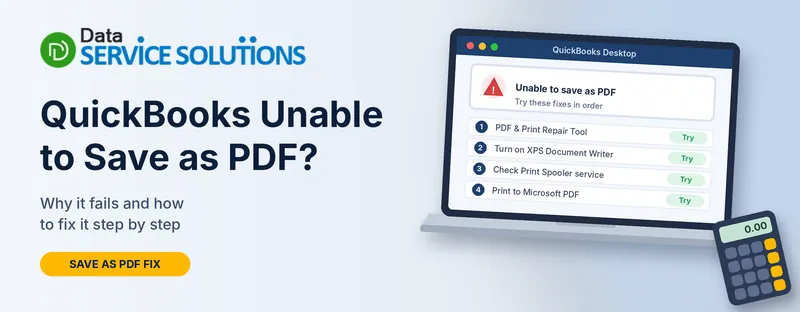
You click Save as PDF on an invoice, a report or a paycheck, and QuickBooks says it can’t. Sometimes nothing happens at all. Sometimes you get a message like “Unable to save as .pdf file” or “QuickBooks could not save your form or reports as a .pdf.” Either way, the invoice is still sitting there and your customer is waiting.
This guide goes through the fixes in the order that solves most cases fastest. It covers QuickBooks Desktop on Windows, QuickBooks Online, and the workaround that gets the PDF out today while you sort out the cause.
Why QuickBooks Can’t Save as PDF
QuickBooks Desktop doesn’t make PDFs by itself. It sends the document to a Windows component, Microsoft XPS Document Writer, which turns it into a file. If that component is off, broken, blocked or missing permissions, the save fails.
The usual causes:
- Microsoft XPS Document Writer is turned off, damaged or missing, which is common after a move to Windows 11
- The Print Spooler service isn’t running
- Permissions problems on your TEMP folder
- A damaged form template
- A save location or file name Windows won’t accept
- Security software blocking the files QuickBooks creates
- An out-of-date QuickBooks or Windows
- A damaged QuickBooks installation
In QuickBooks Online the cause is nearly always the browser, not Windows.
Match Your Message to the Right Fix
| What you see | Likely cause | Start with |
|---|---|---|
| “Unable to save as .pdf file” or “could not save your form or reports as a .pdf” | XPS, spooler or TEMP permissions | Run the QuickBooks Print & PDF Repair Tool |
| “Missing PDF component” | A missing or broken PDF component | Run the QuickBooks Print & PDF Repair Tool, then see our missing PDF component guide |
| “PDF Converter shows offline” or “device is not ready” | The XPS printer or Print Spooler | Turn On Microsoft XPS Document Writer, then Check the Print Spooler Service |
| “Print Driver Host for 32-bit Applications has stopped working” | A damaged print component | Run the QuickBooks Print & PDF Repair Tool, then Turn On Microsoft XPS Document Writer |
| Save as PDF does nothing or QuickBooks freezes | Spooler, template or security software | Check the Print Spooler Service, Try a New Template, then Check Security Software and Repair QuickBooks |
| Only one form fails | A damaged template | Try a New Template |
| QuickBooks Online | Browser or pop-ups | QuickBooks Online: Save as PDF Not Working |
Need the PDF Right Now? Use This Workaround
If you have to send a document today, try this before anything else.
- Open the invoice or report and choose File > Print.
- In the printer list, pick Microsoft Print to PDF instead of using Save as PDF.
- Click Print, name the file and choose where to save it.
If that works, your document is fine and the problem is in the save-as-PDF path. If it fails too, the issue is the Windows printing setup, so go on to Turn On Microsoft XPS Document Writer and Check the Print Spooler Service.
Before You Start
- Restart your computer. It clears more PDF problems than anyone likes to admit.
- Close QuickBooks and reopen it as an administrator (right-click the icon and choose Run as administrator).
- Check that your PDF viewer opens other PDFs. If a normal PDF opens, the viewer is fine.
- Note what you were saving and where you were saving it. It matters for Check Where and How You’re Saving.
Fix 1: Update QuickBooks and Windows
An old QuickBooks release or missing Windows update is behind many PDF faults.
- Go to Help > Update QuickBooks Desktop, open Update Now and click Get Updates. Our guide on how to update QuickBooks Desktop covers it step by step.
- Install pending Windows updates and restart.
- Try Save as PDF again.
Fix 2: Run the QuickBooks Print & PDF Repair Tool
This is QuickBooks’ own repair for PDF and print faults, and it covers the error messages listed in the table above.
- Close QuickBooks.
- Download and install the QuickBooks Tool Hub if you don’t have it. See our QuickBooks Tool Hub guide.
- Open the Tool Hub and go to Program Problems.
- Click QuickBooks Print & PDF Repair Tool and let it finish. It takes about a minute.
- Open QuickBooks and try again.
On Windows 11, this tool may not be enough by itself. If the error comes back, go to Turn On Microsoft XPS Document Writer.
Fix 3: Turn On Microsoft XPS Document Writer
This is the fix that works most often, especially on Windows 11.
Turn it on:
- Press Windows + R, type optionalfeatures and press Enter.
- Find Microsoft XPS Document Writer and tick the box.
- Click OK and restart.
If it’s already ticked, test it:
- Open Notepad and type a word.
- Go to File > Print, choose Microsoft XPS Document Writer and print.
- Save the file to your desktop and try to open it.
If it won’t print or open outside QuickBooks, the fault is in Windows, not QuickBooks. Untick the feature, restart, tick it again and restart once more. If it still fails, ask your IT person or Microsoft support to check it.
Fix 4: Check the Print Spooler Service
The Print Spooler has to be running for any printing, including PDFs.
- Press Windows + R, type services.msc and press Enter.
- Find Print Spooler and double-click it.
- Set Startup type to Automatic.
- Click Apply, then click Start if the service isn’t running.
- Click OK and try again.
Fix 5: Check TEMP Folder Permissions
QuickBooks writes the PDF to your TEMP folder before saving it, so it needs permission there.
- Close QuickBooks.
- Press Windows + R, type %TEMP% and press Enter.
- Right-click an empty area of the folder and choose Properties.
- Open the Security tab.
- Check that your Windows account has Full Control. QuickBooks’ own page says all users and groups should have it, but on a shared or office computer ask your IT person before changing permissions widely.
- Save, then try again.
Fix 6: Check Where and How You’re Saving
Sometimes the problem is the destination, not the tool. Try these:
- Save to your Desktop or Documents folder first, not a network drive or a cloud-synced folder
- Use a short, simple file name with no slashes, colons, quotation marks or other symbols Windows doesn’t allow
- Make sure the file isn’t already open in a PDF viewer under the same name
- Check you have space and permission to write to that folder
If it saves to the Desktop but not to the folder you wanted, the problem is that folder’s permissions or sync, not QuickBooks.
Fix 7: Try a New Template
When only one type of form fails, such as one invoice style, its template may be damaged.
- Go to Lists > Templates.
- Click the Templates dropdown and choose New.
- Pick the template type and click OK.
- Click Additional Customization, set it up like the old one and save it.
- Open the transaction, switch to the new template and try Save as PDF.
Fix 8: Print to Microsoft Print to PDF
If Save as PDF keeps failing but you need the file, use the workaround above as your standing method until the cause is fixed.
- Open the form and choose File > Print.
- Select Microsoft Print to PDF.
- Print and save.
You can also set this up for reports. Open the report, click Print, choose Microsoft Print to PDF and print.
Fix 9: Check Security Software and Repair QuickBooks
If nothing so far worked, something is blocking QuickBooks or its files are damaged.
- Check your security software. Make sure it isn’t blocking .xps files or QuickBooks. Add an exception for QuickBooks rather than switching your protection off. If a firewall is the issue, see Windows Firewall blocking QuickBooks.
- Run Quick Fix my Program from the Tool Hub’s Program Problems tab.
- Run the Install Diagnostic Tool from the Tool Hub’s Installation Issues tab. Our guide on the QuickBooks Install Diagnostic Tool explains it. Restart afterward.
- Repair QuickBooks. Press Windows + R, type appwiz.cpl, select QuickBooks and click Uninstall/Change, then Repair.
If the file itself seems damaged, run QuickBooks File Doctor. If QuickBooks won’t start at all, see QuickBooks won’t open.
QuickBooks Online: Save as PDF Not Working
QuickBooks Online makes the PDF in your browser, so the cause is usually the browser.
- Allow pop-ups. If your browser blocks pop-ups for QuickBooks, the PDF window never opens. Allow them for the QuickBooks site in your browser settings.
- Refresh the page. Press Ctrl + Shift + R to do a hard refresh.
- Try another browser. If it works in Firefox or Edge but not Chrome, the problem is that browser.
- Use the browser’s own PDF save. Open the form’s print preview and press Ctrl + P (Windows) or Cmd + P (Mac), then choose Save as PDF as the destination.
- Clear the browser cache and cookies, then sign in again.
- Check the form template. Go to the Gear icon, then Custom Form Styles, and test with a different template. Some people find a very large logo image causes problems, so try removing or shrinking it. This is based on user reports, not an official rule.
QuickBooks on a Mac or Virtual Machine
If you run QuickBooks Desktop inside a virtual machine, XPS Document Writer has to be turned on inside that Windows machine, as in Turn On Microsoft XPS Document Writer. Some people also find that turning off the setting that syncs the Mac’s default printer with Windows helps. Treat that as a try-it step, because it depends on your setup.
What to Do If Only Some Documents Fail
- One customer’s invoices fail: check the customer’s name and address for unusual characters
- Only long reports fail: try a smaller date range, or print to Microsoft Print to PDF
- Only one user fails: it’s a Windows permission or profile problem on that computer
- Only after a Windows update: repeat Turn On Microsoft XPS Document Writer and run the Print & PDF Repair Tool again
How to Prevent Save as PDF Problems
- Keep QuickBooks and Windows up to date
- Leave Microsoft XPS Document Writer turned on
- Run the Print & PDF Repair Tool after a big Windows update
- Save PDFs to a local folder first, then move them
- Avoid switching off security software, and add exceptions instead
- Keep a Microsoft Print to PDF habit as a backup
When to Get Help
Get help if the repair tool, XPS test and spooler checks all fail, if Notepad can’t print to XPS either, or if you’re on a locked-down company computer where you can’t change settings. Our team at Data Service Solutions can look at it with you, and your IT person can check Windows printing.
Frequently Asked Questions
Why does QuickBooks say it’s unable to save as PDF?
QuickBooks relies on Windows’ XPS Document Writer to make the PDF. If that component is off, damaged or blocked, the save fails.
What is the fastest fix?
Run the QuickBooks Print & PDF Repair Tool from the Tool Hub (Program Problems), then turn on Microsoft XPS Document Writer in Windows features.
Can I still send a PDF while it’s broken?
Yes. Choose File > Print and pick Microsoft Print to PDF as the printer.
Why did Save as PDF stop after I moved to Windows 11?
XPS Document Writer may not be turned on. Enable it with optionalfeatures and restart.
Is the “missing PDF component” error the same thing?
It’s closely related. Use the same first fixes, and see our missing PDF component guide for that exact message.
Does Adobe or another PDF reader cause this?
Not usually. The save happens before any reader opens. If a normal PDF opens fine, your reader isn’t the problem.
Is it safe to change my TEMP folder permissions?
Check that your own account has Full Control. On a shared computer, ask your IT person before widening permissions for everyone.
Should I turn off my antivirus to fix this?
No. Add an exception for QuickBooks instead. If you disable it briefly to test, turn it back on straight afterward.
Why does it fail for one invoice but not others?
The template or the customer’s data may be the problem. Try a new template.
Why does QuickBooks Online not save my PDF?
Usually a blocked pop-up or the browser. Allow pop-ups, refresh, or try another browser.
Will reinstalling QuickBooks fix it?
Only if the installation is damaged. Try the Print & PDF Repair Tool and XPS checks first.
When should I call a professional?
If the Notepad XPS test fails, if you can’t change settings on your computer, or if the repair tool and every fix above have failed.
Wrapping Up
When QuickBooks can’t save a PDF, the cause is almost always the Windows printing setup, not your data. Run the repair tool, make sure XPS Document Writer is on, check the spooler, and use Microsoft Print to PDF to get your document out in the meantime. If you’re still stuck, the Data Service Solutions team can help.