You sit down to work and QuickBooks won’t let you in. The password you were sure about gets rejected, and there’s a deadline waiting. It happens to almost everyone who runs QuickBooks, and it is nearly always fixable without losing data.
The right method depends on one thing: which password you forgot. This guide covers all of them. You’ll find the steps for a Desktop admin, a Desktop user, and QuickBooks Online, plus what to do when the usual reset doesn’t work.
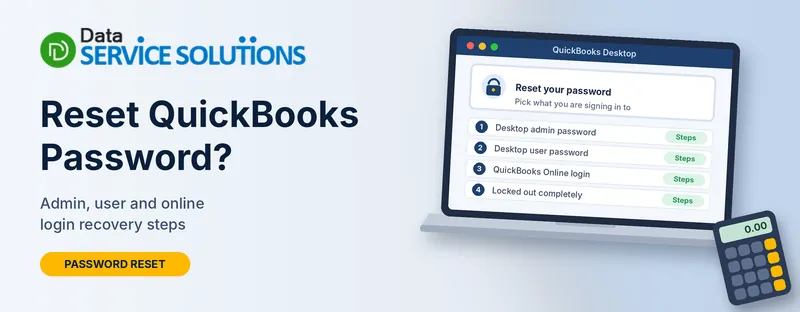
First, Which Password Did You Forget?
QuickBooks involves several different logins, and people often try to reset the wrong one. Find your situation first.
| What you can’t sign in to | Who can reset it | Go to |
|---|---|---|
| A Desktop user account (not the admin) | The Desktop admin | Section 1 |
| The Desktop admin password, QuickBooks 2020 or later | You, using a code sent to your email | Section 2 |
| The Desktop admin password, QuickBooks 2019 or earlier | You, using your license details | Section 3 |
| The reset above fails or says it can’t reset | You, using the Automated Password Reset Tool | Section 4 |
| QuickBooks Online | You, through account recovery | Section 5 |
| You can’t reach your email or phone | Account recovery with ID | Section 5 |
One more thing worth checking. These are separate passwords: your Windows login, the QuickBooks company file login, your online account, your bank’s login and your payroll credentials. Resetting one doesn’t change the others. If QuickBooks opens fine but a bank feed fails, you don’t have a QuickBooks password problem.
Before You Reset Anything
A reset doesn’t delete your data, but a few minutes of preparation will save you stress.
- Confirm you’re allowed to. Only reset a company file you own or are authorized to manage. If you got the file from someone else, ask them or your accountant first.
- Check the Caps Lock and Num Lock keys. It sounds silly, but it solves more cases than you’d think. Also try your last few passwords, since many people reuse one.
- Know your QuickBooks version. Press F2 or Ctrl + 1 on the login window to see the product information. The version decides which method you use.
- Find a recent backup if you can. You can’t back up without logging in, but know where your last backup lives. If you can sign in as admin, create one first.
- Open your email. Reset codes go to your registered address. Keep that inbox open in a second tab.
1. Reset a Desktop User Password (Admin Known)
If you can sign in as the admin, you can reset any other user’s password in a minute.
- Open QuickBooks and sign in as the admin user.
- Go to Company > Set Up Users and Passwords.
- Click Set Up Users and enter the admin password again.
- In the User List, select the user and click Edit User.
- Type a new password and confirm it.
- Click Next twice, then click Finish.
If that person is signed in on another computer, ask them to sign out and back in so the new password takes effect. Tell them the new password in person or through a secure channel, and ask them to change it.
2. Reset the Desktop Admin Password (QuickBooks 2020 and Later)
Newer versions send a code to your email, so you don’t need to dig up any license details.
- Open QuickBooks and your company file.
- On the sign-in screen, click I forgot my password.
- Choose your email address from the list and click Next. QuickBooks sends a reset token to that address.
- Open the email and enter the token.
- Follow the prompts to set a new admin password.
Your email isn’t in the list? Click Don’t see your email in the list above? and follow the instructions on screen. If no option works, skip to Section 4.
No email? Check spam and junk, and wait a few minutes. If your mail provider blocks automated messages, add QuickBooks to your approved senders and try again.
3. Reset the Desktop Admin Password (QuickBooks 2019 and Earlier)
Older versions ask you to prove who you are with the details used when you bought the software.
- On the login window, click I forgot my password.
- Enter your license number. If you don’t have it handy, press and hold F2 on the login window to display it.
- Enter the name, email address, phone number and ZIP code that were used at purchase.
- Click OK. If everything matches, QuickBooks sends a code to the primary email on your customer account.
- Enter the code and create your new admin password.
The details must match your records exactly. If you’ve changed email addresses or moved since buying, the customer account may still hold the old ones. Sign in to your customer account portal first and update them.
4. Use the Automated Password Reset Tool
When the normal flow rejects your details or shows an error, the Automated Password Reset Tool is the next step. It’s a small download from QuickBooks’ own support site that resets the admin password for a company file.
What you need:
- Your QuickBooks license number
- The name, email, phone number and ZIP code on your customer account
- Access to the registered email address
- The admin user name for the company file (often “Admin”)
- The QuickBooks version that last opened the file
How it works:
- Download the tool from QuickBooks’ official support site. Don’t take it from a third-party page.
- Submit your details to verify who you are. QuickBooks emails you a token if everything matches.
- Save the tool to a folder you can find, such as your Desktop, and run it.
- Enter the token and choose your QuickBooks version.
- Click Browse and select your company file.
- Enter the admin user name, then type and confirm the new password.
- Click Reset Password, then open the file with your new password.
If it says the details don’t match:
- Re-type the license number carefully. Enter it without spaces.
- Use a 10-digit phone number with no extension and no country prefix.
- Make sure the ZIP code is the one on your account, not your current one.
- If the information on your account is old, update it in your customer portal and try again.
If the tool won’t run: Windows security software sometimes blocks a downloaded tool. Don’t switch off your protection. Allow this one file in your security settings, run the tool, and leave everything else as it was. If the problem is your firewall blocking QuickBooks more broadly, see how to fix a Windows firewall blocking QuickBooks.
“Unable to Reset the QuickBooks Administrator Password at This Time”
This message appears when the details you entered don’t match the registration records, or the tool can’t reach the information it needs. In practice that usually means one of these:
- The license number, email, phone or ZIP code doesn’t match the customer account
- You’re using a different QuickBooks version than the one that last saved the file
- The company file is damaged or opened from a different location than expected
- The tool was blocked by security software or the internet connection dropped partway through
Work through the checks in Section 4. If the file itself seems damaged, run QuickBooks File Doctor from the Tool Hub first, then try again. If QuickBooks won’t open at all, our guide on QuickBooks won’t open covers that.
5. Reset a QuickBooks Online Password
QuickBooks Online uses your online account, not a company file password. Anyone with access to your email or phone can reset it quickly.
If you still have your email or phone:
- Go to the QuickBooks Online sign-in page and click I forgot my user ID or password.
- Enter the email address or phone number linked to your account and click Continue.
- Choose to receive a code by email or text message.
- Open your email or messages in a new tab and keep the sign-in tab open.
- Enter the code and click Continue.
- Select the account you want, enter a new password and click Update password.
If the code doesn’t arrive:
- Wait a few minutes, then check spam, junk and every email address you might have used
- Click the option to resend a code. Only the most recent code works
- Make sure your phone isn’t blocking messages from short codes
- If you still can’t sign in after resetting, clear your browser cache and cookies, restart the browser and sign in again, or try another network
If you can’t reach your email or phone (a lost phone, an old email or an employee who left):
- Use the account recovery form from the sign-in page.
- Fill in the required details.
- Upload a clear photo of an accepted ID, such as a driver’s license or passport.
- Submit the form and wait for the review.
This takes longer than an instant code, so start early if you have a deadline.
If you’re a user, not the owner: you can use the same steps for your own login. If the problem is that you lost access to the company, the account owner or a master admin can check your user settings and resend the invitation from the Manage users page.
An old account: if you haven’t signed in for a very long time, the account may have been closed. Support can confirm. If it was, you can make a new one.
What to Do After a Successful Reset
- Sign in right away and make sure your reports and lists look normal.
- Set up security questions or recovery details so you aren’t stuck next time.
- Store the password in a password manager, not on a sticky note.
- Update every device and person who uses the old one. Remote or multi-user setups often hold on to the old password until someone signs out.
- Review user permissions. If a former employee had access, remove them under Company > Set Up Users and Passwords in Desktop, or Manage users in Online.
- Make a fresh backup of the company file.
A Word on Password Cracking and “Removal” Tools
A search for a lost QuickBooks password will turn up tools that promise to crack or strip passwords from a company file. Avoid them. Many carry malware, some can corrupt the file, and using them on a file you don’t own can put you on the wrong side of the law. The official reset routes above work for people with a legitimate claim to the file. If those fail, get help from a professional who will check ownership.
How to Avoid Getting Locked Out Again
- Use a password manager and give each user their own login. Never share the admin account.
- Keep your customer account details up to date, especially the email and phone number
- Add a second admin user you trust, so one forgotten password doesn’t stop your business
- Keep a written note of where backups and license details live, stored securely
- Keep QuickBooks current. Our guide to updating QuickBooks Desktop walks through it
- Remove access for people who leave your team as soon as they go
When to Get Professional Help
Call someone if:
- The Automated Password Reset Tool keeps rejecting your details after you’ve checked everything
- The registered email belongs to a former employee or an advisor who’s no longer reachable
- The company file is large, damaged or from an old version
- You’re locked out with a payroll run or tax deadline close
Our team at Data Service Solutions can walk you through it, and we’ll ask for proof of ownership before touching a file.
Frequently Asked Questions
Can I reset my QuickBooks password without the admin password?
For a Desktop user account, no. Only the admin can reset it. For the admin password itself, use the “I forgot my password” link or the Automated Password Reset Tool.
Will I lose my data if I reset the password?
No. The reset changes the login, not the company data. A backup beforehand is still a good habit.
Where do I find my QuickBooks license number?
Press and hold F2 on the login window, or look in your purchase email or customer account.
I don’t get the reset email. What now?
Check spam, wait a few minutes, confirm you’re checking the address on the account, and approve QuickBooks as a sender. If the address is wrong or you can’t reach it, update your account details first or use the recovery form.
Does the same method work for QuickBooks Enterprise and Accountant?
Yes. These editions follow the same reset flow as other Desktop versions, and they use the same tool if the standard method fails.
Can I reset the QuickBooks password on a Mac?
The steps in this guide are for QuickBooks Desktop on Windows and for QuickBooks Online. Mac uses a different process.
What is the difference between the admin password and my account password?
The admin password opens a Desktop company file. Your account password signs you in to QuickBooks Online and some account services. They are separate.
Why does the tool say my details don’t match?
Usually a typo, or the customer account still holds old information. Update your details and try again.
Is it safe to use a third-party password remover?
No. Stick with the official reset routes.
What if I’m locked out of QuickBooks Online and lost my phone?
Use the account recovery form with a photo ID. It takes longer than a code, so allow time.
Can an accountant reset the password for me?
An accountant with admin access can reset a user’s password in Desktop. They can’t reset the admin password, unless they are the admin.
When should I call a professional?
When the official routes fail, the registered email is gone, or a deadline is close.
Wrapping Up
Locked out of QuickBooks is stressful, but the fix is usually quick once you know which password you’re dealing with. Match your situation to the table, follow the matching section, and use the official reset routes. If you hit a wall, the Data Service Solutions team is here to help.