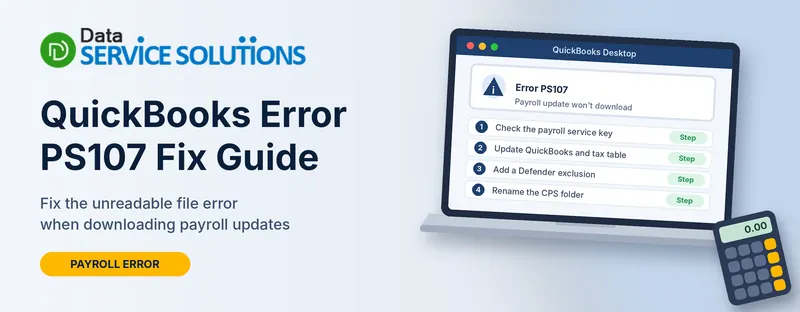
You open Get Payroll Updates, QuickBooks starts downloading, and then a message stops you. It says an internal file in QuickBooks has become unreadable, with the code PS107 next to it.
Payroll can’t wait, so that message is stressful. The good news is that PS107 is almost always an update problem, not a data problem. Your payroll history and company file are fine. This guide explains what the error means and walks through nine fixes in the order that clears it fastest.
What Is QuickBooks Error PS107?
PS107 is one of the PSXXX payroll update errors in QuickBooks Desktop. It appears when QuickBooks can’t download or read the payroll update, which is the file that carries your latest tax table. It applies to QuickBooks Desktop Payroll Basic, Enhanced and Assisted.
You may see a message like “An internal file in QuickBooks has become unreadable,” with PS107 in it. It can show up:
- When you choose Download Entire Update under Get Payroll Updates
- Right after a QuickBooks update or upgrade
- When you open a company file (some users report this, mostly after an update)
QuickBooks Online Payroll updates itself, so this error is for Desktop.
Why QuickBooks Payroll Error PS107 Happens
QuickBooks’ own help page lists three causes for this group of errors:
- Incorrect internet connection settings
- A firewall setting that blocks payroll updates
- A damaged file in the CPS folder
In practice we also see:
- A payroll service key that is missing, mistyped or inactive
- QuickBooks not registered or out of date
- Security software scanning or blocking the update files
- A damaged QuickBooks installation
Which Fix Should You Start With?
| What you notice | Likely cause | Start with |
|---|---|---|
| PS107 appears every time you download the payroll update | Service key, subscription or update | Check the Payroll Service Key, then Update QuickBooks and the Tax Table |
| It started right after a QuickBooks update | Out-of-date release or incomplete install | Update QuickBooks and the Tax Table, then Run Quick Fix my Program |
| Other computers on the network update fine | Local settings or security software | Check Date, Time and Internet Settings, then Add the Defender Exclusion |
| Update downloads stop near the start | Firewall or internet settings | Allow QuickBooks Through the Firewall |
| It appears when you open a company file | File or program problem | Test With the Sample File |
| Nothing above has worked | Damaged files or installation | Rename the CPS Folder, then Repair QuickBooks |
Before You Start
- Back up your company file. Go to File > Back Up Company > Create Local Backup. See how to back up a QuickBooks Desktop company file.
- Sign in to Windows as an administrator.
- Find your payroll service key. It’s in your payroll purchase or welcome email, or your account. You’ll need it for Fix 1.
- Keep your antivirus and firewall on. You’ll never need to switch them off for any fix here.
- Plan around payroll dates. Update before your next run, since an out-of-date tax table can calculate taxes wrongly.
Fix 1: Check the Payroll Service Key
This is QuickBooks’ first step, and it solves many PS errors.
- Close all company files and restart your computer.
- Open QuickBooks. Go to Employees > My Payroll Service > Manage Service Key.
- Check that the Service Name is correct and the Status says Active.
- Click Edit and make sure the service key number is right. Correct it if needed.
- Click Next, clear the Open Payroll Setup checkbox, then click Finish.
This downloads the entire payroll update. If the status isn’t Active, your payroll subscription needs attention before anything else will work. See QuickBooks payroll subscription inactive.
Fix 2: Update QuickBooks and the Payroll Tax Table
An unregistered or out-of-date copy of QuickBooks is a common trigger.
- Press F2 to open Product Information and check that your license number shows as Activated. If it doesn’t, register QuickBooks first.
- Update QuickBooks Desktop to the latest release. See how to update QuickBooks Desktop.
- Go to Employees > Get Payroll Updates.
- Check the number after You are using tax table version.
- Select Download Entire Update, then click Update.
Remember that regular tax table updates don’t include your SUI rate, so update that by hand. See the QuickBooks payroll tax table update guide.
Fix 3: Check Date, Time and Internet Settings
Incorrect internet connection settings are one of QuickBooks’ listed causes.
Date and time:
- Right-click the taskbar clock and choose Adjust date/time.
- Turn on automatic time and time zone, or set them by hand.
- Close and reopen QuickBooks and try again.
Internet settings:
- In QuickBooks, open Help > Internet Connection Setup.
- Choose Use my computer’s Internet connection settings and click Next.
- Click Advanced Connection Settings, open the Advanced tab, click Restore Advanced Settings, then OK and Done.
- Download the payroll update again.
If a web browser can’t open websites either, fix the connection first.
Fix 4: Add a Windows Defender Exclusion and Run Quick Fix my Program
- Close your company file and QuickBooks.
- Add QuickBooks as an exclusion in Windows Defender. The Tool Hub has an option for this under its program problems and installation sections. See how to download QuickBooks Tool Hub.
- In Tool Hub, select Program Problems, then Quick Fix my Program.
- Reopen QuickBooks, update to the latest release, then download the payroll update again.
QuickBooks’ page also mentions turning Defender off as an alternative. We don’t recommend it. An exclusion does the job without removing your protection. If you use another antivirus, add the same exclusion there.
Fix 5: Allow QuickBooks Through the Firewall
A firewall that blocks payroll updates is another listed cause.
- Make sure internet access on ports 80 and 443 is allowed.
- Allow the QuickBooks programs through your firewall and security software, including QBW32.exe, QBDBMgr.exe and QuickBooksMessaging.exe.
- For Windows Firewall, follow Windows Firewall blocking QuickBooks.
- Repeat for any other QuickBooks year you have installed.
QuickBooks doesn’t support specific firewall setups. If you’re on a business network, ask your IT person or firewall vendor to allow the update. Don’t open broad rules or turn the firewall off.
Fix 6: Rename the CPS Folder
A damaged file in the CPS folder is the third official cause. Renaming the folder is the safest way to test it, because you can undo it.
- Close QuickBooks. Open Task Manager (Ctrl + Shift + Esc) and end any CPS or QuickBooks processes still running.
- In File Explorer, go to C:\Program Files\Common Files\Intuit\QuickBooks\CPS.
- Right-click the CPS folder, choose Rename and add _OLD to the end.
- Restart the computer, open QuickBooks and download the payroll update again (Fix 2, step 3).
- If it didn’t help, close QuickBooks, delete any new CPS folder and rename CPS_OLD back to CPS.
Rename, don’t delete.
Fix 7: Test With the Sample File
If PS107 appears when you open a company file, find out whether it’s your file or QuickBooks.
- Open QuickBooks and select Open a sample file on the No Company Open window.
- If the sample opens with no error, the problem is with your file. Back it up and run File > Utilities > Verify Data. If it finds a problem, run Rebuild Data. See QuickBooks File Doctor.
- If the sample gives the same error, the problem is the QuickBooks program. Go on to Fix 8.
Fix 8: Run the Install Diagnostic Tool and Repair QuickBooks
Install Diagnostic Tool:
- Open Tool Hub and select Installation Issues.
- Click QuickBooks Install Diagnostic Tool. It can take up to 20 minutes.
- Restart the computer when it finishes. See the QuickBooks Install Diagnostic Tool.
Repair:
- Close QuickBooks. Press Windows + R, type appwiz.cpl and press Enter.
- Select QuickBooks, click Uninstall/Change, then Repair.
- Restart, update QuickBooks and download the payroll update again.
Back up your company file first.
Fix 9: Reinstall QuickBooks (Last Resort)
Reinstalling doesn’t touch your company data. It installs fresh, correctly registered files.
- Back up your company file and keep your license number, product number and payroll service key handy.
- Uninstall QuickBooks and follow our QuickBooks Clean Install Tool guide.
- Download the installer for your version, reinstall and activate.
- Update QuickBooks, confirm your service key under Manage Service Key, then download the payroll update.
After the Error Is Gone
- Check that your tax table version matches the latest release under Employees > Get Payroll Updates
- Update your SUI rate if your state changed it
- Run a test paycheck before your next real payroll
- Keep a fresh backup
What Not to Do
- Don’t turn off your antivirus, firewall or User Account Control
- Don’t delete the CPS folder without renaming it first
- Don’t run payroll with an out-of-date tax table
- Don’t edit the registry
- Don’t run random batch files or “repair tools” from the internet
- Don’t pay anyone who contacts you out of the blue to fix the error
How to Avoid PS107 Next Time
- Update QuickBooks and the tax table before each payroll
- Keep your payroll subscription active and your service key on file
- Keep Windows up to date and your clock correct
- Add QuickBooks to your security exceptions before big updates
- Back up before updating
- Don’t run an update while someone else is using QuickBooks
Other PSXXX Payroll Errors
PS107 is part of a family of update errors. If your code is different, try:
For paychecks stuck waiting to send, see QuickBooks paychecks stuck on Online to send. For a general payroll problem, read QuickBooks payroll update not working. If the download works but fails with a number that starts with 15, see QuickBooks error 15101.
When to Get Help
Get help if the error is still there after Fix 9, if you can’t run payroll because of it, or if you can’t change firewall or Windows settings. Write down the exact message, your QuickBooks year and release, your payroll service key status and which fixes you tried. The Data Service Solutions team can go through it with you. You can also learn more about our QuickBooks payroll support.
Frequently Asked Questions
What is QuickBooks error PS107?
It’s a payroll update error. QuickBooks can’t download or read the payroll update that carries your tax table.
Is my payroll data lost?
No. PS107 is about the update, not your company data. Still, back up before you try repairs.
What does “an internal file in QuickBooks has become unreadable” mean?
It’s the wording users report with PS107. QuickBooks lists internet settings, a blocked firewall and a damaged CPS folder file as the usual causes.
Does a wrong service key cause PS107?
It can. Check that the status is Active and the key number is correct under Manage Service Key.
Do I need to turn off my antivirus?
No. Add a Windows Defender exclusion (and one in your other antivirus) for QuickBooks.
Is it safe to rename the CPS folder?
Yes, if you rename it and don’t delete it. You can rename it back if it doesn’t help.
Why does PS107 appear when I open my company file?
Some users see it after an update. Test with the sample file to see whether it’s the file or the program.
Does this affect QuickBooks Online Payroll?
No. QuickBooks Online Payroll updates itself. PS107 is a Desktop error.
Is PS107 the same as PS033 or PS036?
They’re in the same family and QuickBooks gives them the same three steps. PS033 is about unreadable payroll setup files and PS036 about the subscription, so check the exact code.
Will updating the tax table change my SUI rate?
No. QuickBooks says SUI rates aren’t in regular updates. Update yours by hand.
Do I need to reinstall QuickBooks?
Only if the other fixes don’t work. Back up first and keep your license and service key.
When should I get help?
If payroll is blocked, the error returns after a reinstall, or you can’t change security settings.
Wrapping Up
PS107 almost always comes down to the payroll service key, an out-of-date QuickBooks, a blocked connection or a damaged CPS file. Work through the fixes in order, keep your security software on and back up first. If you’re still stuck before payroll day, the Data Service Solutions team can help.