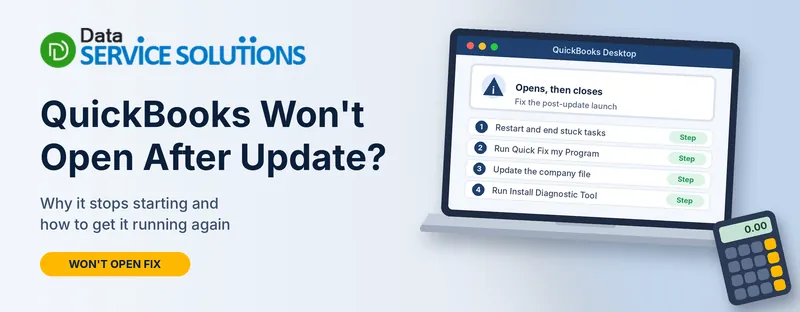
You installed an update, double-clicked QuickBooks, and nothing happened. Or the splash screen flashes and disappears. Or QuickBooks keeps asking you to restart. Or you get a message saying the company file has to be updated.
It’s frustrating, because QuickBooks worked fine yesterday. The good news is that your data is almost always fine. This guide covers both versions of the problem, a QuickBooks update that went wrong and a Windows update that upset QuickBooks, with eight fixes in an order that clears most cases fastest.
First, Which “Update” Are We Talking About?
There are three different updates that can stop QuickBooks from opening:
- A QuickBooks Desktop update or upgrade. The new files didn’t install fully, a restart is pending, or the company file needs updating.
- A Windows update. Something in Windows changed that QuickBooks relies on.
- A payroll or tax table update. This one rarely stops QuickBooks from opening, but a bad install can.
You don’t need to know for certain. The fixes below work for any of them, and the triage table tells you where to begin.
Why QuickBooks Won’t Open After an Update
- The update didn’t finish installing, or Windows is waiting for a restart
- A QuickBooks background process is still running from before the update
- Damaged installation files
- A damaged settings file (QBWUSER.ini)
- The company file needs updating to the new version, and you’re not signed in as an admin
- In multi-user setups, the server and workstations are on different versions
- A Windows update that conflicts with your version of QuickBooks (users have reported this on Windows 11)
- Security software scanning or blocking the new files
- An unsupported version, or a subscription message (“QuickBooks needs a subscription”)
Match What You See to the Right Fix
| What you see | Likely cause | Start with |
|---|---|---|
| Nothing happens when you click the icon | Stuck background process or unfinished install | Restart and End Stuck QuickBooks Tasks, then Run Quick Fix my Program |
| Splash screen shows, then disappears | Damaged settings or installation | Run Quick Fix my Program, then Rename the QBWUSER.ini File |
| Keeps asking you to restart after the update | Pending restart or unfinished install | Restart and End Stuck QuickBooks Tasks, then Run the Install Diagnostic Tool |
| QuickBooks opens, but the company file won’t | Company file needs updating, or file problem | Check Whether the File or the Program Is the Problem, then Update the Company File as an Admin |
| “This company file needs to be updated” message | Update not run by an admin | Update the Company File as an Admin |
| It stopped right after a Windows update | Windows and QuickBooks conflict | Check Which Windows Update Came First, then Repair QuickBooks |
| Works on the server, not on workstations (or the other way round) | Version mismatch | The Server and Multi-User section |
Before You Start
- Back up your company file. If QuickBooks opens, go to File > Back Up Company > Create Local Backup. If it doesn’t, copy the .QBW file from its folder to another location. See how to back up a QuickBooks Desktop company file.
- Be patient with the icon. Clicking it again and again can stop QuickBooks from opening. Give it a minute before you try again.
- Write down your details: your QuickBooks year and release, and your Windows version. You can see Windows details by typing winver into the Windows search box.
- Sign in to Windows as an administrator.
- Don’t uninstall Windows updates yet. Do that only after Fix 7, and read the caution there first.
Fix 1: Restart and End Stuck QuickBooks Tasks
- Press Ctrl + Shift + Esc to open Task Manager.
- Under Details (or Processes), find QBW32.exe and any other QuickBooks entries, select each one and click End task.
- Restart Windows. If it says updates are waiting to install, let them finish first.
- Open QuickBooks once and wait.
A pending restart or a stuck process left over from the update is one of the most common reasons it won’t start.
Fix 2: Run Quick Fix my Program
This is QuickBooks’ own first fix.
- Close QuickBooks. Download and open the Tool Hub. See how to download QuickBooks Tool Hub.
- Select Program Problems.
- Click Quick Fix my Program. It shuts down background processes QuickBooks uses and runs a quick repair.
- Open QuickBooks and your company file.
QuickBooks recommends Tool Hub on Windows 11, 64-bit.
Fix 3: Check Whether the File or the Program Is the Problem
This tells you where to look next.
Open the company file with ALT held:
- Open QuickBooks. On the No Company Open window, select your company file.
- Hold ALT, click Open, and keep holding ALT until the file opens.
- If it asks for a password, release ALT, enter it, then hold ALT again and click OK.
Open QuickBooks with Ctrl held:
- Hold Ctrl and double-click the QuickBooks icon.
- Keep holding until the No Company Open window appears, QuickBooks freezes or an error shows. Then pick your file and click Open.
Try opening the sample company file too. If the sample opens and your file doesn’t, the problem is the file. If nothing opens, the program is the problem, and you should go to Fix 5. For file-specific problems, see QuickBooks company file not found and QuickBooks File Doctor.
Fix 4: Update the Company File as an Admin
After a new version installs, QuickBooks has to update each company file the first time you open it. If you’re not an admin, it may refuse, or tell you to “ask your QuickBooks Administrator to update the file.”
- Close QuickBooks. Right-click the QuickBooks icon and choose Run as administrator.
- Sign in to QuickBooks as the admin user.
- Go to File > Open or Restore Company, choose Open a company file, click Next, and select your file.
- When you see the Update Company File for New Version pane, confirm you understand and click Update Now.
- Follow the backup prompt and note where QuickBooks saves the backup.
- Let the update finish. Don’t close QuickBooks.
Updating the file is a one-way step, so QuickBooks will ask for a backup before it starts. Keep that backup.
Fix 5: Run the Install Diagnostic Tool
- Open the Tool Hub and select Installation Issues.
- Click QuickBooks Install Diagnostic Tool. It can take up to 20 minutes.
- When it finishes, restart the computer.
- Open QuickBooks.
See our guide on the QuickBooks Install Diagnostic Tool for more.
Fix 6: Rename the QBWUSER.ini File
QuickBooks stores your settings and your list of recently opened files in QBWUSER.ini. A damaged copy can make QuickBooks flash and close.
- Close QuickBooks. In File Explorer, turn on hidden files.
- Open C:\Users[your name]\AppData\Local\Intuit\QuickBooks [year].
- Right-click QBWUSER.ini, choose Rename, and add .old to the end.
- Open QuickBooks.
Renaming erases your list of recently opened companies, so you’ll open your file from the start screen again. That’s the only side effect. Don’t rename the licensing files unless QuickBooks support asks you to.
If you use Windows 10 Pro or higher and the splash screen still vanishes: QuickBooks also lists a security setting called System Cryptography FIPS. If your company doesn’t require it, it should be disabled. This one is a Windows policy, so ask your IT person before you change it.
Fix 7: Check Which Windows Update Came First
If QuickBooks stopped right after a Windows update, find out which one.
- Open Settings > Windows Update > Update history and note the updates and dates (the KB numbers).
- Compare the date QuickBooks stopped with the install dates.
- Run Windows Update again. A later patch may already fix it.
- Check your QuickBooks version and Tool Hub are up to date. See how to update QuickBooks Desktop.
A caution about uninstalling Windows updates. Some people report fixing the problem by uninstalling the latest Windows update and repairing QuickBooks, and one user reported that rolling back to an earlier Windows 11 version let them open their file. But Microsoft’s own moderators advised collecting details first, and an uninstall leaves you without that update’s security fixes. If you do it, try Fixes 1 to 6 and Fix 8 first, do it with your IT person, and pause further updates for a short time instead of turning them off for good.
Fix 8: Repair QuickBooks, Then Reinstall if Needed
Repair:
- Close QuickBooks.
- Press Windows + R, type appwiz.cpl and press Enter.
- Select QuickBooks, click Uninstall/Change, then Repair, and follow the prompts.
- Restart and open QuickBooks.
Clean install (last resort):
- Back up your company file and keep your license and product number handy.
- Uninstall QuickBooks and use the clean install steps in our QuickBooks Clean Install Tool guide.
- Download the latest installer for your product (see how to download QuickBooks Desktop), reinstall and activate.
QuickBooks stopped selling Desktop to new U.S. subscribers after September 30, 2024, while existing subscribers can keep renewing, so use the installer for the product and version you already have.
If You Use a Server or Multi-User Setup
- Install the same update everywhere. The server (the computer that hosts your company file) and every workstation should be on the same QuickBooks release.
- Update the server first. Then update the Database Server Manager on it, and then the workstations. See our QuickBooks Database Server Manager guide.
- Update the company file once, as an admin, on the computer that hosts it.
- Check hosting. Only the server should host multi-user access.
If workstations can’t reach the server after the update, see QuickBooks not connecting to server.
Check Security Software
Antivirus or firewall software can block or slow new QuickBooks files after an update. Add QuickBooks as an exception, don’t switch your protection off. See Windows Firewall blocking QuickBooks.
What Not to Do
- Don’t click the icon again and again
- Don’t uninstall Windows updates before you’ve tried the safer fixes
- Don’t block QuickBooks from the internet with a firewall rule. Some guides suggest it, but it can cause more problems
- Don’t edit the registry or delete system files
- Don’t turn off your antivirus or firewall for good
- Don’t rename licensing files unless QuickBooks support asks
After QuickBooks Opens
- Check your version: press F2 or Ctrl + 1 to see the release you’re on.
- Download the latest payroll tax table if you use payroll. See QuickBooks payroll tax table update.
- Run File > Utilities > Verify Data to check your file.
- Reopen your file from the start screen if you renamed QBWUSER.ini.
How to Avoid This Next Time
- Back up your company file before every update
- Restart your computer before and after installing an update
- Update the server first, then the workstations
- Install updates after hours, with QuickBooks closed
- Keep Tool Hub installed
- Add QuickBooks to your security exceptions before you update
- Read your QuickBooks release notes before you update large files
When to Get Help
Get help if QuickBooks still won’t open after Fix 8, if you see an error message you don’t recognize, or if you rely on QuickBooks for payroll and can’t wait. Write down the exact message, your QuickBooks year and release, your Windows version and the update history. Our team at Data Service Solutions can go through it with you.
If QuickBooks opens but then crashes, see QuickBooks has stopped working, QuickBooks crashing when opening and QuickBooks not loading. For a general guide to the problem, read QuickBooks won’t open.
Frequently Asked Questions
Why won’t QuickBooks open after an update?
Usually because the update didn’t finish, a background process is stuck, the install files are damaged, or a company file needs updating. A Windows update can also conflict with QuickBooks.
Is my company data lost?
Almost certainly not. The problem is with the program, not your data. Back up the .QBW file before you try fixes.
Why does QuickBooks keep asking me to restart?
A pending restart or an unfinished install can cause this. Close QuickBooks, end any stuck tasks, restart, then run Quick Fix my Program.
Why does it say the company file needs to be updated?
After a new version installs, each file must be updated by an admin. Run QuickBooks as administrator and follow the Update Company File prompt.
Will updating the company file change my data?
It upgrades the file to the new version. QuickBooks asks you to back up first, so keep that backup.
Should I uninstall the latest Windows update?
Not first. Try the safer fixes, and do it with your IT person. It removes the update’s security fixes.
Is it safe to rename QBWUSER.ini?
Yes, if you rename it and don’t delete it. QuickBooks makes a new one, and you lose only your recent-files list.
Why does QuickBooks work on the server but not on workstations?
They’re probably on different releases. Install the same update everywhere, server first.
Does this happen on Windows 11?
Users have reported it after Windows 11 updates. Check the update history, run Windows Update again and try the fixes above.
What does Quick Fix my Program do?
It shuts down background processes QuickBooks uses and runs a quick repair.
Do I need to reinstall QuickBooks?
Only if repair doesn’t work. Back up first and keep your license details.
When should I get professional help?
If QuickBooks still won’t open after the repair and the Install Diagnostic Tool, or you can’t change security or Windows settings.
Wrapping Up
QuickBooks that won’t open after an update is almost always a stuck process, an unfinished install or a company file waiting for an admin. Restart, run Quick Fix, update the file as an admin, then repair, and treat uninstalling Windows updates as a last step. If you get stuck, the Data Service Solutions team can help.