Payday shouldn’t hinge on whether a tax table finishes downloading. But that’s exactly the spot a lot of QuickBooks Desktop users find themselves in — you open Employees > Get Payroll Updates, the progress bar stalls or throws an error, and suddenly you’re not sure if paychecks will go out on time.
The good news: a payroll update failure is almost never a sign of lost data or a broken company file. It’s usually one specific thing — a stuck paycheck, an expired billing detail, a blocked port, or a corrupted download folder — getting in the way. This guide walks through why it happens, how to tell which cause you’re dealing with, and nine fixes ranked roughly from “takes two minutes” to “needs a bit more digging.”
(Note: this guide covers QuickBooks Desktop payroll. If you’re on QuickBooks Online and the update issue looks different — no CPS folder, no Tool Hub — that’s a separate troubleshooting path worth checking instead.)
Why Your QuickBooks Payroll Update Isn’t Working?
Before jumping into fixes, it helps to know what’s actually going on behind the scenes. QuickBooks stores payroll tax tables in a local folder and validates your subscription every time it tries to refresh them. An update fails when any part of that chain breaks:
- A damaged CPS folder. This is where QuickBooks keeps downloaded tax table files. If a file in it gets corrupted — often from an interrupted download — every future update fails at the same point.
- A subscription or service key problem. An expired card on file, a billing mismatch, or a service key that’s gotten out of sync with Intuit’s records will stop the update before it starts.
- Paychecks stuck in “Online to Send.” If a paycheck from a previous payroll run never fully transmitted, QuickBooks won’t download new tax tables until that transaction clears.
- Firewall or antivirus interference. QuickBooks needs an open line to Intuit’s servers over ports 80 and 443. Strict firewall rules or an overzealous antivirus scanner can quietly block that traffic.
- Outdated Internet Explorer/Edge security settings. QuickBooks routes some update traffic through Internet Explorer’s settings even if you never open the browser. Outdated TLS settings here are a common, often-overlooked culprit.
- An outdated QuickBooks Desktop build. Old versions sometimes can’t process new tax table formats at all.
- A wrong system clock. SSL certificate checks fail if your system date or time is off, even by a few minutes.
The Payroll Error Codes You’ll Likely See
| Error Code | What It Usually Means |
|---|---|
| PS038 | Paychecks stuck in “Online to Send” status are blocking the download |
| PS033 | A file inside the CPS folder is damaged |
| PS036 | Payroll subscription or service key is invalid |
| PS077 | Billing information is outdated or the software is unregistered |
| 15240 | Firewall, browser security settings, or publisher-check failure |
| 15270 | Download interrupted by a network drop or closed connection |
| 15102 | The download path QuickBooks is pointed at no longer exists |
| 12009 | Internet Explorer isn’t set as default, or TLS settings are misconfigured |
Before You Troubleshoot Anything
A few five-minute checks first will save you from repair tools you don’t actually need:
- Back up your company file. File > Backup Company > Create Local Backup. Cheap insurance before touching anything.
- Switch to Single-User Mode. Other users saving work mid-update can lock the file QuickBooks needs to write tax tables into.
- Confirm you’re logged in as a Windows administrator. Several fixes below touch system folders and firewall rules that need admin rights.
- Test your actual internet connection. Open a browser and load any site. If that’s slow or failing, no QuickBooks fix will help until your connection is stable.
- Check the date and time on your system clock. A few minutes off is enough to break the SSL handshake with Intuit’s servers.
- Note the exact error code, if one appeared. It’ll save you time — you can often skip straight to the fix that matches it instead of working through the list in order.
9 Fixes for QuickBooks Payroll Update Not Working
1. Update QuickBooks Desktop Itself
Payroll tax tables are only compatible with certain QuickBooks builds. If your software is behind, start here.
- Close all company files, then right-click the QuickBooks icon and choose Run as Administrator.
- From the No Company Open screen, go to Help > Update QuickBooks Desktop.
- Open the Update Now tab, check Reset Update (this clears any partial downloads sitting in the background), and click Get Updates.
- Once it says Update Complete, restart QuickBooks and accept the install prompt if one appears.
2. Confirm Your Payroll Subscription and Service Key
This is the fix most guides skip, and it’s often the actual cause behind PS036 and PS077. Even an active-looking subscription can have a service key that’s fallen out of sync.
- Go to Employees > My Payroll Service > Manage Service Key.
- Check that the status reads Active. If it shows anything else, select Edit, re-enter your existing service key exactly as issued, and click Next.
- While you’re there, go to Company > My Company and confirm your EIN matches what’s on file with your payroll account — a mismatch here silently blocks tax table validation.
- If your billing card recently expired or changed, update it under Account/Billing Information before trying the update again.
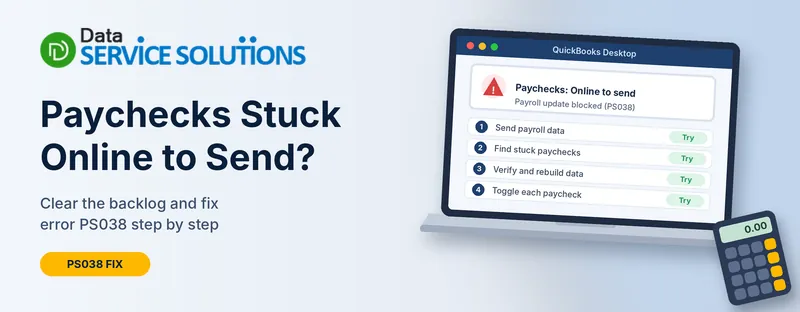
3. Clear Stuck Paychecks (Fixes Error PS038)
If a paycheck from an earlier session never finished sending, QuickBooks treats it as unfinished business and won’t move on to new tax tables.
- Open the Find tool, go to the Advanced tab, set Filter to Detail Level: Summary Only, then filter Online Status by Online to Send. Click Find and note what comes up.
- Go to Employees > Send Payroll Data, click Send All, and enter your Payroll Service PIN.
- If a paycheck still won’t clear, open the oldest one from your Find results, add a duplicate earnings row matching the last line item, save, then immediately reopen it, delete that same row, and save again. This forces QuickBooks to re-flag the transaction correctly.
- Run Get Payroll Updates once more.
4. Rename the CPS Folder
If a file inside your CPS folder is corrupted, QuickBooks will hit the same wall every time. Renaming the folder forces it to rebuild a clean one.
- Close QuickBooks, then go to C:\Program Files\Common Files\Intuit\QuickBooks\CPS in File Explorer (the exact path varies slightly by version).
- Rename the folder CPS_OLD.
- Reopen QuickBooks as administrator, go to Employees > Get Payroll Updates, and select Download Entire Update.
5. Run the QuickBooks Tool Hub
Intuit’s Tool Hub bundles several repair utilities that fix the kind of background component issues no manual setting can touch.
- Install the latest Tool Hub from Intuit’s official site (uninstall any old version first).
- Open Program Problems > Quick Fix My Program and let it run — this alone resolves a surprising number of update failures.
- If that doesn’t fix it, go to Installation Issues > QuickBooks Install Diagnostic Tool and let the full scan complete, then restart your computer before trying the update again.
6. Check Your Internet Explorer/Edge and TLS Settings
Here’s the one that trips people up: QuickBooks Desktop still routes certain update checks through Internet Explorer’s connection settings, even on systems where nobody’s opened IE in years.
- Open Internet Options (search for it in the Start menu) and go to the Advanced tab.
- Under Security, uncheck Check for publisher’s certificate revocation and Check for server certificate revocation.
- Still on the Advanced tab, scroll to the TLS settings and make sure Use TLS 1.2 is checked. Older TLS versions are no longer accepted by Intuit’s update servers.
- Click OK, restart your computer, and try the payroll update again.
7. Re-Verify the Digital Signature and Open Firewall Ports
If Windows can’t confirm QuickBooks’ publisher certificate, or your firewall is quietly dropping the connection, updates will fail without a clear error explaining why.
- Go to C:\Program Files (x86)\Intuit\QuickBooks [Year], right-click QBW32.exe, and open Properties > Digital Signatures.
- Select Intuit, Inc., click Details > View Certificate > Install Certificate, and install it to the Local Machine store.
- Separately, open Windows Defender Firewall > Advanced Settings, create a new Inbound Rule for TCP ports 80 and 443, set it to Allow, and name it something you’ll recognize. Repeat the same rule under Outbound Rules.
8. Do a Clean Boot to Rule Out Background Software
If none of the above fixes stick, something else running on your machine — often a third-party antivirus or a leftover background process — may be interfering with the download in a way that’s hard to pin down directly.
- Press Windows + R, type msconfig, and open System Configuration.
- On the General tab, choose Selective Startup and uncheck Load Startup Items.
- On the Services tab, check Hide all Microsoft services, then click Disable all.
- Restart your computer and try the payroll update in this clean environment. If it succeeds, you’ve confirmed a background app was the problem, and you can re-enable services one at a time to find which one.
9. Run Verify and Rebuild Data
If the update still won’t complete after everything above, there may be minor damage in the company file itself getting in the way.
- Go to File > Utilities > Verify Data. If QuickBooks reports a problem, run File > Utilities > Rebuild Data immediately after.
- Once it finishes, attempt the payroll update again. This step resolves update failures tied to file-level inconsistencies that the other fixes don’t touch.
Seeing a “Payroll Not Updated in X Days” Warning?
If QuickBooks is popping up a message saying payroll hasn’t updated in 30, 45, or even 60-plus days and some features are now disabled, that’s a separate (and more urgent) signal than a one-off failed download. It usually means one of the earlier updates silently failed without you noticing, and Intuit is now restricting features until it can confirm your subscription is current.
Start with Fix #2 above — verifying your service key and billing details — since a lapsed or unvalidated subscription is the most common cause. If your subscription genuinely looks active but the warning persists, it’s worth confirming your license status directly through Intuit’s account management portal before assuming it’s a local software issue.
Preventing Payroll Update Issues From Happening Again
A little routine maintenance goes a long way here:
- Download tax table updates at least every 45 days, even during slow payroll weeks — waiting until you’re mid-payroll to discover a failed update is how deadlines get missed.
- Send usage data after every payroll run (Employees > My Payroll Service > Send Usage Data) so paychecks never sit in “Online to Send” long enough to cause problems.
- Keep QBW32.exe and QBUpdate.exe whitelisted in your antivirus software’s exceptions list.
- Update billing details the moment a card changes, rather than waiting for a failed renewal to catch it.
- Run updates in Single-User Mode with other users logged out, every time.
Frequently Asked Questions
Why is my QuickBooks Payroll update not working today?
The most common culprits are a lapsed payroll subscription, an incorrect system date or time, a temporary Intuit server issue, or antivirus software quarantining the download mid-process.
What’s the fastest way to fix a QuickBooks payroll update error?
Restart your computer, open QuickBooks as administrator, and run Help > Update QuickBooks Desktop with Reset Update checked under the Update Now tab. This alone clears a large share of stalled downloads.
Why does QuickBooks say “Payroll Update Failed”?
Usually a damaged file in the CPS folder, a paycheck stuck in “Online to Send,” a blocked firewall port, or an inactive payroll subscription — check the specific error code for the exact cause.
Can I update QuickBooks Payroll without losing data?
Yes. Payroll updates only affect tax tables, not your company file or transaction history. Still, back up your company file first as standard practice before running any repair tool.
What if payroll stops working right after a Windows update?
Major Windows updates can reset firewall permissions or corrupt the .NET Framework and digital certificates QuickBooks relies on. Run Quick Fix My Program from the Tool Hub first, then reinstall the Intuit digital certificate if the issue continues.
Does my TLS or Internet Explorer configuration really matter if I don’t use IE?
Yes — QuickBooks Desktop uses IE’s underlying connection settings for parts of the update process regardless of your default browser. Outdated TLS settings here are a frequently missed cause of failed updates.
Is there a difference between a QuickBooks update and a payroll update?
Yes. QuickBooks updates patch the core accounting software itself — bug fixes, security patches, performance improvements. Payroll updates specifically refresh federal, state, and local tax tables and e-file forms.