It’s year-end, or tax season, and your accountant asks for your books. You don’t want to stop work while they clean things up, and you don’t want to send a file that gets out of sync with yours. That’s what the QuickBooks Accountant’s Copy is for.
It lets you keep working in your company file while your accountant reviews a copy of it. When they’re done, they send back a small file with their changes, and you bring those changes into your books. This guide covers the whole flow for the business owner and for the accountant, plus the rules, the errors, and how to cancel a copy you no longer need.
The steps apply to QuickBooks Desktop for Windows.
What Is an Accountant’s Copy in QuickBooks?
An Accountant’s Copy is a special version of your company file that your accountant can work on at the same time as you. It protects the older period your accountant is reviewing, so the two of you don’t change the same data.
You’ll see four file types along the way:
| File type | What it is | Who uses it |
|---|---|---|
| .QBW | Your regular company file | You (the client) |
| .QBX | The Accountant’s Copy transfer file you send | Created by you, opened by your accountant |
| .QBA | The working file your accountant edits | Your accountant |
| .QBY | The accountant’s changes, sent back | Created by your accountant, imported by you |
Who Needs What
- Client: a regular QuickBooks Desktop company file. If you use Enterprise with Advanced Inventory, you turn that off before creating the copy.
- Accountant: QuickBooks Desktop Accountant Edition (Premier Accountant or Enterprise Accountant), on the same version your client used to create the file.
What Is the Dividing Date?
The dividing date splits your books into two parts.
- On or before the date: the period your accountant works on. QuickBooks stops you from editing this part while the copy is out.
- After the date: the current period, where you keep working as normal.
Most people pick the last day of the period the accountant is reviewing, such as the end of the year or quarter. Ask your accountant which date they want before you create the copy, because it controls what each of you can do.
What You Can and Can’t Do While the Copy Is Out
| Allowed | Not allowed | |
|---|---|---|
| You (client) | Add list entries, create, edit and delete transactions after the dividing date, edit list information, turn on Payroll | Edit or delete existing accounts, send assisted payroll data or direct deposits |
| Accountant | Add, edit and delete most transactions on or before the dividing date, make adjusting entries, add accounts and list entries, work with payroll tax forms | Create, edit or void paychecks, add or edit payroll items, delete or merge existing accounts, edit or void received payments, transfer funds between accounts |
While changes are pending, your company file shows Accountant’s Changes Pending next to its name. QuickBooks also keeps some activities blocked so your work and your accountant’s don’t conflict.
If you reconcile an account while the copy is out, ask your accountant first. A reconciliation can be rolled back when changes come back, and a reconciliation in an Accountant’s Copy is limited to 800 transactions.
Before You Create the Copy
- Back up your company file. See how to back up a QuickBooks Desktop company file.
- Update QuickBooks Desktop. See how to update QuickBooks Desktop.
- Agree the dividing date and how the file will travel (USB, email, cloud, or the transfer service).
- Match versions. Your accountant needs the same version and year you use.
- Free up disk space. A copy fails when the drive is too full.
- Enterprise with Advanced Inventory: turn those features off first. You can turn them back on after you send, but you need to turn them off again before you import the changes.
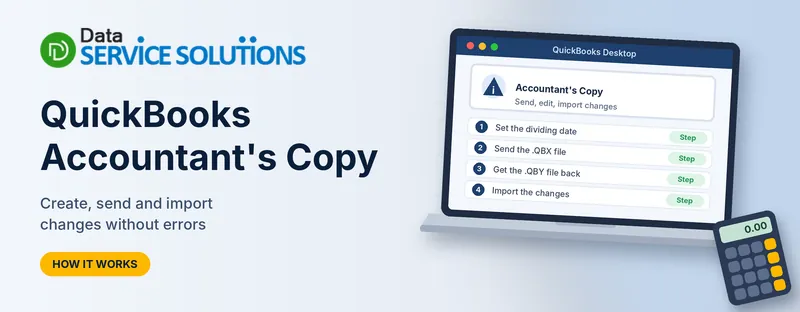
Step 1: Create the Accountant’s Copy
You have two ways to send it.
Option A: Save the file yourself
- Go to File > Send Company File > Accountant’s Copy, then choose Client Activities.
- Select Save File, then Next.
- Select Accountant’s Copy, then Next.
- Enter the dividing date, then click Next.
- Choose where to save. The file ends in .QBX.
- Send it to your accountant by USB, email or a cloud service.
Option B: Use the Accountant’s Copy File Transfer Service
- Go to File > Send Company File > Accountant’s Copy, then choose Client Activities.
- Select Send to Accountant, then Next.
- Select Accountant’s Copy, then Next.
- Enter the dividing date, then click Next.
- Enter your email and your accountant’s email.
- Create a file password. Give it to your accountant separately, because it isn’t included in the email.
- Click Send.
After you send, QuickBooks closes all your open windows. Your accountant gets an email with a download link that works for two weeks, then a second email with a one-time password.
Step 2: Your Accountant Opens and Edits the Copy
For the accountant:
- Switch to Accountant Edition. Go to File > Toggle to Another Edition, choose Accountant Edition, then click Next and Toggle.
- Go to File > Open and Restore Company and choose Convert an Accountant’s Copy Transfer File, then click Next.
- Read the overview and the Can and Can’t Dos screens.
- Open the .QBX file, confirm, then rename and save it as a .QBA working file.
- Use Accountant Tools to make corrections. These cover opening balances, batch voids or deletes, writing off groups of invoices, transactions posted to the wrong accounts or classes, and sales tax or inventory fixes.
The fields QuickBooks highlights are the ones sent back to the client. Changes to other fields stay in the accountant’s file only.
Don’t back up and restore a .QBA over the client’s file. QuickBooks warns about this too, because a .QBA is a working copy, not a replacement company file.
Step 3: The Accountant Sends the Changes Back
When the review is done, the accountant exports the work as an accountant’s changes file, which ends in .QBY. Depending on your QuickBooks version, the menu reads Send to Client or Export Accountant’s Changes under Client Activities. They send the .QBY by email, USB or the transfer service.
Step 4: Import the Accountant’s Changes Into Your File
For the client:
- Back up your company file if you haven’t already. (Enterprise with Advanced Inventory: turn it off first.)
- Go to File > Send Company File > Accountant’s Copy > Client Activities.
- Choose one:
- Import Accountant Changes from File, then browse to the .QBY file.
- Import Accountant’s Changes from Web, if your accountant used the transfer service.
- Click Incorporate Accountant’s Changes.
- Click OK to close open windows, then OK and Close when asked. QuickBooks makes another backup of your file.
- If you use a closing date and password, update them if you want to lock the finished period.
- Open the folder with your company file. QuickBooks saves a PDF listing every change that was imported.
Read the PDF and check the changes against your recent work. If something looks wrong, talk to your accountant before you carry on.
How to Cancel or Remove the Accountant’s Copy
You may need this if your accountant wants a fresh copy, or the copy is no longer needed.
- Back up your company file.
- Go to File > Send Company File > Accountant’s Copy > Client Activities.
- Click Remove Restrictions.
- Confirm and click OK.
Think before you do this. Removing the restriction voids the Accountant’s Copy, can’t be undone, and means your accountant’s changes won’t import. If you still need those changes, you’ll have to send a new copy or enter them by hand. Talk to your accountant first.
For Accountants: Convert a Copy to a Regular Company File
If a client has asked you to carry on in their file, or you’re working from the copy, you can turn it into a normal company file. This requires Premier Accountant or Enterprise Accountant.
- Open the .QBX or .QBA and make a backup.
- Go to File > Send Company File > Accountant’s Copy.
- Choose Convert Accountant’s Copy to Company File/QBW, then OK.
- Pick a folder, rename the file, and click Save.
You’ll need to re-enter any changes made to the client’s original file after the copy was created, and you can’t import a .QBY after converting.
Common Accountant’s Copy Errors and Fixes
| What you see | Likely cause | What to try |
|---|---|---|
| Red X or “Failed” when creating or converting | Installation or file problem | Copy the file to the desktop, create a portable company file, or fix data damage |
| “Not able to create Accountant’s Copy” | Not enough free space | Free space or save to a bigger drive |
| “Specified database is invalid” or “Invalid database server command line” | Folder permissions, or file restored over a network | Copy the file to the local drive and check the folder’s permissions |
| A “6xxx” error converting a transfer file | File location or special characters in the name | Copy the file locally and remove special characters from the file name |
| “Importing data from a different Accountant’s Copy” | The .QBY doesn’t match the last copy created | Check the file shows Accountant’s Changes Pending, or ask for a fresh .QBY |
| Import option is grayed out or the import freezes | Wrong file, wrong version, or the file is on a USB or server | Copy the .QBY to your local drive, or have it sent another way |
| Backup fails during the import | Data damage | Temporarily set backup verification to none, then check the file after |
| “Accountant’s Copy exists” when upgrading QuickBooks | Pending changes | Remove the restriction only if the copy was a mistake |
For a file location or permission error, our guides on QuickBooks Error 6000 and company file not found may help. QuickBooks File Doctor can also check the file for damage.
When the Import Looks Wrong
After a successful import, some things can look different from what your accountant did:
- Terms and due dates change on bills or invoices. Terms and due dates aren’t sent back, so the vendor’s or customer’s default terms apply. Open the name in the Vendor or Customer Center, go to Payment Settings, and set the right terms.
- Loan Manager entries are missing. Loans created during the copy period aren’t carried over. Enter them again.
- Reconciled transactions are missing. Reconciliations over 800 transactions don’t import. Ask your accountant to resend, or reduce the transaction count.
If numbers still look off after an import, our guides on beginning balances that are incorrect and missing invoices can help you trace them.
Best Practices
- Talk to your accountant before you start, and agree the dividing date.
- Back up before you create the copy and before you import the changes.
- Keep working only after the dividing date while the copy is out.
- Don’t upgrade QuickBooks while changes are pending.
- Don’t remove the restriction without talking to your accountant.
- Share the file password separately from the file.
- Keep the PDF of imported changes with your records.
- If the file grows large, consider our guide on the QuickBooks Condense Data utility.
When to Get Help
Get help if an import keeps failing, your accountant’s numbers don’t match what you see after import, or you can’t tell whether a copy is still active. If you have payroll running, check the steps with your payroll support before you start, because payroll sending is limited while changes are pending. Our team at Data Service Solutions can go through it with you.
Frequently Asked Questions
What is an Accountant’s Copy in QuickBooks?
It’s a copy of your company file that your accountant works on while you keep using your own file. They send back their changes, and you import them.
Can I keep working while my accountant has the copy?
Yes. You can work in the period after the dividing date, but some things are restricted, such as editing existing accounts.
What is the dividing date?
It’s the date that separates the period your accountant works on from the period you keep using. QuickBooks stops you from editing the earlier period while the copy is out.
What are the .QBX, .QBA and .QBY files?
.QBX is the transfer file you send. .QBA is the working file your accountant edits. .QBY is the file of changes that comes back to you.
How do I send an Accountant’s Copy to my accountant?
Go to File > Send Company File > Accountant’s Copy > Client Activities, then either save the file yourself or send it through the transfer service.
How long does the download link last?
The link in the email from the transfer service is valid for two weeks.
Why can’t I send direct deposits while the copy is out?
QuickBooks blocks sending assisted payroll data and direct deposits while accountant’s changes are pending, so check with your accountant and payroll support before you create the copy.
How do I import my accountant’s changes?
Back up first, then go to File > Send Company File > Accountant’s Copy > Client Activities and import the .QBY from a file or from the web.
How do I remove the Accountant’s Copy restriction?
Back up, then go to Client Activities and click Remove Restrictions. It voids the copy and can’t be undone.
Can I upgrade QuickBooks while changes are pending?
It isn’t recommended. Upgrading the company file can break the import, because the working file can’t be upgraded to match.
Why did my terms and due dates change after the import?
They aren’t included in the changes sent back, so QuickBooks uses each vendor’s or customer’s default terms. Fix them in the Payment Settings tab.
Does it work in QuickBooks Online or on Mac?
The steps here are for QuickBooks Desktop for Windows. Online and Mac have different ways to share books with an accountant.
Wrapping Up
An Accountant’s Copy lets you and your accountant work on the same books without stepping on each other. Agree the dividing date, back up, send the .QBX, and import the .QBY when it comes back. If something goes wrong, the Data Service Solutions team can help.