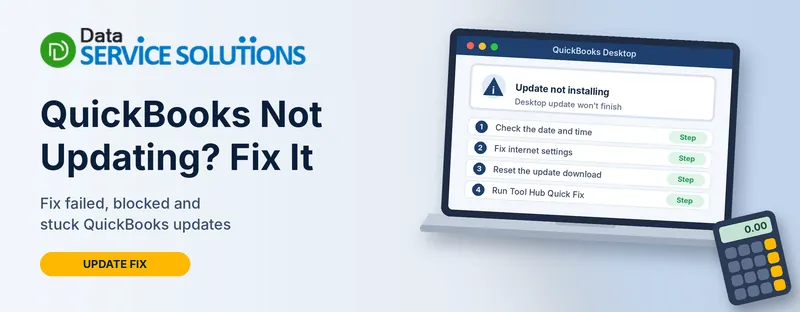
You click Update Now, wait, and QuickBooks either does nothing, throws an error, or says it can’t connect. A day later you try again and get the same result. Meanwhile the update you need, whether it’s a bug fix, a security patch or a payroll tax table, is sitting out of reach.
The frustrating part is that “QuickBooks not updating” is really about six different problems wearing the same coat. Some are as simple as a wrong clock. Others point to a blocked connection, a permissions issue or an old version that QuickBooks no longer supports. This guide helps you work out which one you have, then walks through ten fixes in a sensible order, with QuickBooks’ own steps and our notes on what to skip.
Quick Answer: What to Try First
If you only have five minutes, do this:
- Close QuickBooks, then right-click its icon and choose Run as administrator.
- Check that your computer’s date, time and time zone are correct.
- Go to Help > Update QuickBooks Desktop > Update Now, tick Reset Update and click Get Updates.
- Restart QuickBooks, click Yes to install, then restart your computer.
If that doesn’t work, don’t worry. The rest of this guide covers what’s behind the failures.
QuickBooks Not Updating: Which Problem Do You Have?
Your exact symptom tells you where to start. Here’s a map, including the guides we’ve written for specific cases.
| What you see | Likely cause | Go to |
|---|---|---|
| Update stops with error 12002, 12007, 12009, 12029 or 12031 | QuickBooks can’t connect to the internet | Fix 3, then our error 12007 guide |
| Error starting with 15 (15101, 15103, 15106 and so on) | Update or digital signature problem | Our error 15103 guide |
| Update freezes at a percentage or on “writing registry” | Stalled install | QuickBooks update stuck |
| “Looks like you don’t have the required permissions” | You’re not an admin in Windows | Run QuickBooks as a Windows Administrator |
| Product updates work but payroll fails | Payroll service or tax table problem | Payroll update not working |
| QuickBooks won’t open after the update | Install or company file problem | QuickBooks won’t open after update |
| Nothing new is offered, or features have stopped | Version no longer supported | Is Your Version Still Supported? |
| Mac says QuickBooks can’t be updated from its download location | App is in the wrong folder | QuickBooks for Mac |
| Works on one computer but not another | Local settings or a duplicate install | Check Date, Time and Time Zone, then Remove or Manually Update Duplicate Installations |
Why QuickBooks Desktop Isn’t Updating
QuickBooks lists four causes for update failures:
- A wrong system date or time. QuickBooks checks the clock when it talks to its update servers.
- Internet connection problems. This includes download accelerators, a weak connection and odd browser or internet settings.
- Security software or a firewall. The update can’t reach its servers because ports or program files are blocked.
- More than one installation of the same version year on the same computer.
We’d add these, which show up in community threads and our own support work:
- You aren’t a Windows administrator. A QuickBooks user posted that they were the only QuickBooks admin, but not an admin on their Windows account. That was the problem.
- A previous update left damaged files behind.
- Low disk space.
- An unsupported version. QuickBooks doesn’t update versions it has stopped supporting.
- Server and workstation mismatch in multi-user setups.
Is Your QuickBooks Version Still Supported?
This is the cause most guides skip. QuickBooks has a discontinuation policy for older Desktop versions, and a version that’s past its cutoff stops getting what you’d expect.
According to QuickBooks’ own page (updated 8/5/2026):
- QuickBooks Desktop 2023 products reached their service cutoff on May 31, 2026. That covers Pro Plus 2023, Premier Plus 2023, Enterprise Solutions 23.0, the Accountant editions and Mac Plus 2023.
- After the cutoff, live ends, and QuickBooks says discontinued versions won’t receive critical security updates.
- Services such as payroll tax calculation, payroll forms, credit card and check processing, online banking and emailing forms stop working on those versions.
- Older versions were discontinued even earlier.
- QuickBooks says existing Plus and Enterprise subscribers can get the 2024 version at no extra cost on their annual plan.
The page still uses some future-tense wording even after the date, so check the current status in your QuickBooks account or ask your reseller. To see which version you have, open QuickBooks and press F2 (Windows) or Command + 1 (Mac).
If you’re on a discontinued version, no fix in this guide will bring back what’s been stopped. Moving to a supported version is the real answer, and your data comes with you.
Before You Start
- Back up your company file. Go to File > Back Up Company > Create Local Backup. See how to back up a QuickBooks Desktop company file.
- Write down your version and release. Press F2 or Ctrl + 1.
- Sign in to Windows as an administrator.
- Keep antivirus and firewall on. None of the fixes below needs them off.
- Close the company file and make sure nobody else is using QuickBooks.
Fix 1: Restart and Run QuickBooks as a Windows Administrator
Updates write to system folders, so QuickBooks needs Windows admin rights. QuickBooks’ own staff pointed out that this means admin on your Windows account, not just the admin user inside QuickBooks.
- Close QuickBooks completely and restart your computer.
- Right-click the QuickBooks icon and choose Run as administrator.
- Go to Help > Update QuickBooks Desktop, then Update Now > Get Updates.
- If you see “Looks like you don’t have the required permissions,” ask your IT person or the PC’s administrator to give your Windows account admin rights, or have them run the update.
If QuickBooks is already open and slow to respond, end its tasks first. Press Ctrl + Shift + Esc, select QBW32.exe and any other QuickBooks entries and click End task. Do this only with the company file closed.
Fix 2: Check Date, Time and Time Zone
A wrong clock can break the secure connection QuickBooks needs.
- Right-click the clock on your taskbar and choose Adjust date/time.
- Turn on Set time automatically and Set time zone automatically, or set them by hand.
- Close and reopen QuickBooks, then update again.
If you change the time by hand, change it back to the correct time when you’re done. A wrong clock can affect other programs, too.
Fix 3: Test Your Internet and Reset Internet Connection Setup
- Open a browser and visit a secure site you know, such as your bank’s sign-in page. If it won’t open, the problem is your connection. Fix that first, or ask your provider.
- If you use a download accelerator, turn it off while updating. QuickBooks lists these as a cause.
- In QuickBooks, go to Help > Internet Connection Setup.
- Choose Use my computer’s Internet connection settings to establish a connection when this application accesses the Internet, then click Next.
- Click Advanced Connection Settings, open the Advanced tab, click Restore Advanced Settings, then OK and Done.
- Run the update again.
If you use a VPN or proxy for work, ask your IT person before changing anything. You may need it.
Fix 4: Reset the Update and Download Again
This is the standard manual update, and it fixes most half-finished downloads.
- Close your company file and QuickBooks. Then reopen QuickBooks by right-clicking it and choosing Run as administrator.
- On the No Company Open screen, go to Help > Update QuickBooks Desktop.
- Open the Options tab, click Mark All, then Save.
- Open the Update Now tab, tick Reset Update and click Get Updates.
- When the download finishes, close and reopen QuickBooks and click Yes to install.
- Restart your computer.
To get automatic updates in future, go to the Options tab and choose Yes next to Automatic Update. The menu is called Update QuickBooks Desktop in some versions and Update QuickBooks in others.
Fix 5: Run Quick Fix my Program
- Close QuickBooks. Download and install the QuickBooks Tool Hub. See how to download QuickBooks Tool Hub.
- Open Tool Hub and select Program Problems.
- Click Quick Fix my Program.
- Reopen QuickBooks and try the update again.
Fix 6: Allow QuickBooks Through Your Security Software
If your firewall or antivirus blocks the update’s ports or files, QuickBooks can’t connect. The answer is an exception, not switching protection off.
- Make sure internet traffic on ports 80 and 443 is allowed.
- Add these QuickBooks program files as exceptions in your firewall and antivirus: AutoBackupExe.exe, Dbmlsync.exe, DBManagerExe.exe, FileManagement.exe, FileMovementExe.exe, IntuitSyncManager.exe, QBCFMonitorService.exe, QBDBMgr.exe, QBDBMgrN.exe, QBGDSPlugin.exe, QBLaunch.exe, QBServerUtilityMgr.exe, QBW32.exe and QuickBooksMessaging.exe.
- If another program is already using the database port, QuickBooks falls back to port 56719. Allow that one too.
- For Windows Firewall, see Windows Firewall blocking QuickBooks.
QuickBooks says it can’t support specific firewall products, so if you’re on a business network, ask your IT person or firewall vendor. Don’t open broad rules or turn the firewall off.
Fix 7: Remove or Manually Update Duplicate Installations
QuickBooks says that having more than one installation of the same version year on one computer can break updates. For example, Enterprise 18.0 and Premier 2018 together.
- Open Control Panel > Programs and Features and look for duplicates.
- Update each copy manually using Fix 4, one at a time.
- If you don’t need the extra copy, uninstall it once your company file is backed up.
Fix 8: Install Windows Updates and Check Disk Space
These are general checks, not QuickBooks steps, but they clear a lot of stubborn cases.
- Open Settings > Windows Update and install pending updates. Restart.
- Check that your main drive has several gigabytes free. A nearly full drive can break installs.
- Try the QuickBooks update again.
Don’t delete files to make space unless you know what they are. Move photos or large files to another drive instead.
Fix 9: Download the Update Manually
If the in-app update keeps failing, download the release yourself.
- Close QuickBooks and open a browser.
- Go to QuickBooks’ Downloads & Updates page (search for “QuickBooks Desktop downloads and updates”).
- Choose your country, product and version and click Search.
- Select Get the latest updates and download the file.
- Close all QuickBooks windows, run the file as an administrator and follow the prompts.
- Restart, open QuickBooks and check F2 to confirm the new release.
Download only from QuickBooks’ own site. Don’t use links from emails or ads.
Fix 10: Repair QuickBooks, Run the Install Diagnostic Tool, Then Reinstall
Install Diagnostic Tool:
- Open Tool Hub and select Installation Issues.
- Click QuickBooks Install Diagnostic Tool. It can take up to 20 minutes.
- Restart your computer. See the QuickBooks Install Diagnostic Tool guide.
Repair:
- Press Windows + R, type appwiz.cpl and press Enter.
- Select QuickBooks, click Uninstall/Change and choose Repair.
- Restart and try the update again.
Reinstall as a last resort: Back up your company file, keep your license and product number handy and follow our QuickBooks Clean Install Tool guide.
If You Use a Server or Multi-User Setup
- Update the server first, then update the Database Server Manager on it, then the workstations. See our Database Server Manager guide.
- Keep every computer on the same release.
- Keep the company file in single-user mode while you update.
- After the update, open the company file once as an admin to let QuickBooks update it. See how to update a QuickBooks company file.
- If workstations can’t reach the server after the update, see QuickBooks not connecting to server.
- If you use hosted QuickBooks, the update is usually done by your host, so contact them.
QuickBooks for Mac Not Updating
A common Mac message is: “QuickBooks can’t be updated if it’s running from the location it was downloaded to.”
- Quit QuickBooks from the QuickBooks menu.
- Open Finder > Applications and check that QuickBooks Desktop for Mac is there. If it’s still in Downloads or elsewhere, drag it into Applications.
- Open QuickBooks from Applications and choose QuickBooks > Check for QuickBooks Updates > Install and Relaunch.
- If it still fails, back up your company file, then do a clean uninstall and reinstall, and run Verify and Rebuild Data.
What About QuickBooks Online?
QuickBooks Online updates itself, so there’s nothing to download. If you mean the bank feed isn’t updating, go to Banking, find the account and click Update. If it asks for multi-factor authentication, enter the code within about two minutes. If you can’t sign in at all, see QuickBooks login not working.
What About Payroll Updates?
Payroll updates use the same connection but have their own checks, such as your service key and tax table. If product updates work and payroll fails, see QuickBooks payroll update not working, QuickBooks payroll tax table update and error PS107.
What Not to Do
- Don’t turn off your antivirus or firewall
- Don’t rename or delete update files or services you can’t identify
- Don’t edit the registry
- Don’t end tasks while a company file is open and saving
- Don’t download updates from sites other than QuickBooks’
- Don’t uninstall QuickBooks without a backup
- Don’t pay anyone who calls you out of the blue to “fix” updates
How to Check That the Update Worked
- Press F2 and confirm the release number has changed
- Open your company file and let QuickBooks update it if asked
- Open a report and a transaction to be sure everything loads
- If you use payroll, check Employees > Get Payroll Updates and run a test paycheck
- Take a fresh backup
How to Prevent Update Problems
- Back up before each update
- Keep the date and time automatic
- Keep Windows updated, and restart before big updates
- Add QuickBooks to your security exceptions
- Update the server first in multi-user setups
- Keep one QuickBooks installation per version year
- Move to a supported version before QuickBooks ends support
- Keep the Tool Hub installed
When to Get Help
Get help if the update still fails after Fix 10, if your version is discontinued and you need to move, or if you can’t change security or Windows settings. Write down the exact message, your version and release, your Windows version and what you tried. The Data Service Solutions team can go through it with you.
For a how-to guide to updating when nothing is wrong, see how to update QuickBooks Desktop.
Frequently Asked Questions
Why is QuickBooks not updating?
The usual causes are a wrong date or time, internet or security software blocking the update, no Windows admin rights, duplicate installations or a version that’s no longer supported.
How do I force QuickBooks to update?
Run QuickBooks as administrator, go to Help > Update QuickBooks Desktop > Update Now, tick Reset Update and click Get Updates. Then restart and install.
Why does it say I don’t have the required permissions?
You may not be an administrator on your Windows account. QuickBooks staff confirmed in a community thread that this was the cause for one user. Run QuickBooks as administrator or ask your IT person.
Do I need to turn off antivirus to update?
No. Add QuickBooks’ ports and program files as exceptions and leave your protection on.
Does QuickBooks update automatically?
Only if automatic updates are switched on in the Options tab of the update window.
Why does the update work on one computer and not another?
That computer may have a wrong clock, different security settings, a duplicate installation or no admin rights.
Can I update QuickBooks manually?
Yes. Download the release from QuickBooks’ Downloads & Updates page, then run it as an administrator.
My version is 2023. Can I still update it?
QuickBooks says 2023 products passed their service cutoff on May 31, 2026 and won’t get critical security updates. Check your status and consider moving to a supported version.
Will updating delete my data?
No, but back up first. After a new release, QuickBooks may ask to update your company file too.
Why won’t QuickBooks for Mac update?
It may be running from the Downloads folder. Move it to Applications and check for updates from there.
Does QuickBooks Online need updating?
No. Online updates itself.
When should I contact a professional?
If the update still fails after a repair, or your version is discontinued, or you can’t change Windows or network settings.
Wrapping Up
When QuickBooks isn’t updating, it’s rarely as bad as it looks. Run QuickBooks as an administrator, check the clock and your internet settings, reset the update and allow QuickBooks through your security software. If your version is past its cutoff, the real fix is to move to a supported one. If you’re still stuck, the Data Service Solutions team can help.