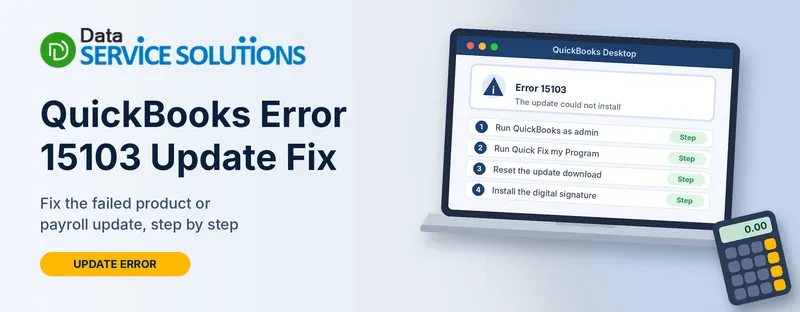
You click Update Now, QuickBooks starts downloading, and then a message stops it with error 15103. Maybe it was a regular QuickBooks update. Maybe it was the payroll tax table you need before you can run payroll.
Either way, the error means QuickBooks couldn’t install or trust a file it downloaded. The good news is that your company data isn’t the problem, and the fixes are usually quick. This guide covers nine of them in an order that starts with the safest.
What Is QuickBooks Error 15103?
Error 15103 belongs to the 15XXX family of update errors. It shows up when QuickBooks Desktop tries to download a product update or a payroll update and something stops the file from being installed or verified.
You may see it when:
- You select Update Now and the update stops with the error
- You download the payroll tax table and it fails
- The update keeps failing even after a restart
Why QuickBooks Error 15103 Happens
QuickBooks lists these causes for this family of errors:
- The Shared Download location isn’t mapped correctly
- A file or component needed for the update is missing
- Damaged Windows files
- A firewall or security setting blocks the update
- The QuickBooks File Copy Service is turned off
- QuickBooks can’t verify the file’s digital signature
Users also report it after an expired Windows security certificate, from a copy of QuickBooks that has been installed twice for the same year, and on computers where the company file lives on a server or VPN.
Which Fix Should You Start With?
| What you notice | Likely cause | Start with |
|---|---|---|
| Error appears on any update, even right after a restart | Permission or damaged update files | Run QuickBooks as Administrator, then Run Quick Fix my Program |
| Error appears only on the payroll tax table update | Payroll component or digital signature | Reset the Update Download, then Install the Digital Signature Certificate |
| Error appears and the computer’s date looks wrong | Clock or internet settings | Check Date, Time and Internet Settings |
| Message mentions a signature or certificate | Certificate not trusted | Install the Digital Signature Certificate, then Run Windows Update |
| Error appeared after new antivirus or firewall changes | Security software blocking the update | Add Security Exceptions |
| You have two copies of the same QuickBooks year | Duplicate installs | The note under Fix 4 |
| Nothing above has worked | Damaged installation | Repair QuickBooks, then Reinstall |
Before You Start
- Back up your company file. If QuickBooks opens, go to File > Back Up Company > Create Local Backup. See how to back up a QuickBooks Desktop company file.
- Sign in to Windows as an administrator.
- Note your QuickBooks year (press F2 or Ctrl + 1) and whether the error appears on the product update or the payroll update.
- Keep your antivirus and firewall on. Nothing here needs you to turn them off.
- If you use payroll, write down your payroll service key or sign-in details in case you need to download again.
Fix 1: Run QuickBooks as Administrator and Download the Update Again
- Close your company file and QuickBooks Desktop.
- Right-click the QuickBooks Desktop icon and choose Run as administrator.
- Select Yes at the User Account Control prompt.
- Go to Help > Update QuickBooks Desktop > Update Now > Get Updates, or download the payroll tax table update again.
This is QuickBooks’ first suggestion. If you host your file on a server and QuickBooks can’t find it when you run as administrator, go on to Fix 2 and run the update from the computer that has QuickBooks installed.
Fix 2: Run Quick Fix my Program
- Close QuickBooks. Download and install the Tool Hub. See how to download QuickBooks Tool Hub.
- Open Tool Hub and select Program Problems.
- Select Quick Fix my Program.
- When it finishes, reopen QuickBooks and your company file, then download the update again.
QuickBooks recommends the latest Tool Hub (version 1.6.0.8 at the time of writing) on Windows 11, 64-bit.
Fix 3: Check Date, Time and Internet Settings
QuickBooks checks every update against your computer’s clock and your internet connection. A wrong date or a damaged setting can look like a signature problem.
Date and time:
- Right-click the clock on your taskbar and choose Adjust date/time.
- Turn on automatic time and time zone, or set them by hand.
- Close QuickBooks, reopen it and update again.
Internet settings:
- In QuickBooks, go to Help > Internet Connection Setup.
- Choose Use my computer’s Internet connection settings and click Next.
- Click Advanced Connection Settings, open the Advanced tab, click Restore Advanced Settings, then OK and Done.
- Update again.
If a browser can’t open websites either, fix the connection first and ask your internet provider or IT person.
Fix 4: Reset the Update Download
If the same update keeps failing, the files from the last try may be damaged. QuickBooks’ fix is to remove the Components folder and download again. We suggest renaming it so you can undo it.
- Close QuickBooks.
- Open File Explorer and go to C:\ProgramData\Intuit\QuickBooks XX\Components, where XX is your QuickBooks year (for example, DownloadQB21 for 2021). If you can’t see ProgramData, turn on hidden items.
- Right-click Components and choose Rename. Add .old to the end.
- Open QuickBooks and go to Help > Update QuickBooks Desktop.
- Select Update Now, check Reset Update, then click Get Updates.
- When the download finishes, close and reopen QuickBooks, then go to Help > Update QuickBooks Desktop > Overview > Update Now to install.
If you have the same QuickBooks year installed twice, QuickBooks says this can cause update errors. Update each copy by hand, or uninstall the extra copy once your file is safe.
Fix 5: Install the Digital Signature Certificate
If the error is about a signature, install QuickBooks’ certificate.
- Close QuickBooks and open C:\Program Files\Intuit\QuickBooks (the folder for your version).
- Right-click QBW32.exe and choose Properties.
- Open the Digital Signature tab. Make sure the signer listed is selected, then click Details.
- Click View Certificate, then Install Certificate.
- Click Next until the wizard finishes, then click Finish.
- Restart your computer, open QuickBooks and update again.
Only do this for QBW32.exe in your own QuickBooks folder. Never install a certificate from an email, a pop-up or a website you don’t recognise.
Fix 6: Run Windows Update
QuickBooks says an out-of-date Windows security certificate can stop updates from being verified.
- Open Settings > Windows Update and click Check for updates.
- Install everything offered, including optional security updates, and restart.
- Try the QuickBooks update again.
One user reported that the main QuickBooks program certificate had expired. QuickBooks staff said there is no manual way to renew that one on its own. If that’s your situation, skip to Fix 9 and reinstall to get a current copy.
Fix 7: Add Security Exceptions Instead of Turning Protection Off
A firewall or antivirus program can stop QuickBooks from reaching its update server. Don’t switch your protection off. Add exceptions.
- Make sure internet access on ports 80 and 443 is allowed.
- Allow these programs through your firewall and security software: QBW32.exe, QBUpdate.exe, QBDBMgr.exe and QuickBooksMessaging.exe.
- If you use Windows Firewall, follow the steps in Windows Firewall blocking QuickBooks.
- Repeat for any other QuickBooks year you have installed.
QuickBooks doesn’t support specific firewall setups, so if you’re on a business network, ask your IT person or firewall vendor to allow the update. Don’t open broad rules or exclude whole drives.
Fix 8: Run the Install Diagnostic Tool and Repair QuickBooks
Install Diagnostic Tool:
- Open Tool Hub and select Installation Issues.
- Click QuickBooks Install Diagnostic Tool. It can take up to 20 minutes.
- Restart the computer when it finishes. See the QuickBooks Install Diagnostic Tool.
Repair:
- Close QuickBooks. Press Windows + R, type appwiz.cpl and press Enter.
- Select QuickBooks, click Uninstall/Change, then Repair.
- Restart and update again.
Back up your company file before you repair.
Fix 9: Reinstall QuickBooks (Last Resort)
Reinstalling doesn’t touch your company data, and it installs fresh, correctly registered files.
- Back up your company file and keep your license number and product number handy.
- Uninstall QuickBooks, then follow our QuickBooks Clean Install Tool guide.
- Download the installer for your version, reinstall and activate.
- Update QuickBooks again, then download the payroll tax table update if you use payroll.
If the Error Is on a Payroll Update
Payroll Basic, Enhanced and Assisted updates all go through the same steps above. After QuickBooks is fixed:
- Open Employees > Get Payroll Updates, check Download Entire Update and click Download Latest Update.
- Confirm your payroll subscription is active.
For a full walkthrough, see QuickBooks payroll tax table update.
What Not to Do
- Don’t turn off your antivirus or firewall
- Don’t install certificates from anywhere except QBW32.exe in your own QuickBooks folder
- Don’t delete the Components folder without renaming it first
- Don’t edit the registry
- Don’t run several updates at once
- Don’t pay anyone who contacts you out of the blue to “fix” the error
How to Avoid Error 15103
- Back up your company file before each update
- Keep Windows up to date, including security updates
- Keep your computer’s date, time and time zone correct
- Install updates when no one else is using QuickBooks
- Keep only one copy of each QuickBooks year
- Add QuickBooks to your security exceptions before you update
- Update the Tool Hub once in a while
Other 15XXX Errors
Error 15103 is part of a family. If your message has a different number, try:
If the update downloads but freezes partway, see QuickBooks update stuck. For general update steps, see how to update QuickBooks Desktop.
When to Get Help
Get help if the error is still there after Fix 9, if you can’t run payroll because of it, or if you can’t change firewall or Windows settings. Write down the exact message, your QuickBooks year and release, your Windows version and which fixes you tried. The Data Service Solutions team can go through it with you.
Frequently Asked Questions
What is QuickBooks error 15103?
It’s an update error. QuickBooks couldn’t install or verify a file it downloaded, either a product update or the payroll tax table.
Is my company data affected?
No. The error is about update files, not your company file. Still, back up before you try repairs.
Why does it happen on payroll updates?
A missing payroll component, a signature that can’t be verified, or a firewall blocking the download. The steps are the same as for product updates.
Does running as administrator fix it?
Sometimes. It’s the first thing QuickBooks suggests, but some users still get the error after it.
Is it safe to rename the Components folder?
Yes, if you rename it and don’t delete it. QuickBooks creates a new one when you update.
Do I need to turn off my antivirus?
No. Add exceptions for QuickBooks and its update program instead.
What if the QuickBooks certificate has expired?
QuickBooks staff say there’s no manual way to renew it on its own. Run Windows Update, then reinstall the latest version.
Why does it fail only on one computer?
That computer may have a wrong date, blocked security settings, damaged files, or two installs of the same year.
Can a duplicate install cause it?
Yes. QuickBooks says two installs of the same year can cause update errors.
Do I need to reinstall QuickBooks?
Only if the other steps fail. Back up first and keep your license details.
Is Internet Explorer needed?
No. Older guides tell you to change Internet Explorer settings, but QuickBooks’ own steps don’t use it.
When should I contact a professional?
If the error comes back after a reinstall, or if payroll is stuck and you can’t wait.
Wrapping Up
Error 15103 almost always comes down to permissions, a damaged update download, a certificate or a blocked connection. Work through the nine fixes in order, keep your security software on, and back up before you repair or reinstall. If you’re still stuck, the Data Service Solutions team can help.