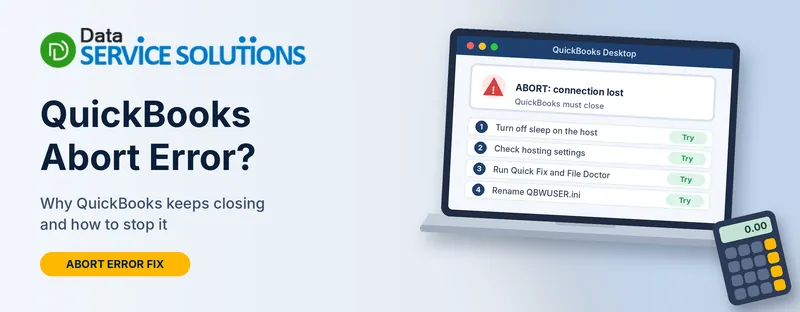
You’re in the middle of entering a bill and QuickBooks shuts down. The message says something like “ABORT – Problem – The connection to the company file has been lost. QuickBooks must close immediately. Any unsaved data will need to be re-entered.” You reopen it, and an hour later it happens again.
That is the QuickBooks abort error. It’s frustrating, but it usually means QuickBooks lost its link to the company file, not that your data is damaged. This guide shows the common causes and the fixes in an order that solves most cases fastest, for both a single computer and a network.
What Is the QuickBooks Abort Error?
QuickBooks keeps a constant connection to your company file. When that connection breaks, even for a second, QuickBooks closes so it doesn’t write bad data. You see an abort message and lose whatever you hadn’t saved.
People notice it in a few ways:
- QuickBooks closes suddenly with the “connection has been lost” message
- It shuts down for no visible reason, or freezes first
- It aborts when the computer goes to sleep
- It happens only in multi-user mode, or only for one user
- Another program that syncs with QuickBooks reports “application requested to abort”
Why QuickBooks Keeps Aborting
QuickBooks’ own guidance lists these causes.
On a single computer:
- The file’s folder needs extra permissions
- Antivirus or firewall software is interfering
- The company file is damaged
On a network (the file is on another computer):
- An unstable connection, especially wireless
- Folder permissions that don’t allow QuickBooks to work
- A firewall blocking network access
- Power saving or sleep mode on the host computer
- Server, cable, router or Windows problems
- More than one computer hosting the file
Other things people commonly report are a damaged QBWUSER.ini file, a company file kept on an external drive or deep in a user folder, and a damaged QuickBooks installation.
Match Your Situation to the Right Fix
| What you notice | Likely cause | Start with |
|---|---|---|
| Aborts when computers sleep or sit idle | Sleep or power saving on the host | Turn Off Sleep and Power Saving |
| Only happens in multi-user mode | Hosting or network | Check Hosting Settings, then Check the Network |
| Happens on a single computer | Permissions, security software or a damaged file | Run Quick Fix and File Doctor |
| Happens when the file is on an external drive or cloud folder | Unstable storage | Move the File to a Safe Folder |
| Happens after a Windows or security update | Firewall or permissions | Check Folder Permissions and Firewall |
| Only one user gets it | That computer’s settings | Rename the QBWUSER.ini File |
| A connected app says “application requested to abort” | Web Connector sync | The Web Connector section below |
Before You Start
- Make a backup. If QuickBooks will open, go to File > Back Up Company > Create Local Backup. If it won’t, copy the .QBW file to another folder.
- Write down what you were doing when it aborted, and who else was in the file.
- Find out where the file lives. On your own computer, on a server, or on an external or cloud-synced drive?
- Note your QuickBooks year and whether you use multi-user mode.
Fix 1: Restart QuickBooks, the Server and the Workstations
A restart clears more connection problems than people expect.
- Close QuickBooks on every computer.
- Check that nobody is using the company file, then restart the server (the computer that stores the file).
- Restart each workstation.
- Open QuickBooks on one computer and see if the error returns.
Fix 2: Turn Off Sleep and Power Saving
When a computer sleeps, it can drop its network connection, and QuickBooks aborts when it wakes. This is a common cause, and QuickBooks’ own page recommends fixing it on the host computer.
- On the host (and ideally on each workstation), press the Windows key, type Power Options and open it.
- Choose Change when the computer sleeps.
- Set Put the computer to sleep to Never, and turn off hibernate and standby.
- Open Change advanced power settings, find your network adapter, and turn off any setting that lets Windows power it down to save energy.
- Save and restart.
If the abort happens only after a long idle period, this is very likely your fix.
Fix 3: Check Hosting Settings
Only the computer that stores the file should host multi-user access. Hosting on more than one computer causes aborts.
On every workstation:
- Open QuickBooks and go to File > Utilities.
- If you see Stop Hosting Multi-User Access, click it.
- If you see Host Multi-User Access, leave it alone.
On the server:
- Go to File > Utilities.
- If you see Host Multi-User Access, click it.
- If you see Stop Hosting Multi-User Access, hosting is already on, so leave it.
Our guide on QuickBooks error H202 explains hosting in more detail.
Fix 4: Run Quick Fix and File Doctor
- Close QuickBooks. Download and open the Tool Hub. See how to download QuickBooks Tool Hub.
- Go to Program Problems and click Quick Fix my Program.
- Go to Company File Issues and click Run QuickBooks File Doctor.
- Choose your company file, select Check your file (or the network option if the file is on a server), click Continue, enter your admin password and click Next.
If File Doctor finds no problem and the error continues, use Verify and Rebuild Data (see “If It Still Aborts” below). If it finds damage, you can repair the file, restore a recent backup, or use Auto Data Recovery. Our QuickBooks File Doctor guide walks through the tool.
Fix 5: Check the Network
If the file is on a server, the connection between computers has to be solid.
- Use a wired connection. QuickBooks doesn’t support wireless for company files, and Wi-Fi is a frequent cause.
- Check the cables, router and switches. A loose cable can break the connection.
- Test sharing. In the folder with your company file, create a new text file, then delete it. If that fails, the folder permissions need fixing (see Fix 7).
- Open the file by its network path. On a workstation, go to File > Open or Restore Company > Open a company file > Next, browse to the server folder and open the file from there.
If you aren’t sure about your network, ask your IT person. See also QuickBooks not connecting to server.
Fix 6: Rescan the Folder With Database Server Manager
The Database Server Manager keeps track of the company files on the server. A stale entry can cause aborts.
- On the server, open QuickBooks Database Server Manager from the Start menu.
- On the Database Server tab, check that your company file is listed.
- If it isn’t, open Scan Folders, click Add Folder, select the folder with your file, then click Scan.
- Close the tool and try again.
If the tool won’t start, see Database Server Manager not opening. For more on it, read our Database Server Manager guide.
Fix 7: Check Folder Permissions and the Firewall
Permissions:
- On the server, right-click the folder holding the company file and choose Properties.
- Open the Security tab and click Edit.
- Make sure the Windows users who use QuickBooks, and the QuickBooks database service account (named QBDataServiceUser followed by a number), can read and write there.
- Click Apply, then OK.
Grant only what QuickBooks needs, and don’t change permissions on system folders like Program Files or Common Files unless QuickBooks support tells you to.
Firewall:
A firewall that blocks QuickBooks can drop the connection. Make inbound and outbound exceptions on the server. QuickBooks 2019 and later use port 8019 plus a dynamic port you read from Database Server Manager’s Port Monitor tab. QuickBooks 2018 uses 8019, 56728 and 55378 to 55382, and 2017 uses 8019, 56727 and 55373 to 55377. Our guide on Windows Firewall blocking QuickBooks covers the steps.
Antivirus: add QuickBooks as an exception instead of switching your protection off. If you test with it off, turn it back on straight afterward.
Fix 8: Move the File to a Safe Folder
Where the file lives matters.
- Don’t work from an external or portable drive. If you must, reconnect it, check that the file is visible, and make sure the drive has at least as much free space as the file.
- Avoid cloud-synced folders such as ones that sync automatically, because syncing can lock the file at the wrong moment.
- Use a short, simple path. A file buried several folders deep can cause trouble. Move it to a simple folder like C:\QBData on the host.
- Keep backups on a different device from the company file.
Copy the file, don’t drag it, so your original stays safe until you’ve tested the new location.
Fix 9: Rename the QBWUSER.ini File
QuickBooks stores some of your settings in a file called QBWUSER.ini. If it’s damaged, QuickBooks can misbehave. QuickBooks staff have pointed people to this step for abort errors, though its own connection-lost page doesn’t list it, so try it after the fixes above.
- Close QuickBooks.
- Turn on hidden files in File Explorer.
- Open the QuickBooks folder in your user profile. It’s usually under C:\Users[your name]\AppData\Local\Intuit\QuickBooks [year].
- Right-click QBWUSER.ini, choose Rename, and add .old to the end.
- Reopen QuickBooks. It creates a new file, and you may need to reopen your company file from the start screen.
Rename only this file. Some guides also tell you to rename licensing files. Skip that unless QuickBooks support asks for it, because it can affect your license.
If It Still Aborts
- Run Verify, then Rebuild. Go to File > Utilities > Verify Data. If it reports a problem (“your data has lost integrity”), take a backup, then go to File > Utilities > Rebuild Data and follow the prompts.
- Run the Install Diagnostic Tool. In the Tool Hub, open Installation Issues and run the QuickBooks Install Diagnostic Tool. Restart afterward.
- Update QuickBooks and Windows. See how to update QuickBooks Desktop.
- Repair QuickBooks. Press Windows + R, type appwiz.cpl, select QuickBooks, click Uninstall/Change, then Repair.
- Restore a good backup if the file keeps failing.
If QuickBooks crashes in other ways too, these guides may help: QuickBooks has stopped working, QuickBooks keeps shutting down, QuickBooks freezing and QuickBooks QBW32.exe crash.
“Application Requested to Abort”: The Web Connector Version
This is a different message. If another app, such as an online order or CRM tool, syncs with QuickBooks through the Web Connector and reports “application requested to abort: could not start QuickBooks”, QuickBooks failed to open for the sync.
- In the Web Connector, click for more information to see the exact reason.
- Check that the company file path the app uses matches the real path of your file.
- Close every QuickBooks window and background process, reopen QuickBooks, then run a manual sync.
- Restart the computer that runs QuickBooks, then sync again.
- Remove older QuickBooks versions that are still installed on the same computer.
How to Prevent the Abort Error
- Turn off sleep and hibernation on the host computer
- Use wired network connections, not Wi-Fi
- Keep hosting on the server only
- Keep the company file on a short, stable, local or server path
- Keep QuickBooks and Windows up to date
- Add QuickBooks exceptions to your firewall and antivirus
- Back up daily, and keep backups on another device
- Run Verify Data now and then
When to Get Help
Get help if the error keeps returning after Fixes 1 to 9, if Verify keeps finding problems, or if you lose work often. Handing it off early is cheaper than a damaged file, and your IT person can check the network and server. Our team at Data Service Solutions can go through it with you. If QuickBooks won’t open at all, see QuickBooks won’t open.
Frequently Asked Questions
What does the QuickBooks abort error mean?
QuickBooks lost its connection to the company file and closed itself to protect your data. The message says “the connection to the company file has been lost.”
Will I lose data when QuickBooks aborts?
You can lose anything you hadn’t saved, but the company file itself is usually fine. Make a backup before you try the fixes.
Why does QuickBooks abort when my computer sleeps?
Sleep can cut the network connection, so QuickBooks loses the file. Turn off sleep and hibernation on the host, and stop Windows from powering down the network adapter.
Can Wi-Fi cause the abort error?
Yes. QuickBooks doesn’t support wireless connections for company files, and an unstable link is a common cause. Use a wired connection.
Does the abort error only happen in multi-user mode?
No. It’s most common there, but it can also happen on a single computer from permissions, security software or a damaged file.
Should I turn off my antivirus to fix it?
No. Add an exception for QuickBooks instead. If you test with it off, turn it back on afterward.
Is it safe to rename QBWUSER.ini?
Yes, if you rename it, not delete it. QuickBooks creates a new one. Rename only that file.
Can I keep my company file on an external drive?
It’s not recommended. Move the file to a local or server folder and keep backups on the external drive.
Does File Doctor fix the abort error?
It fixes file and network problems that cause it. If it finds nothing, move on to hosting, power and network checks.
What is “application requested to abort” in the Web Connector?
The sync app asked QuickBooks to start and it failed. Check the company file path, close QuickBooks processes, restart, and remove old QuickBooks versions.
Does reinstalling QuickBooks help?
Only if the installation is damaged. Try the fixes above and the Install Diagnostic Tool first.
When should I call a professional?
When the error keeps coming back, you’re losing work, or you can’t tell whether the cause is the network, the server or the file.
Wrapping Up
The abort error looks random, but it almost always comes from a dropped connection: sleep, Wi-Fi, a hosting mix-up or a blocked firewall. Turn off sleep, check hosting, use a wired network, and run the Tool Hub fixes. If you still get stuck, the Data Service Solutions team can help.