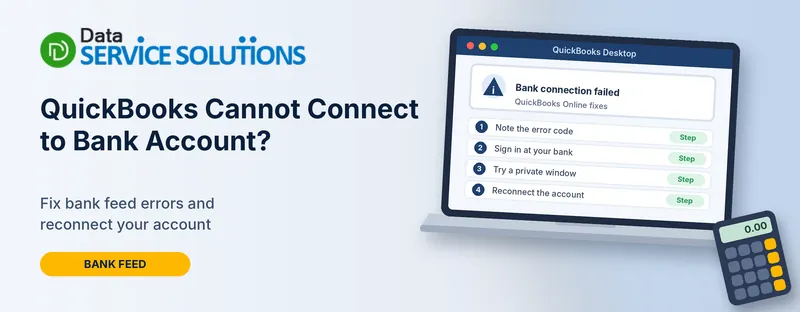
You open the Bank transactions page, click Update, and nothing comes through. Maybe there’s an error code, a spinning page that never loads, or a message saying your account is disconnected. Either way, your bank feed has stopped and your books are falling behind.
The good news is that most connection problems come from a short list of causes: a changed sign-in, a bank security prompt you haven’t cleared, a browser issue, or a bank-side change. This guide explains how to tell which one you have, shows the fixes in the order that makes sense and covers the cases where the problem isn’t yours to fix.
Quick Answer: What to Try First
- Open your bank’s own website and sign in. Check for alerts, security prompts, a password change request or maintenance notices.
- Open QuickBooks in a private (incognito) window and try again.
- In QuickBooks, click Fix now on the error, or go to Bank transactions and click Update.
- If you see an error code, match it in the table below.
Which Connection Do You Have?
Your options depend on your QuickBooks version.
- QuickBooks Online: Uses bank feeds. You link your account on the Bank transactions page and QuickBooks downloads transactions. The fixes below are mainly for this.
- QuickBooks Desktop: Uses Direct Connect or Express Web Connect, plus WebConnect, a manual import of a file from your bank. See the Desktop section.
- Manual upload: In both versions, you can upload a file from your bank. It’s a good stopgap while you fix the connection.
Which Error or Symptom Do You Have?
| What you see | Likely cause | Method to use |
|---|---|---|
| Error 103 | Wrong username or password | Edit Sign-in Info |
| Error 324 | QuickBooks can’t match the account | Fix Now and Manage Connections |
| Error 155 | Your bank isn’t allowing QuickBooks to connect | Contact Your Bank |
| Error 390 | Bank is making changes on its end | Review Pending, Then Reconnect |
| Error 102 or 105 | Connection problem, often temporary | Update and Wait |
| Error 355, 580 or 590 | Often a bank-side issue | Update and Wait |
| Other bank codes (147, 179, 185) | See each guide | Error Code Guides |
| Reconnect page won’t load | Browser or bank page issue | Private Window and Another Browser |
| Connected but no new transactions | Date range, tabs or rules | Check Pending, Posted and Excluded |
| Desktop OL- or OLSU- codes | Desktop bank feed problem | QuickBooks Desktop Bank Feeds |
Before You Start
- Have your bank sign-in details ready, and make sure you can log in on the bank’s website. Don’t enter them anywhere else.
- Know which bank and accounts you’re connecting, including whether they’re checking, savings or credit cards.
- Use an admin or the person who set the connection up. If the error says “Send a request,” the original user may need to reconnect.
- Don’t share your bank login with anyone who contacts you by phone, text or email claiming to be QuickBooks support.
- Back up if you use Desktop. See how to back up a QuickBooks Desktop company file.
Fix 1: Sign In to Your Bank’s Website First
Many connection failures start at the bank, not in QuickBooks. QuickBooks staff repeatedly give this as the first step.
- In QuickBooks Online, go to Banking or Bank transactions and choose Link account.
- Find your bank and copy its sign-in address, or go to your bank’s website yourself.
- Sign in and look for messages, security alerts, new terms, a password reset request or a verification prompt.
- Clear anything pending, then return to QuickBooks and try again.
If you can’t sign in to the bank itself, fix that first, since QuickBooks can’t connect either. One user in a QuickBooks thread found that their bank had changed its sign-in address, which broke the link.
Fix 2: Try a Private Window and Another Browser
A cached sign-in or a browser extension can block the connection page.
- Open a private or incognito window and sign in to QuickBooks Online.
- Open Bank transactions and try Update or Link account again.
- If it works, clear your browser cache and cookies in your normal window.
- If it doesn’t, try another supported browser, such as Chrome or Edge, or another device or network.
Staff gave this advice in a 2026 thread about a reconnect page that never loaded. They also suggested typing your bank credentials by hand, since some banks block copy, paste and autofill.
Fix 3: Update the Connection and Complete Verification
- Go to Accounting > Bank transactions.
- Select the account and click Update.
- If your bank asks for a verification code or other multi-factor prompt, complete it promptly. In a 2024 thread, staff said to enter details within about two minutes, so don’t walk away mid-update.
- After it connects, check the Posted, Pending and Excluded tabs. Bank rules can move transactions there.
Fix 4: Edit Your Sign-In Info (Error 103)
QuickBooks says error 103 usually means the username or password for the bank is wrong.
- Sign in on your bank’s website to confirm your user ID and password. If you can’t, reset the password there.
- Check whether your bank requires permission before another service can connect. If it does, turn that on or ask the bank.
- In QuickBooks go to All apps > Accounting > Bank transactions.
- Select the account and click Fix now.
- When the bank window opens, clear any autofilled username and password.
- Type your details and select Update.
If your bank shows an unexpected security question, sign in on the bank’s site in a private window and confirm you’re connecting to the exact bank listed, since some bank names are similar. See also QuickBooks error 103.
Fix 5: Fix Error 324 (QuickBooks Can’t Find the Account)
Error 324 means QuickBooks can’t match your account to what the bank is sending. QuickBooks lists five causes: new account details or a replacement card, a closed or suspended account, a different login, choosing only some accounts at the bank, or several QuickBooks companies using one bank login.
If your account details changed:
- Go to All apps > Accounting > Bank transactions.
- Find the account showing Error 324 and click Fix now.
- Sign in with your current bank details.
- When the bank asks what to share, choose All Accounts or Consent All.
- Map the updated account to your existing QuickBooks account.
If Fix now doesn’t work, choose Fix now, then Disconnect, confirm, and then Add account and sign in again.
If the account is closed: Post or review all pending transactions first. Then use Fix now to open Manage connections, disconnect the account and link a replacement.
If you used a different login to reconnect: Go to Manage connections, disconnect the mismatched or duplicate connections and reconnect with the original login.
If several QuickBooks companies share one bank login: In the company showing the error, choose Link account, sign in, select All Accounts or Consent All, then pick only the accounts you want for that company. Refresh the other companies afterwards.
Always map to your existing account. Creating a new one leads to duplicate accounts and a split transaction history. See also banking error 324.
Fix 6: If Your Bank Isn’t Allowing the Connection (Error 155)
Error 155 means your bank isn’t allowing QuickBooks to connect and retrieve your data. This is the bank’s decision, so you can’t fix it from inside QuickBooks.
- Contact your bank and ask them to allow the QuickBooks connection.
- If it isn’t resolved, ask the bank to escalate through QuickBooks’ OFX connectivity page.
- Write down the bank’s case or ticket number.
- Upload transactions manually in the meantime (see Manual Upload below).
Fix 7: Error 390, 355, 580, 590 and Other Bank-Side Codes
- Error 390: QuickBooks staff said in September 2026 that the bank is making changes on its end. Review the Pending tab for the account, edit the account details and choose to disconnect on save, then reconnect through Link account. If it continues, contact your bank to confirm nothing changed on their side.
- Errors 355, 580, 590: Often a bank-side problem. Wait a few hours, try again and check QuickBooks’ bank feed status page for known issues. See our guides on error 355 and error 590.
- Errors 102 and 105: Update the connection, then wait and try again. See QuickBooks error 102.
- Other codes: See error 185, error 179 and error 147.
Fix 8: Disconnect and Reconnect Safely
Only do this if the earlier fixes failed, and read the cautions first.
- Review and post pending transactions for the account.
- Go to Bank transactions and open Manage connections.
- Disconnect the affected account.
- Choose Link account, search for your bank, sign in and select All Accounts or Consent All.
- Map to your existing QuickBooks account. Don’t create a new one.
- Click Update and check the Posted, Pending and Excluded tabs.
Manual Upload: Keep Working While You Fix It
If the connection can’t be restored right away, you can upload a file from your bank. QuickBooks Online accepts .qfx, .ofx and .csv files, while Desktop accepts .qbo files for WebConnect. Duplicates are generally skipped if you re-import the same file, according to a QuickBooks community guide.
- Download your transactions from your bank’s website.
- In QuickBooks, upload the file from Bank transactions.
- Check the date range and review for duplicates.
How far back your bank feed can go depends on your bank. One staff guide says transactions older than about 90 days may need to be added manually, so check your own account.
QuickBooks Desktop: Bank Feeds Not Connecting
For Desktop, community guidance describes this approach:
- Update QuickBooks to the latest release. See QuickBooks not updating if that fails.
- Back up your company file.
- Disconnect the feed and reconnect it through Bank Feeds.
- If your bank isn’t supported or still fails, use WebConnect with a .qbo file.
If the error starts with OL or OLSU, see our guides on QuickBooks error OLSU 1024 and QuickBooks error OL-301.
What If It’s the Bank, Not QuickBooks?
You can’t fix a bank-side problem, but you can confirm it:
- Check your bank’s site, app or social accounts for outages.
- Check QuickBooks’ bank feed status page.
- Contact your bank and ask whether anything changed for third-party connections.
- Use manual upload until it’s resolved.
QuickBooks threads show that many reports end without a confirmed fix, often because the bank needs to act. That’s why the steps above start with the bank’s website.
Avoiding Duplicates and Bad Matches
- Always map to your existing account when reconnecting
- Select All Accounts or Consent All when your bank asks
- Don’t import the same file twice without checking the date range
- Review the Pending tab before you disconnect anything
- Don’t add the same bank account as a new account just to “start fresh”
If balances look wrong after reconnecting, see QuickBooks bank transactions missing.
What Not to Do
- Don’t give your bank login to anyone who calls, texts or emails you
- Don’t delete the account in QuickBooks to “reset” it
- Don’t create a second QuickBooks account for the same bank account
- Don’t reconnect with a different login than the original
- Don’t ignore security prompts at your bank
- Don’t call a number from an ad or a random page to “fix” it
How to Check That It’s Connected
- Click Update and confirm new transactions arrive
- Check the Posted, Pending and Excluded tabs
- Compare your QuickBooks balance with your bank statement
- Make sure no duplicate accounts appeared under Manage connections
How to Prevent Bank Connection Problems
- Update your sign-in info in QuickBooks right after changing your bank password
- Clear bank security alerts promptly
- Keep one person responsible for the connection
- Reconnect with the same login each time
- Update your browser, and use a private window if you suspect a cache issue
- Don’t let several QuickBooks companies reconnect one bank login without selecting all accounts
- Reconcile every month so gaps show up early
When to Get Help
Get help if the connection still fails after Fix 8, if your bank says it hasn’t blocked QuickBooks, or if duplicate accounts have already appeared and you aren’t sure how to clean them up. Write down the exact error code, the bank name, what you tried and when it last worked. The Data Service Solutions team can go through it with you.
Frequently Asked Questions
Why can’t QuickBooks connect to my bank account?
Common causes are a changed sign-in, an unresolved bank security prompt, a browser or cache problem, a closed or changed account, or a bank-side change or block.
What does error 103 mean?
QuickBooks says it usually means the bank username or password is wrong. Use Fix now and retype your details.
What does error 324 mean?
QuickBooks can’t match your account. See Fix 5.
What does error 155 mean?
Your bank isn’t allowing QuickBooks to connect. Contact your bank.
What does error 390 mean?
QuickBooks staff said it means your bank is making changes on its end. Review pending items, then reconnect.
Why does the reconnect page never load?
Often a browser, cache or extension problem. Try a private window, another browser, and type your credentials by hand.
Will reconnecting create duplicates?
It can if you create a new account instead of mapping to the existing one. Always map to the existing account.
Can I keep working while it’s disconnected?
Yes. Upload a file from your bank, then check for duplicates.
Does this apply to QuickBooks Desktop?
Partly. Desktop uses Direct Connect, Express Web Connect and WebConnect. See the Desktop section.
Why do I need to select All Accounts or Consent All?
QuickBooks says selecting only some accounts can make the error return, especially when several QuickBooks companies share one bank login.
Is there a permanent fix?
Not always. Many threads show no confirmed fix, because the cause is often at the bank. The steps above fix it for many people.
When should I contact a professional?
If the error code isn’t covered here, you manage several companies on one bank login, or you need help cleaning up duplicates.
Wrapping Up
When QuickBooks can’t connect to your bank account, start at your bank’s website, then try a private window, then match your error code. Use Fix now, map to your existing account and never create a duplicate. If the bank is the cause, manual upload keeps your books moving. If you’re still stuck, the Data Service Solutions team can help.