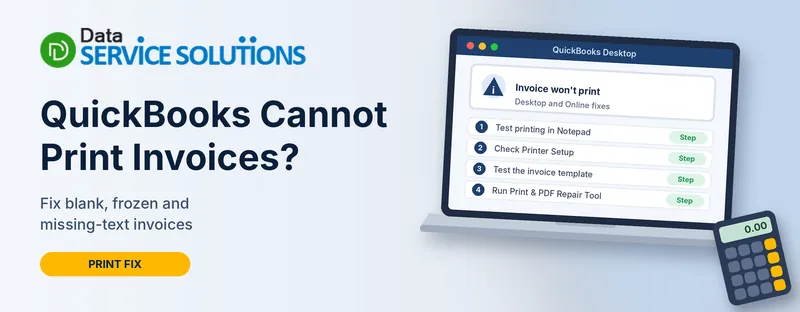
You click Print on an invoice and nothing happens. Or QuickBooks freezes. Or a page comes out with a logo and no text. Meanwhile your reports print fine, and the customer is waiting.
When QuickBooks can’t print invoices, the cause is usually narrower than a “printing problem” suggests. On Desktop it’s often the printer setup, a damaged print settings file or a problem with the invoice template, especially its logo. On QuickBooks Online it’s usually the browser. This guide helps you find which one you have, then walks through the fixes in order.
Quick Answer: What to Try First
- Print something simple from Notepad. If that fails, the problem is your printer, not QuickBooks.
- If Notepad prints, print a different QuickBooks form or a report. If only invoices fail, suspect the invoice template or logo.
- On QuickBooks Online, open the invoice in a private window and print from the preview.
- If you’re still stuck, work through the fixes below.
Is It QuickBooks Desktop or QuickBooks Online?
The two behave very differently, so start with the right section.
- QuickBooks Desktop (Windows): Printing runs through your printer driver, QuickBooks’ print settings and your invoice template. See Desktop Fix 1 to Desktop Fix 8.
- QuickBooks Online: Printing runs through your browser’s PDF preview. See Online Fix 1 to Online Fix 5.
- QuickBooks Desktop for Mac: QuickBooks has a separate Mac printing guide. See the short Mac section below.
Which Fix Matches Your Problem?
| What you see | Likely cause | Method to use |
|---|---|---|
| QuickBooks freezes when printing an invoice, but reports print | Template or logo | Check the Template and Logo |
| Nothing prints and Notepad fails too | Printer or driver | Test the Printer and the Queue |
| Lines or boxes missing from the printout | Printer Setup option | Restore Lines and Fix Fonts |
| “Insufficient data for an image” | Logo image format | Check the Template and Logo |
| “Template was not exported” | Logo or damaged template | Check the Template and Logo |
| Only one customer’s or one invoice fails | Odd field, logo or template | Test Another Invoice |
| Everything fails, including sample file | Damaged print settings or install | Rename QBPrint.qbp |
| Online: blank preview or no Print button | Browser PDF viewer | Print from the Preview |
| Online: invoice stays on the “to print” list | Preview not closed | Print from the Preview |
| Online on a Mac: logo prints, text missing | Mac Preview issue | QuickBooks Online on a Mac |
Before You Start
- Update QuickBooks to the latest release. If updates fail, see QuickBooks not updating.
- Back up your company file before changing templates or settings. See how to back up a QuickBooks Desktop company file.
- Connect your printer, install its latest driver and clear any error lights.
- Keep antivirus and firewall on. Nothing here needs them off.
QuickBooks Desktop: Fixes for Invoices That Won’t Print
Desktop Fix 1: Test the Printer and the Queue
- Open Notepad, type a few words and choose File > Print.
- If it fails, turn the printer off, restart your computer and turn the printer back on. Check that paper is loaded.
- Open your printers list in Windows. If the printer shows Offline, right-click it and choose Use Printer Online.
- If jobs are stuck in the queue, choose Printer > Cancel All Documents.
- Right-click the printer, choose Properties and click Print Test Page. If a network printer fails the test page, the problem may be your network.
If Notepad prints fine, go to Desktop Fix 2. If not, see our print and PDF repair tool guide for what to do next.
Desktop Fix 2: Check Printer Setup in QuickBooks
- In QuickBooks, go to File > Printer Setup.
- Choose Invoice from the form list.
- Confirm the printer name matches exactly what Windows shows. If not, fix the name in Windows first.
- Test with a different printer, such as a Microsoft XPS printer, to see if the problem is the printer or QuickBooks.
Desktop Fix 3: Check the Template and Logo
This is the most common invoice-only cause. Reports print because they don’t use your invoice template, and a custom template with a large or odd logo can make QuickBooks freeze or fail.
First test: Print the same invoice using a built-in QuickBooks template. If it prints, the problem is your custom template.
If you see “Insufficient data for an image”:
- Open the invoice, go to the Formatting tab and choose Customize Data Layout, then Layout Designer.
- Select the logo image, remove it and click OK.
- Open the original image in an image editor such as Paint and save it in a different format. QuickBooks suggests .JPG instead of .BMP.
- Add the image back in Layout Designer, resize it and try printing again.
Community users have reported mixed results here. One resized the logo and converted it from JPG to PNG, while another got printing back by changing a JPEG to BMP. Because the reports conflict, try a different format and keep the one that works.
If you see “Due to an error, the template was not exported”:
- Go to Lists > Templates.
- Right-click the template and choose Edit Template.
- Under Logo & Fonts, clear Use Logo and click OK.
- Try again.
If the template won’t stay as your default, it may be damaged. Restore a backup from when it worked, or recreate the template.
Desktop Fix 4: Restore Lines and Fix Fonts
Lines or borders missing:
- Go to File > Printer Setup and choose the form.
- Under Print On, choose Blank Paper.
- Clear Do not print lines around each field and click OK.
Text misaligned in emailed or PDF invoices:
- Open the invoice, go to Formatting and choose Customize Data Layout > Layout Designer.
- Select the field, click Properties > Font and change the font or size. The default is Cambria.
- Repeat for other fields, then print or save a test copy.
If the form is cut off or won’t fit the page, see QuickBooks form does not fit on the page.
Desktop Fix 5: Test Another Invoice and a Sample Company File
- Print a different invoice, ideally a plain one with no customization.
- If you print in batches, print one form first, then small groups.
- Open a QuickBooks sample company file and print the same form type.
If the sample prints but your file doesn’t, your company file may be damaged. Back it up and see QuickBooks File Doctor.
If one invoice has a very long text field, QuickBooks says it may appear only on the last page of a multi-page form. In Layout Designer choose Add > Text Box, enter the text and resize it. Check the result in Print Preview.
Desktop Fix 6: Run the QuickBooks PDF & Print Repair Tool
- Close QuickBooks and download QuickBooks Tool Hub version 1.6.0.8 from QuickBooks’ official site. See how to use QuickBooks Tool Hub.
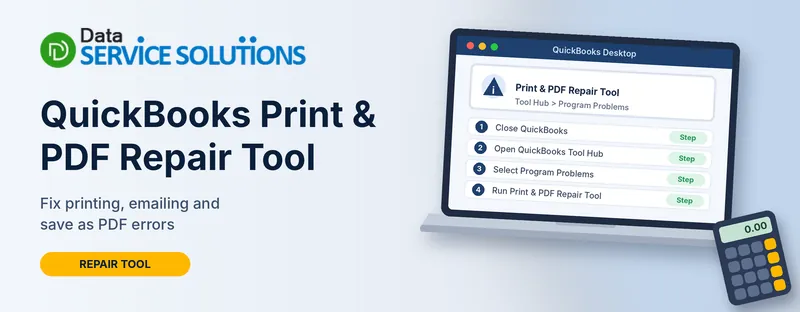
- Open Tool Hub, select Program Problems and click QuickBooks PDF & Print Repair Tool. It takes about a minute.
- Restart and print again.
The full steps, plus what to do if the tool is missing, are in our QuickBooks Print and PDF Repair Tool guide.
Desktop Fix 7: Rename the QBPrint.qbp File
QBPrint.qbp stores your print settings. If it’s damaged, invoices may freeze or fail. A user on Enterprise 2023 said renaming it fixed both printing and emailing.
- Close QuickBooks and show hidden files.
- Find QBPrint.qbp (replace 20xx with your version year):
- Windows 10 and newer:
C:\ProgramData\Intuit\QuickBooks 20xx - Windows Server 2012 and newer: also check
C:\Users\<remote user>\AppData\Roaming\Intuit\<year version>\TSPrinterSettings
- Windows 10 and newer:
- Right-click it, choose Rename and add
.old, for example QBPrint.qbp.old. - Open QuickBooks, go to File > Printer Setup, select a form and click OK. This creates a new file.
- Print an invoice.
You’ll need to check your printer settings again afterwards. One user in 2026 said this fixed only one transaction, not all of them, so if it only helps once, go to Fix 8.
Desktop Fix 8: Repair, Reinstall or Clean Install
- Press Windows + R, type appwiz.cpl and press Enter.
- Select QuickBooks, click Uninstall/Change and choose Repair.
- Restart and test.
- Try the Install Diagnostic Tool if you’re still stuck.
- As a last step, back up your company file, keep your license and product number handy and follow our Clean Install Tool guide.
QuickBooks Online: Fixes for Invoices That Won’t Print
QuickBooks Online has nothing installed on your computer, so printing problems almost always come from the browser, the PDF viewer or (on Macs) the operating system.
Online Fix 1: Print From the Preview, Then Close It
- Open the invoice and choose Print or Download to open the preview.
- If the preview has no Print button (this happens in newer Chrome), right-click the preview and choose Print.
- When you’re done, click Close.
QuickBooks staff warned that if you don’t click Close, the invoice stays on your to-print list.
Online Fix 2: Try a Private Window
- Open a private or incognito window.
- Sign in to QuickBooks Online and open the invoice.
- Print from the preview.
If it works there, a cache, cookie or extension in your normal browser is the problem. Staff suggested this approach in a 2021 thread.
Online Fix 3: Clear Your Cache and Cookies, and Use a Supported Browser
- Clear your browser’s cache and cookies, then reload QuickBooks Online.
- Update your browser, or try another supported one.
- Reprint the invoice.
Staff gave this same advice in July 2025 for a user whose Product/Services line printed blank. No fix was confirmed in that thread, so if the problem remains, contact QuickBooks support.
Online Fix 4: Check Your PDF Viewer
If the preview is blank or the PDF downloads instead of opening:
- Open the downloaded PDF and print from your PDF viewer.
- Update or repair Adobe Reader or Acrobat, or switch to your browser’s built-in viewer.
- Try again.
Also see QuickBooks unable to locate PDF viewer and QuickBooks Adobe error 523.
Online Fix 5: Test the Printer Outside QuickBooks
Print any web page or document from your browser. If that fails, fix the printer or driver first. See Desktop Fix 1.
QuickBooks Online on a Mac: Logo Prints but No Text
In November 2023, QuickBooks staff said engineers had traced blank printouts to macOS Sonoma when printing through the Mac Preview app. They expected Apple to address it in later updates and offered a workaround: switch the invoice to the Airy New template under Custom form styles. Other users in the same period reported invoices that printed only the logo and lines, and said the template change didn’t help.
None of those threads shows a confirmed fix. If this is you:
- Update macOS and your browser, then test again.
- Try printing from a different browser.
- Switch to the Airy New template and test.
- If it still prints blank, contact QuickBooks support. Staff asked affected users to be added to the investigation list.
QuickBooks Desktop for Mac
QuickBooks lists Mac Desktop printing in a separate article. As a start, check that your printer works from another Mac app, update macOS and QuickBooks, and test printing from a sample company file.
What If Only Some Invoices Won’t Print?
- One customer’s invoice fails: Look for a very long note, a pasted image or an unusual character, and try printing a copy with those removed.
- Only invoices with a certain template fail: The template or its logo is the cause. See Desktop Fix 3.
- Only batch printing fails: Print one invoice first, then small groups.
- Only emailed or PDF invoices look wrong: Check fonts in Layout Designer (Desktop Fix 4). For emailing problems, see QuickBooks unable to send email and QuickBooks unable to save as PDF.
What Not to Do
- Don’t turn off antivirus or a firewall
- Don’t delete files from system folders you don’t recognize
- Don’t edit the Windows registry
- Don’t reinstall QuickBooks without a backup
- Don’t download “print fix” tools from anywhere except QuickBooks’ own site
- Don’t call a number from an ad and let a stranger take over your computer
How to Check That It’s Fixed
- Print an invoice with your logo
- Print one with several line items
- Print a different form, such as a statement
- Save an invoice as PDF and open it
- For Online, print from your usual browser, not just a private window
How to Prevent Invoice Printing Problems
- Keep QuickBooks, Windows and your printer driver updated
- Use a small, standard-format logo
- Back up before you edit a template
- Test one invoice after big Windows or macOS updates
- Keep Tool Hub installed
- On Online, keep your browser current and clear its cache now and then
When to Get Help
Get help if the fixes above don’t work, if your template is damaged and you have no backup, or if you can’t change printer or system settings. Write down the exact message, your QuickBooks version (F2 on Desktop), your Windows or macOS version, your browser if you use Online and what you tried. The Data Service Solutions team can go through it with you.
If your receipts won’t print either, see QuickBooks cannot print receipts. If you also see PDF errors, see QuickBooks detected PDF component missing.
Frequently Asked Questions
Common causes are a printer or driver problem, damaged print settings (QBPrint.qbp), an invoice template or logo that QuickBooks can’t handle, or, on QuickBooks Online, a browser or PDF viewer issue.
Reports don’t use your invoice template. A custom template with a large or odd-format logo is a common reason invoices fail alone.
QuickBooks can’t read an image in your template. Remove the image in Layout Designer, save it in another format such as .JPG, and add it back.
In File > Printer Setup, choose the form, set Print On to Blank Paper and clear “Do not print lines around each field.”
Usually the browser’s PDF viewer. Try a private window, clear your cache, update your browser, or print from the downloaded PDF.
In Chrome, QuickBooks says to click Close after printing from the preview. Otherwise the invoice stays on the list.
It’s a good first Desktop step and takes about a minute, but it doesn’t fix template or logo problems.
Yes, but QuickBooks Online users on macOS Sonoma reported blank invoices in 2023. See the Mac section.
No. It only resets print settings, so check your printer setup afterwards.
QuickBooks staff linked several print problems to open investigations in community threads, and no thread I found confirms a permanent fix. The fixes above solve it for many people, not everyone.
Only after the fixes above, and only with a backup.
Wrapping Up
When QuickBooks can’t print invoices, the quickest path is to test the printer, then test the template. On Desktop, the logo and the print settings file cause a lot of trouble. On QuickBooks Online, the browser usually does. If you’ve tried everything and invoices still won’t print, the Data Service Solutions team can help.