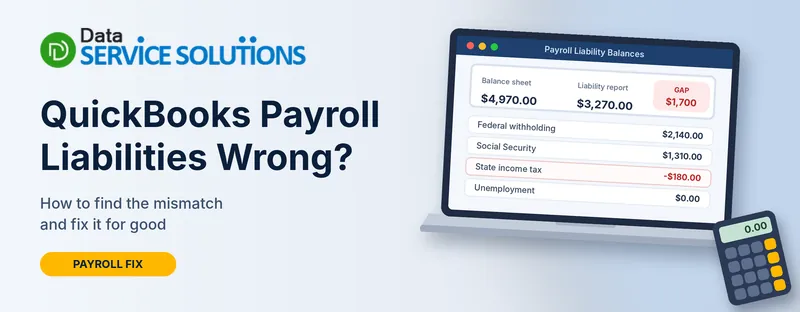
You open the balance sheet and the payroll liabilities line says $4,970. You run the Payroll Liability Balances report and it says $3,270. Or one tax sits at a negative number. Or the Payroll Center swears you’re overdue on a payment you made last week. Whichever it is, a QuickBooks payroll liabilities wrong balance is annoying precisely because you can’t tell which number to trust.
The short version: your paychecks are probably fine. What’s usually off is how a payment, a void or an adjustment was recorded. This guide helps you work out which number is wrong, find the transaction causing it, and fix it without making things worse.
Quick Answer: What to Do First
- Back up the company file. Everything below changes your books.
- Run two reports for the same date: the Payroll Liability Balances report and the balance sheet. Note the gap.
- Trace the gap. Double-click the balance sheet amount and look for a regular check, a voided paycheck, or a manual entry that doesn’t belong.
- Fix the cause, not the number. Re-enter the payment as a liability payment, recreate the voided item, or post an adjustment.
- Check again with the same two reports, and with your Form 941 before you file.
Which “Wrong” Do You Have?
People use the same phrase for different problems. Match yours.
| What you see | Most likely cause | Go to |
|---|---|---|
| Balance sheet and liability report don’t agree | Regular check or bill used to pay taxes, voided item, wrong account on a payroll item | Fix 1, 2, 3 |
| A liability is negative | Overpayment, duplicate payment, a deleted paycheck after paying | Fix 4 |
| Payroll Center shows overdue amounts you already paid | Payment recorded outside the payroll process, or an old unpaid item | Fix 5 |
| Totals don’t match Form 941 or your payroll summary | Wrong wage base, manual paychecks, missing adjustments | Fix 6 |
| Amount is wrong on every paycheck | Payroll item rate or tax table, not a liability problem | See the note below |
If the amount is wrong on the paychecks themselves, fix that first. Look at QuickBooks incorrect payroll items, payroll not deducting taxes and your payroll tax table update. A liability can only be as right as the paychecks behind it.
How QuickBooks Builds a Payroll Liability
It helps to know the machinery, because every fix comes back to it.
When you finish a paycheck, QuickBooks adds the taxes and deductions to a liability: what you withheld from the employee and what you owe as the employer. They pile up in your Payroll Liabilities account until you pay them. The liability is only marked as paid when you record the payment as a liability payment (Pay Scheduled Liabilities or Create Custom Liability Payments). A regular check or a bill payment can send the money out of the bank, but QuickBooks doesn’t know it covered the liability, so the balance stays put.
Two reports tell the story. The Payroll Liability Balances report shows what QuickBooks thinks you still owe by item. The balance sheet shows what’s sitting in the liability accounts. When those two disagree, something touched the account without going through the payroll process.
Common Reasons Payroll Liabilities Go Wrong
- A regular check or bill was used to pay the taxes. The most common cause by a distance.
- A paycheck or liability payment was voided after the tax was paid.
- A payroll item points at the wrong account, so amounts land outside Payroll Liabilities.
- A duplicate payment, entered once by you and once by an automatic tax service.
- A deleted paycheck whose tax was already paid.
- Paychecks entered by hand with the wrong wage base or no tax at all.
- Adjustments entered with the wrong sign, or applied to the wrong date.
- An old unpaid balance left from a quarter you filed outside QuickBooks.
- A damaged company file after a crash or a bad update.
- Online payroll taxes paid automatically that were also recorded by hand.
Before You Touch Anything
- Back up the company file. See how to back up a QuickBooks company file.
- Pick one date. Run both reports “as of” the same day, usually the end of the quarter.
- Work out what is closed. If the period is filed, deposited or reconciled, stop and ask your accountant before changing anything in it.
- Update QuickBooks and the tax table first, because old software can cause wrong liabilities. See how to update QuickBooks Desktop.
- Check payroll is active. If it’s locked, see QuickBooks payroll subscription inactive.
- Don’t delete paychecks that were paid or filed. Voiding or deleting a paid paycheck is how most of these problems start.
How to Find the Exact Mismatch (A Worked Example)
Say the balance sheet shows $4,970 and the Payroll Liability Balances report shows $3,270. The gap is $1,700. Here’s how to chase it.
- Run the Payroll Liability Balances report. Go to Reports > Employees & Payroll > Payroll Liability Balances, set the date range for the quarter, and note the total.
- Open the balance sheet for the same date. Double-click the Payroll Liabilities amount.
- Read the transactions that make it up (Transactions by Payroll Liability Item). Look for anything that isn’t a paycheck, a liability payment or an adjustment: a plain check, a bill payment, a journal entry, a deposit.
- Match the gap. In this example, there’s a regular check for $1,700 to the tax agency. QuickBooks sent the money out but didn’t treat it as a liability payment. That’s your $1,700.
- Fix that one transaction using Fix 1 below, then run both reports again. The gap should be gone.
If the gap isn’t a round, recognisable number, split it. Check one tax item at a time and one month at a time until the difference sits in a single place.
How to Fix QuickBooks Payroll Liabilities Wrong
Work through the fix that matches your problem. Re-run the reports after each one.
Fix 1: Replace a Regular Check or Bill Payment With a Liability Payment
QuickBooks only counts a liability as paid when it’s recorded as a liability check.
- Go to Banking > Use Register and choose the bank account you paid from.
- Find the regular check you used for the tax payment. Note the date, amount and payee.
- Select it and click Delete, then Save & Close. (If the bank has already cleared it, don’t delete it. Ask your accountant how to handle a reconciled item.)
- Re-record the payment properly. Go to Employees > Payroll Taxes and Liabilities > Pay Scheduled Liabilities, or use Create Custom Liability Payments for a payment that isn’t on the schedule.
- Choose the right liability, period and date, and use the same bank account.
- Run both reports again.
Fix 2: Recreate a Voided Paycheck or Liability Payment
A voided paycheck leaves negative balances. A voided liability payment leaves a positive balance, as if you never paid.
- Run the Payroll Liability Balances report and look for negative or doubled amounts.
- Open Transactions by Payroll Liability Item for the item to find the voided entry.
- Recreate the paycheck, or recreate the liability payment, with the same date and amount.
- If you use Payroll Assisted and the void is from an earlier quarter or year, the paycheck may need an amendment. Contact support before you recreate anything.
Fix 3: Point the Payroll Item at the Right Account
- Go to Reports > Employees & Payroll > Payroll Items Listing and check which account each item uses.
- For any item that isn’t pointing at Payroll Liabilities, go to Lists > Payroll Item List, double-click the item and click Next.
- Choose Payroll Liabilities as the liability account.
- Click Next until you reach Finish.
- When asked, choose Update all existing transactions to use this new account, then click OK.
Ask your accountant first if the item was used in a period that has been closed.
Fix 4: Clear a Negative Liability
A negative payroll liability means more has been paid, or taken off, than you owe.
- Trace it as in the worked example. Look for a duplicate payment, a deleted paycheck, or an adjustment with the wrong sign.
- If it’s a duplicate payment, void the second one or ask the tax agency for a refund, then record the refund correctly.
- If the agency refunded you, record it as a deposit to the liability account and note it in the memo, so it isn’t counted as income.
- If a paycheck was deleted after the tax was paid, recreate the paycheck.
- If it’s a rate problem, fix the item and the paycheck, then adjust (Fix 6).
For a rate problem that’s really about unemployment tax, see QuickBooks not calculating unemployment correctly.
Fix 5: Clear Overdue Liabilities You’ve Already Paid
- Go to Employees > Payroll Center > Pay Liabilities tab and look at what’s marked overdue.
- Compare it with the Payroll Liability Balances report for the same dates.
- If you paid it outside QuickBooks (a regular check, an online tax payment, a payroll provider), re-record it as a liability payment through Create Custom Liability Payments, using the real payment date.
- If the item is truly old and was handled by another provider, ask your accountant whether to clear it with an adjustment.
- In QuickBooks Online, if payroll taxes are paid automatically, don’t also record them by hand. Mark taxes you paid outside QuickBooks as paid so they aren’t charged twice.
Fix 6: Use Adjust Payroll Liabilities (Carefully)
This is the tool for correcting amounts, not a way to hide a mismatch.
- Run a Payroll Summary for the month or quarter and write down which items are off and by how much.
- Go to Employees > Payroll Taxes and Liabilities > Adjust Payroll Liabilities.
- Set the Date and Effective Date to the last paycheck date of the period.
- Choose Employee Adjustment and pick the employee. Do this even for employer taxes.
- Pick the payroll item. Enter a positive amount to increase a liability and a negative amount to reduce it. If you’re fixing a wage base, enter the amount under Income Subject to Tax.
- Add a memo explaining what you changed and why.
- Click Accounts Affected and choose one option:
- Do not affect accounts: only the year-to-date amounts on payroll reports change. Use this when the money was already paid.
- Affect liability and expense accounts: the adjustment posts to your books. Use this when the liability and expense need correcting.
- Click OK, then re-run the Payroll Summary and the Payroll Liability Balances report.
Take care with the sign. A reversed sign doubles the error instead of fixing it. If you’re not sure which option to pick, ask your accountant, because the wrong choice changes your expenses.
Fix 7: Repair the Data if Nothing Adds Up
If the reports disagree for no clear reason, the file may have a problem.
- Go to File > Utilities > Verify Data. If it reports problems, go to Rebuild Data.
- Run QuickBooks File Doctor from the Tool Hub if the file seems damaged.
- Run a payroll checkup (Desktop Payroll Basic, Standard and Enhanced) to check for errors.
- Re-run the reports.
QuickBooks Online Payroll: What’s Different
- Taxes may be paid for you. Since automated payroll taxes became required in Online, QuickBooks pays and files the taxes it handles and records the payment. If you also recorded a payment by hand, you can end up with a duplicate and a negative balance.
- Find the transaction. Open the Payroll Liabilities account in the chart of accounts and read through the entries, or run the Payroll Liability and Payroll Summary reports for the same dates.
- Fix with the right entry. Void a duplicate payment or record a correcting journal entry, with your accountant’s agreement.
- Mark taxes as paid when you paid them outside QuickBooks, so they aren’t withdrawn twice.
- Check the bank account on file has enough money for the automatic withdrawals.
Check Your Work Before You File
- Both reports agree on the same date.
- No negative liabilities remain unless you really are owed a refund.
- Payroll Center shows nothing overdue that you’ve paid.
- Your Payroll Summary matches the wages and taxes on Form 941. See QuickBooks Form 941.
- Year-end forms look right. For W-2s, see how to print a W-2 in QuickBooks.
- Keep a short note of what you changed, the date, and who agreed to it.
We aren’t tax advisors. If anything touches a filed return or a closed period, talk to your accountant first.
What Not to Do
- Don’t “zero out” a balance with an adjustment just to make it look right. It hides the real problem and can leave you underpaying the agency.
- Don’t delete paid or filed paychecks.
- Don’t use a regular check to pay a payroll tax again.
- Don’t change items in a closed or reconciled period without your accountant.
- Don’t fix the liability before the paychecks. If the amounts on the paychecks are wrong, fix those first.
How to Keep Payroll Liabilities Right
- Always pay taxes with Pay Scheduled Liabilities or Create Custom Liability Payments.
- Void and recreate instead of deleting paychecks.
- Run the Payroll Liability Balances report every month, and compare it with the balance sheet.
- Keep the tax table current.
- Review adjustments before posting, and always add a memo.
- Lock closed periods once your accountant signs off.
- Reconcile the payroll bank account regularly.
Still Wrong? Get Help From Our QuickBooks Payroll Team
If your payroll liabilities still don’t add up, or the mismatch goes back several quarters, a careful clean-up usually costs less than getting it wrong with the tax agency. Our payroll team can trace the gap, correct it and check your filings. Contact Data Service Solutions, visit our QuickBooks payroll support page, or call +1-(855)-955-1942. For related problems, see QuickBooks payroll not working.
Frequently Asked Questions
Why do my payroll liabilities not match in QuickBooks?
Usually a payment, void or adjustment was recorded outside the normal payroll process. The most common cause is paying a tax with a regular check or bill instead of a liability payment.
Which report shows what I owe in payroll liabilities?
The Payroll Liability Balances report, under Reports > Employees & Payroll. Compare it with the Payroll Liabilities account on your balance sheet for the same date.
Why is my payroll liability negative?
You’ve paid or credited more than you owed. Typical causes are a duplicate payment, a paycheck deleted after the tax was paid, or an adjustment with the wrong sign.
How do I adjust payroll liabilities in QuickBooks?
Go to Employees > Payroll Taxes and Liabilities > Adjust Payroll Liabilities, choose the date, employee and item, enter a positive or negative amount, and choose whether it affects your accounts.
What does “Do not affect accounts” mean in an adjustment?
It changes only the year-to-date amounts on payroll reports. Your liability and expense accounts stay as they are. Use it when the money has already been paid.
Why does QuickBooks show overdue liabilities I already paid?
The payment was probably recorded outside the payroll process, such as a regular check. Re-record it as a liability payment, or ask your accountant about clearing an old item.
Can I fix payroll liabilities with a journal entry?
Sometimes, in QuickBooks Online or for items outside the payroll module. Ask your accountant first, because a journal entry can leave the payroll reports out of step.
Will a wrong liability affect my Form 941?
It can. A wrong balance often means wrong wages or taxes on the form. Check your Payroll Summary against the form before you file.
Do I need to fix the paychecks as well?
Yes, if the amounts on them are wrong. Fix the paychecks and payroll items first, then the liabilities.