Payroll runs on rates: federal income tax brackets, Social Security and Medicare, and every state’s withholding. QuickBooks stores them in the payroll tax table. When the rates change and your table doesn’t, paychecks come out wrong, and the mistake is easy to miss until a tax notice or a year-end report shows it.
This guide shows you how to do a QuickBooks payroll tax table update in QuickBooks Desktop, how to check that you’re on the latest version, and what to do when the update fails or says there’s nothing new.
Quick Answer: How to Update the Payroll Tax Table
- Open QuickBooks Desktop as an administrator.
- Go to Employees > Get Payroll Updates.
- Tick Download Entire Update.
- Click Update, wait for the confirmation window, and click OK.
- To check, go to Employees > My Payroll Service > Tax Table Information and confirm the version.
You need an active payroll subscription for this to work. QuickBooks Online Payroll updates automatically, so there’s nothing to download.
What Is the Payroll Tax Table in QuickBooks?
The payroll tax table is the data file that tells QuickBooks how to calculate payroll taxes. It includes:
- Federal income tax withholding rates and brackets.
- Social Security and Medicare rates and wage limits.
- State income tax withholding rates.
- Rules for other state and local taxes where supported.
- Form and filing updates for the payroll tax forms.
It doesn’t include everything. In particular, your state unemployment (SUI) rate is set by your state, not by the tax table, so you enter it yourself. More on that below.
Why Updating the Tax Table Matters
- Correct paychecks. Withholding is based on the latest rates, so an old table can under- or over-withhold.
- Correct employer taxes. Your tax deposits and filings depend on the right amounts. See QuickBooks Form 941.
- Fewer penalties. Wrong deposits can lead to notices and fines.
- Smoother year-end. Wrong totals show up in W-2s and reports later.
- Features that keep working. Some payroll features can stop working on very old tables.
How Often Does the Tax Table Update?
Tax rates change at several points in the year. There’s usually a major update at the start of the year, other updates when federal or state rules change (including mid-year), and smaller releases as needed. The simplest habit is to check before every payroll. If you’re on the latest table, QuickBooks tells you there’s nothing new.
Before You Update
- Sign in as an admin or a user with payroll access.
- Check your payroll subscription is active. If not, see QuickBooks payroll subscription inactive or payroll subscription renewal.
- Update QuickBooks first. An old release often blocks the tax table update. See how to update QuickBooks Desktop.
- Check your computer’s date and time zone. A wrong year can stop the download.
- Check your internet connection.
- Don’t update in the middle of a payroll run. Finish or save the run first.
- Back up your company file. See how to back up a QuickBooks company file.
How to Check Your Current Payroll Tax Table Version
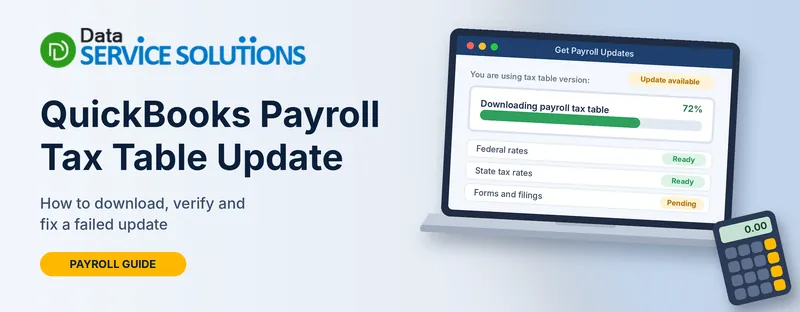
- Go to Employees > Get Payroll Updates.
- Look for You are using tax table version and note the number.
- Click Payroll Update Info to see details of the latest update and whether you have it.
- You can also go to Employees > My Payroll Service > Tax Table Information to see the version.
Don’t rely on a number you remember. Version numbers change with each release, so compare yours with the latest information in Payroll Update Info, or ask us if you aren’t sure.
How to Update the Payroll Tax Table in QuickBooks Desktop
Step 1: Update QuickBooks Desktop
- Go to Help > Update QuickBooks Desktop.
- Open the Update Now tab, tick Reset Update, and click Get Updates.
- When it finishes, close and reopen QuickBooks, and install the updates when asked.
If the update gets stuck, see QuickBooks update stuck.
Step 2: Download the Payroll Update
- Go to Employees > Get Payroll Updates.
- Tick Download Entire Update.
- Click Update.
- When a message says the download is complete, click OK. Read the update details if you want to see what changed.
Step 3: Confirm the Update Installed
- Go to Employees > Get Payroll Updates again. It should say you’re up to date.
- Check Tax Table Information under My Payroll Service and confirm the version matches the latest release.
- Run a test paycheck before you approve the real payroll.
Step 4: Update Your State Unemployment (SUI) Rate
The tax table doesn’t update your SUI rate. When your state sends your new rate:
- Go to Lists > Payroll Item List.
- Open your State Unemployment (Company) item.
- Click Next until you reach the Company Tax Rates screen.
- Enter the new rate for the quarter and click Finish.
For problems with unemployment amounts, see QuickBooks not calculating unemployment correctly.
What About QuickBooks Online Payroll?
QuickBooks Online Payroll updates tax rates for you, so you don’t download a tax table. You can still check:
- Your tax rates: go to Payroll > Settings > Taxes and check your state unemployment rate and any custom rates.
- Employee settings: check each employee’s withholding setup.
- Your subscription: make sure payroll is active and your payment method is current.
QuickBooks Payroll Tax Table Not Updating? Try These Fixes
If the update says “Nothing new downloaded”, stalls, or shows an error, work through these.
Fix 1: Check Your Subscription and Messages
- If the Payroll Center says your subscription is active but you need the latest update, you’re behind and haven’t received it yet.
- If it says the subscription is inactive, reactivate it first. Updates won’t download without an active subscription.
Fix 2: Update QuickBooks to the Latest Release
A tax table often needs a recent QuickBooks release. Go to Help > Update QuickBooks Desktop > Update Now > Get Updates, restart, and run Get Payroll Updates again.
Fix 3: Reset the Update and Run QuickBooks as Administrator
- Close QuickBooks.
- Right-click the icon and choose Run as administrator.
- Go to Help > Update QuickBooks Desktop, open Update Now, tick Reset Update, and click Get Updates.
- Restart QuickBooks and try Get Payroll Updates again.
Fix 4: Check the Date, Time and Internet Connection
- Check that your computer’s date, time and year are right.
- Open a secure website to make sure the internet works.
- If you see connection errors, read payroll internet connection read error, and check your firewall isn’t blocking QuickBooks. See Windows Firewall blocking QuickBooks.
Fix 5: Look Up the Error Code
Payroll update errors have a code, and each has its own fix.
- Error PS032 and error PS034: service key and file problems.
- Error PS038: stuck paychecks.
- Error PS058: payroll service issues.
- Error 12152, error 12057 and error 503: connection and update errors.
Fix 6: Re-Validate the Service Key and Rename Paysub.ini
If the service key is the issue, go to Employees > My Payroll Service > Manage Service Key, edit it, and finish without opening payroll setup. If that fails, try renaming the Paysub.ini file as a last-resort support step. See QuickBooks error 30159.
Fix 7: Repair QuickBooks
- Run Quick Fix my Program from the QuickBooks Tool Hub.
- Run the QuickBooks Install Diagnostic Tool.
- As a last step, reinstall with a clean install.
What to Check After the Update
- Paycheck test: create a test paycheck for one employee and check the federal, Social Security, Medicare and state lines.
- SUI rate: confirm the right rate is in your payroll item.
- A few employees: compare their withholding with the last pay period. Small changes are normal.
- Reports: run Payroll Summary and Payroll Liability Balances.
- Odd amounts: see QuickBooks incorrect payroll items and payroll not deducting taxes.
What If You Ran Payroll With an Old Tax Table?
- Check how big the gap is. Compare a paycheck with what the new table gives.
- Don’t edit past paychecks by hand without advice.
- Update now, and ask your accountant whether to correct past paychecks or adjust the next ones.
- Check your tax deposits and filings, since amounts may differ.
We’re not tax advisors. Ask your accountant before you correct paychecks that have already been paid or filed.
How to Keep Your Tax Table Up to Date
- Check for updates before every payroll, not just in January.
- Turn on automatic updates in Help > Update QuickBooks Desktop > Options, if your policy allows.
- Keep your subscription active and your payment details current.
- Update QuickBooks at least a few times a year.
- Set a reminder for your state’s unemployment rate notice.
- Keep a log of the version you were on and the date you updated.
- Review payroll reports each quarter.
Still Not Updating? Get Help From Our QuickBooks Payroll Team
If your payroll tax table won’t update, or you’re not sure paychecks are right, our payroll team can check your version, fix the update and review your last payrolls with you. Contact Data Service Solutions, visit our QuickBooks payroll support page, or call +1-(855)-955-1942. For related problems, see QuickBooks payroll not working.
Frequently Asked Questions
How do I update the payroll tax table in QuickBooks Desktop?
Go to Employees > Get Payroll Updates, tick Download Entire Update, and click Update. You need an active payroll subscription and a recent QuickBooks release.
How do I check which payroll tax table version I have?
Open Employees > Get Payroll Updates and look at “You are using tax table version”, or go to Employees > My Payroll Service > Tax Table Information.
Why does QuickBooks say “Nothing new downloaded”?
You may already be up to date, or your QuickBooks release or system date may be blocking the update. Update QuickBooks, check the date, and run Get Payroll Updates again.
Does the tax table update change my state unemployment rate?
No. Your SUI rate comes from your state. Enter it yourself in the State Unemployment payroll item.
How often should I update the payroll tax table?
Check before every payroll. Rates change at the start of the year and at other times when tax rules change.
Do I need to update QuickBooks Online Payroll tax tables?
No. QuickBooks Online Payroll updates the rates automatically. Check your settings and subscription instead.
Can I update the tax table without a payroll subscription?
No. An active payroll subscription is required to download the update.
What if I ran payroll before updating?
Update now, compare the paychecks, and ask your accountant whether anything needs correcting.
Why is my payroll update failing with an error code?
Each code points to a different cause, such as a service key problem, a connection problem or a damaged file. Look up the code in the list above.