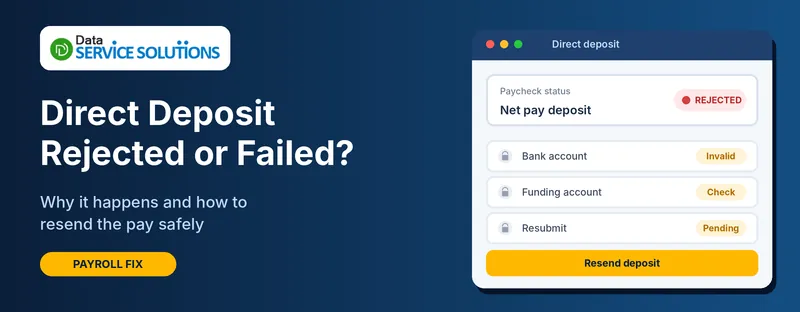
Payday arrives, and an employee tells you the money never showed up. You check QuickBooks and find the direct deposit was rejected, or never went out at all. Now there’s a paycheck marked as paid, an employee without their money, and a question about what happens to the funds.
The good news is that it’s fixable, and the money isn’t lost. This guide explains why a direct deposit gets rejected or fails, how to get your employee paid today, and how to resend the payment correctly without creating a double payment.
Quick Answer: What to Do First
- Find out which kind of failure it is: the employee’s bank rejected it, or it failed on your side (funding or subscription).
- Pay the employee by check or another way while you sort it out.
- Don’t resend right away. Confirm the bank details first, or you may get rejected again, or pay twice.
- Void the rejected paycheck, correct the bank details, and recreate it, as shown below.
Rejected vs Failed: What’s the Difference?
These sound the same but need different fixes.
- Rejected (returned): QuickBooks sent the payment, and the employee’s bank refused it. The cause is almost always on the employee’s side: a closed account, a wrong number, or a bank that wouldn’t accept it. The money returns to your payroll account.
- Failed (never sent): the deposit didn’t go out at all. The cause is on your side: not enough funds in your funding account, your payroll subscription is inactive, or a problem with your bank details or sign-in.
- Delayed (not missing): the payment is on its way but hasn’t posted yet, because of the timing of your plan, a bank holiday, or a bank hold.
Common Signs of a Rejected or Failed Deposit
- The employee says the money hasn’t arrived after the usual time.
- You see a message or email from payroll about a returned or rejected deposit.
- The paycheck shows as paid in QuickBooks, but the funds are credited back to Direct Deposit Liabilities.
- QuickBooks refuses to resend, saying a previous payment to that account was rejected.
- Direct deposit is switched off or unavailable on the paycheck.
Why Is a Direct Deposit Rejected or Failed?
Problems on the employee’s side
- The account number or routing number is wrong, often one digit.
- The account is closed or doesn’t exist.
- The account is frozen, or the bank doesn’t allow deposits to that type of account.
- The name on the account doesn’t match.
- A new account that the bank hasn’t fully set up yet.
Problems on your side
- Not enough money in your funding account when the payment is collected.
- Your payroll subscription is inactive or past due. See QuickBooks payroll subscription inactive.
- Your own bank details are wrong, or your bank blocked the withdrawal.
- Missed the cutoff time for your plan, so the payment went out late.
- Paychecks created or edited after the payroll was sent.
Problems that sit in between
- The payment went to the wrong person’s account. That’s a reversal, not a rejection. See how to reverse a direct deposit.
- A bank hold that delays the posting.
Before You Start
- Sign in as an admin with payroll access.
- Find the paycheck and its pay date. Note the net amount.
- Check with the employee that the bank details are right, preferably with a voided check or a bank statement, not a message.
- Check your funding account has money in it and you can see the withdrawal.
- Make a backup of your company file.
How to Find Out Why It Failed
- Look for the message. Check your payroll email and the Payroll Center for a rejection notice.
- Check the status of the paycheck in the Payroll Center or your payroll account.
- Check Direct Deposit Liabilities in your chart of accounts. A rejected deposit usually shows up there as money returned.
- Ask the employee to check with their bank whether the account is open and the numbers match.
- Check your own bank for the withdrawal and any returned item.
How to Pay Your Employee Today
Your employee still needs to be paid now. Choose one of these while the fix is under way.
- Pay by regular check. In QuickBooks Desktop, go to Banking > Write Checks, use the original paycheck date, enter the net pay amount, and on the Expenses tab choose Direct Deposit Liabilities as the account.
- Print a manual paycheck. In Desktop, go to Banking > Use Register, choose your direct deposit account, open the paycheck, click Paycheck Detail, clear Use Direct Deposit, then print it. This isn’t available on every plan, such as some assisted plans.
- Pay by another method that you and your employee agree to, and record it correctly so it isn’t paid twice.
Always tell the employee what you’re doing and keep a record. Don’t resend a direct deposit while a manual payment is also under way.
How to Fix a Rejected Direct Deposit in QuickBooks Desktop
Step 1: Confirm the Rejection
- Check your notice or the Direct Deposit Liabilities account.
- Ask the employee to confirm with their bank that the account exists, and what the account and routing numbers are.
Step 2: Void the Rejected Paycheck
- Go to Employees > Employee Center and open the employee’s Transactions, or go to Banking > Use Register.
- Open the rejected paycheck.
- Right-click it and choose Void Paycheck, or use the Edit > Void Paycheck option.
- Save.
If the paycheck was already paid by another method, don’t void it. Ask your accountant how to record the return first.
Step 3: Correct the Bank Details
- Go to Employees > Employee Center and double-click the employee.
- Open the Payroll Info tab and click Direct Deposit.
- Check the account number, routing number, and account type (checking or savings).
- Save, and keep a note of what you changed and who confirmed it.
Step 4: Recreate and Resend the Paycheck
- Go to Employees > Pay Employees and create the paycheck again with the original pay period and date.
- Check that Use Direct Deposit is ticked and the amount matches.
- Send the payroll and watch for the confirmation.
Step 5: Record the Money That Was Returned
When a deposit is returned, QuickBooks creates a deposit in Direct Deposit Liabilities. If you can’t see it:
- Send a zero-dollar payroll so it appears, or enter it by hand.
- To enter it, go to Banking > Make Deposits.
- Set Deposit To to your bank account and the date to the day the funds came back.
- Set From Account to Direct Deposit Liabilities and enter the employee’s name in the memo and the rejected amount.
- Save and close.
Ask your accountant if you’re unsure how it should be recorded.
How to Fix It in QuickBooks Online Payroll
- Pay the employee by check while you fix it. Your payroll support can help you create a manual paycheck with direct deposit turned off.
- Void the rejected paycheck from the payroll history, so the amount flows back to your books.
- Correct the bank details in the employee’s profile and check them with the employee.
- Resend the direct deposit by creating the paycheck again, or by following the steps your payroll support gives you.
If you use a stand-alone payroll service without the accounting side, export the voided transaction to your accounting software or record it with a journal entry.
What If QuickBooks Won’t Let You Resend?
After a rejection, QuickBooks may flag the account and block more payments to it, even if the details are now correct. If you see a message that a previous payment to that account was rejected:
- Confirm with the employee and their bank that the account is now open and set up correctly.
- Contact payroll support and ask them to review and clear the hold on the account.
- Void the old payment, correct the account details, and resubmit.
If you can’t get it cleared in time, pay by check in the meantime and keep a note.
What If Your Own Funding Failed?
When the cause is on your side, every direct deposit in that payroll may be affected, not just one.
- Check your funding account for the withdrawal and the balance on the day it was due.
- Add funds and speak to payroll support about reprocessing or resending the payroll.
- Check your subscription is active. If not, see QuickBooks payroll subscription renewal.
- Check your bank information is current, and your bank hasn’t blocked the debit.
- Pay urgent employees by check, and don’t resend without confirming with support, so nobody is paid twice.
Tax payments tied to that payroll can also be affected. Check your tax deposit deadlines. See QuickBooks Form 941.
After the Direct Deposit Is Sent Again
- Confirm with the employee the money arrived.
- Check Direct Deposit Liabilities is back to zero, with no leftover amounts.
- Make sure no paycheck was paid twice, by a check and a deposit.
- Review the payroll reports. See QuickBooks incorrect payroll items if amounts look off.
- Save the notes of what failed, why, and how it was fixed.
We’re not tax or legal advisors. Ask your accountant about timing, pay rules and how to record returned deposits, and check your state’s rules on late pay.
How to Prevent Failed or Rejected Direct Deposits
- Collect bank details carefully, using a voided check or a bank letter.
- Check each new account with a small test, or confirm the first payment arrived.
- Keep your funding account topped up before every payroll, with a buffer.
- Send payroll early, before your plan’s cutoff time.
- Update details quickly when an employee changes bank.
- Keep your payroll subscription active and watch for billing emails.
- Keep a second admin who can approve and check payroll.
- Review payroll reports each pay period.
Still Not Fixed? Get Help From Our QuickBooks Payroll Team
If a direct deposit keeps failing, or you’re not sure if an employee was paid twice, our payroll team can review it with you, correct the records and get your payments flowing again. Contact Data Service Solutions, visit our QuickBooks payroll support page, or call +1-(855)-955-1942. For other payroll problems, see QuickBooks payroll not working.
Frequently Asked Questions
Why was my QuickBooks direct deposit rejected?
Usually the employee’s bank account number or routing number is wrong, or the account is closed or frozen. It can also be a new account that the bank hasn’t set up yet.
What happens to the money when a direct deposit is rejected?
It returns to your payroll account and shows in Direct Deposit Liabilities. Your employee has not been paid, so you need to pay them another way or resend it.
How long does a rejected direct deposit take to come back?
It depends on the bank and the timing, and can take a few business days. Your payroll provider can tell you where the money is.
How do I resend a rejected direct deposit?
Void the rejected paycheck, correct the bank details, and recreate the paycheck with direct deposit turned on. Confirm the details with the employee first.
Can I pay the employee by check instead?
Yes. Write a check, using Direct Deposit Liabilities as the account, or print a manual paycheck with direct deposit turned off. Make sure you don’t also resend the deposit.
Why does QuickBooks say the account was previously rejected?
After a rejection, the account may be flagged and blocked. Confirm the account is correct, then ask payroll support to review and clear the hold.
What if the money went to the wrong employee?
That isn’t a rejection. You can request a reversal and may need to arrange with the other person. See our guide on reversing a direct deposit.
What if my funding account didn’t have enough money?
The payroll may be delayed or not sent at all. Add funds, check your subscription, and speak to payroll support about reprocessing so nobody is paid twice.