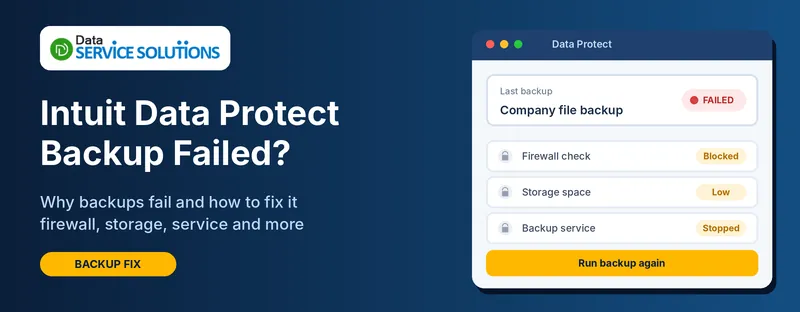
You open the tray icon, or an email arrives, and it says the last backup failed. Maybe it says “firewall or connection issue.” Maybe it just says the backup didn’t complete. Meanwhile your company file, which holds every invoice, bill and payroll record, has no recent copy. When Intuit Data Protect says the backup failed, the cause is usually small: a blocked program, a full backup quota, a stopped service, or a file that was open at the wrong moment.
This guide helps you work out which one it is from the message you see. It also shows you how to protect your data today, before you’ve fixed anything.
Quick Answer: What to Try First
- Make a manual local backup right now. In QuickBooks, go to File > Back Up Company > Create Local Backup. Do this before anything else.
- Run the diagnostic tool. Right-click the Data Protect icon in the system tray, open About, press Ctrl+F2, and click Run Diagnostics.
- If the message mentions a firewall or connection, allow the Data Protect programs through your firewall (Fix 2).
- If backups run but never finish, check your storage quota and free disk space (Fix 4).
Protect Your Data Today, Before You Fix Anything
A failed backup tool doesn’t stop your work, so don’t leave the file unprotected while you troubleshoot.
- Open your company file and go to File > Back Up Company > Create Local Backup.
- Choose Local backup, click Next, and pick a folder on a drive that isn’t the one QuickBooks runs from.
- Let it finish, then copy that backup file to an external drive or a second location.
This takes a few minutes. It means a bad week with Data Protect doesn’t turn into a lost month of records. If a local backup also fails, our guide on being unable to back up a QuickBooks company file covers that separately.
Which Failure Are You Seeing?
Match your situation to the fix. Most of these problems have different causes, so this saves time.
- “Firewall or connection issue,” or error 2277: the programs can’t reach the internet. Go to Fix 2 and Fix 3.
- Backup starts and never finishes, or says incomplete: quota, disk space or file problems. Go to Fix 4 and Fix 5.
- Scheduled backups don’t run, but a manual one works: the computer is asleep, or no one is signed in. Go to Fix 6.
- The tray icon is gone, or Data Protect “has stopped working”: the service isn’t running. Go to Fix 7.
- It failed right after a QuickBooks or Windows update: go to Fix 1 and Fix 8.
- The file is on a server or network drive: go to Fix 5.
Why Does Intuit Data Protect Backup Fail?
- A firewall or security program blocks the Data Protect programs from going online.
- The internet connection drops, or a proxy or VPN interferes.
- The backup quota is full, so there’s no room for a new copy.
- The computer is low on disk space, or the drive isn’t formatted as NTFS.
- The company file is open, damaged, or has a long name, and can’t be copied cleanly.
- The background service isn’t running, or isn’t running with the right permissions.
- QuickBooks or Data Protect is out of date, and the two no longer agree.
- The computer is asleep or signed out when the backup is due.
- The company file lives on a network path that Data Protect can’t read.
Before You Start
- Sign in to Windows as an administrator. Several fixes below won’t work without it.
- Close QuickBooks on every computer that has the company file open.
- Make the manual backup above. Always back up before you change settings or reinstall.
- Note the exact message and any error code. It tells you which fix to start with.
- Check your subscription is active. If Data Protect is a paid service on your account, a lapsed plan will also stop backups.
How to Fix Intuit Data Protect Backup Failed
Work through these in order, and test a backup after each one.
Fix 1: Update QuickBooks and Data Protect
An old version of one often breaks its link to the other.
- Open QuickBooks as an administrator.
- Go to Help > Update QuickBooks Desktop, open Update Now, tick Reset Update, and click Get Updates. If it hangs, see QuickBooks update stuck.
- Restart QuickBooks and install the updates when asked.
- Right-click the Data Protect icon in the tray, open About, and check for an update there.
- Start a manual backup and see if it completes.
For the full process, see how to update QuickBooks Desktop.
Fix 2: Let Data Protect Through Your Firewall
This is the most common reason for a “firewall or connection issue” message.
- In the Windows search box, type firewall and open Windows Defender Firewall.
- Click Allow an app or feature through Windows Defender Firewall, then Change settings.
- Click Allow another app > Browse.
- Go to the Data Protect folder under Program Files (x86) > Common Files. Add these three programs: IntuitDataProtect.exe, IBuEngHost.exe and QBIDPServices.exe.
- Tick Private (and Public if that’s how your computer connects) for each one, and click OK.
- If you use third-party antivirus or a business firewall, add the same three programs to its allow list.
Data Protect connects over normal web ports (80 and 443). Some guides also mention port 16841. Check your own firewall’s logs before adding custom port rules. For more detail, see our guide on Windows Firewall blocking QuickBooks.
Fix 3: Run the Diagnostic Tool and Check Your Connection
- Right-click the green Data Protect icon in the system tray and choose About.
- Press Ctrl + F2 to open the diagnostic tool.
- Click Run Diagnostics and let it finish.
- If it reports a firewall or security issue, go back to Fix 2.
- Check that you can open a secure website in your browser. Data Protect needs normal internet access.
- Turn off any VPN or proxy and test a backup again.
If the diagnostic is clean but backups still fail, our QuickBooks Connection Diagnostic Tool guide can help rule out a network problem.
Fix 4: Free Up Backup Space
Data Protect stores your backups within a quota. When it’s full, new backups stop.
- Open Data Protect from the tray icon.
- Check how much backup space is used. Download any older backups you want to keep, then delete the ones you don’t.
- Open Change Backup Settings and untick files you don’t need backed up, such as old copies or large attachments.
- Check your computer’s own disk too. Keep at least 1 GB free on the drive where QuickBooks runs.
- Run the backup again.
Fix 5: Check the Company File and Where It’s Stored
- File name: keep the company file name short, with no extra spaces or special characters.
- File in use: make sure no one has the file open when the backup runs, including on another computer.
- Drive format: the drive holding the file should use NTFS. Right-click the drive in File Explorer and open Properties to check.
- Network paths: if the file sits on a server, use a mapped drive letter instead of a \server\share path where possible.
- Damaged data: if the file may be corrupted, run File > Utilities > Verify Data. If it finds problems, see QuickBooks File Doctor not working.
Fix 6: Make Scheduled Backups Run on Time
If manual backups work but scheduled ones don’t, the computer usually isn’t available at the scheduled time.
- Open Control Panel > Power Options and set the computer not to sleep during your backup window.
- Stay signed in to Windows with an administrator account. Remote sessions that disconnect can stop the backup.
- Turn off Keep QuickBooks running for quick startups in Edit > Preferences > General > My Preferences.
- Move the schedule to a time when the file isn’t being used.
Our guide on QuickBooks scheduled backup not working goes deeper on the schedule itself.
Fix 7: Check That the Data Protect Service Is Running
- Press Ctrl + Shift + Esc to open Task Manager and click the Details tab.
- Look for IBuEngHost.exe. It should be running, and the User name column should say SYSTEM.
- If it’s missing, or running as a Windows user, Data Protect was probably installed under the wrong account. Reinstall QuickBooks and Data Protect while signed in as an administrator. See the QuickBooks Clean Install Tool guide for a clean reinstall.
- If the tray icon is missing or Data Protect “has stopped working,” also read Intuit Data Protect has stopped working.
Fix 8: Repair or Reinstall QuickBooks
If none of the above helps, the installation itself may be damaged.
- Open the QuickBooks Tool Hub and run Quick Fix my Program.
- If that doesn’t help, run the QuickBooks Install Diagnostic Tool from the Installation Issues tab.
- As a last step, uninstall and reinstall QuickBooks with a clean install, then reinstall Data Protect.
If the backup runs but is marked incomplete, see our guide on Intuit Data Protect backup incomplete.
Fix 9: Use a Different Backup Method While You Sort It Out
If Data Protect still won’t cooperate, you don’t have to wait for it.
- Automatic local backups: in QuickBooks, go to File > Back Up Company > Create Local Backup > Options and set a schedule and a destination folder.
- A second copy: copy each backup to an external drive or another location. One copy on one computer isn’t a backup.
- Cloud storage: a business storage account can hold copies of the backup file.
Is Your Backup Actually Good? How to Check
A backup that completes isn’t always one you can restore from. Once a month:
- Open the backup folder and check the file’s date and size look right.
- Restore a copy to a different folder, not over your live file, using File > Open or Restore Company > Restore a backup copy.
- Open the restored file and check that a recent invoice or bill is there.
If the restore fails with a format message, see QuickBooks restore failed: invalid format.
QuickBooks Online Users: Do You Need Data Protect?
No. Data Protect is for QuickBooks Desktop. QuickBooks Online stores your data online and takes care of the storage side for you. You can still make your own copy of the data. See our guide on how to back up QuickBooks Online.
How to Stop Intuit Data Protect Backups From Failing Again
- Update QuickBooks and Data Protect regularly.
- Keep the firewall rules in place, and re-check them after security software changes.
- Watch your storage: clear old backups and keep disk space free.
- Keep the computer awake during the backup window.
- Check the backup history once a week. Don’t wait for the failure email.
- Keep a second backup outside Data Protect.
- Test a restore every month.
Still Failing? Get Help From Our QuickBooks Team
If your backup still fails after these steps, the cause may be a damaged company file, a server permission problem, or a reinstall that needs doing in the right order. Our team can find the cause and get your backups running again. Contact Data Service Solutions or call +1-(855)-955-1942.
Frequently Asked Questions
Why does Intuit Data Protect say my backup failed?
The most common cause is a firewall or security program blocking the Data Protect programs. Other causes are a full backup quota, low disk space, a stopped service, a file that’s open, or an out-of-date QuickBooks version.
What does “Intuit Data Protect backup failed: firewall or connection issue” mean?
Data Protect couldn’t reach its servers. Allow the three Data Protect programs through your firewall and security software, check your internet connection, turn off any VPN or proxy, and run the diagnostic tool (Ctrl + F2).
How do I run the Data Protect diagnostic tool?
Right-click the Data Protect icon in the system tray, choose About, press Ctrl + F2, and click Run Diagnostics.
Will I lose my data if Data Protect backups keep failing?
Your live company file isn’t affected, but you have no recent backup if something goes wrong. Make a manual local backup now and copy it to a second location.
Can I back up my company file without Data Protect?
Yes. Go to File > Back Up Company > Create Local Backup. You can also schedule automatic local backups in the same window.
Why do scheduled backups fail while manual ones work?
Usually the computer is asleep, no one is signed in, or QuickBooks is set to keep running for quick startups. Fix the power settings and the schedule time.
Does Data Protect work with QuickBooks Online?
No. It’s for QuickBooks Desktop only.
How do I know my backup can be restored?
Restore it to a separate folder and open the restored file. Check that recent transactions are there. Do this every month.