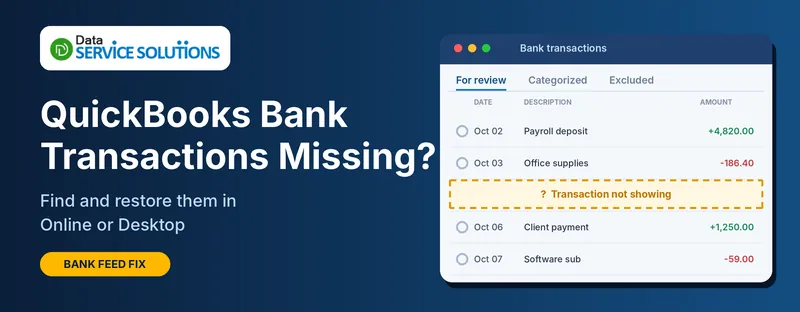
You open the bank feed expecting last week’s deposits, and half of them aren’t there. Or a month of activity has gone quiet. Or you reconciled, and a payment you were sure about has disappeared from the list. If your QuickBooks bank transactions are missing, the transactions are usually still there. They’ve been matched, excluded, sent to an uncategorized account, hidden by a filter, or never downloaded in the first place.
This guide shows you how to work out which of those it is, then how to find and restore the transactions in both QuickBooks Online and QuickBooks Desktop.
Quick Answer: Where to Look First
- Online: open Bank transactions and click Update, then check the For review, Categorized and Excluded tabs.
- Still not there: check your bank rules, the Uncategorized Income and Uncategorized Expense accounts, and the account register with every filter cleared.
- Gone after a change: check the audit log for deleted entries.
- Desktop: check the Bank Feeds Center transaction list and your banking rules.
First, Which Kind of “Missing” Do You Have?
The fix depends on where the transaction is missing from:
- Missing from the bank feed (never showed up to review): the download didn’t happen, or the transaction was pending, too old, or handled by a rule. Start with Fix 1.
- In the feed but not in your books or reports: it’s excluded, matched, or categorized to the wrong account. Start with Fix 2.
- Missing from the register or a report: a filter, a date range, or an uncategorized account is hiding it. Start with Fix 5.
- Missing after you reconnected your bank: you may have two connections. Go to Fix 7.
- Was there, now gone: someone may have deleted it. Go to Fix 9.
- Missing after reconciling: see the section on reconciliation below.
Why Are Bank Transactions Missing in QuickBooks?
- The bank hasn’t posted them yet. Pending transactions don’t download, only posted ones.
- The nightly download is delayed. It can take up to 48 hours for new activity to arrive.
- The transactions are older than the download limit. A newly connected account typically pulls in about 90 days.
- The transaction was excluded by you or someone else, or marked as a duplicate.
- A bank rule set to auto-add put it straight into your books, so it never appeared for review.
- The transaction matched an existing entry, so QuickBooks treated it as already recorded.
- It was categorized to Uncategorized Income or Uncategorized Expense instead of the account you expected.
- A date or type filter in the register or a report is hiding it.
- The bank connection is broken or duplicated, especially after you relinked.
- Someone deleted or voided the transaction.
- A closing date is stopping entries in an older period.
Before You Start
- Know the exact transaction. Write down the date, amount and payee from your bank’s website or statement, so you can search for it.
- Check the bank’s own site. If the bank doesn’t show the transaction as posted, QuickBooks can’t import it yet.
- Sign in as an admin, so you can see rules, the audit log and settings.
- Back up first if you’re about to delete or re-enter anything. For Online, our guide on how to back up QuickBooks Online data shows the options.
How to Find Missing Bank Transactions in QuickBooks Online
Work through these in order.
Fix 1: Update the Connection and Give It Time
- Open Bank transactions in QuickBooks Online.
- Click Update next to the account.
- Check the For review tab for new items.
- If the transaction is recent, wait. Allow up to 48 hours before assuming it’s lost, and remember that anything still pending at the bank won’t come through.
If the update fails with a message or error code, see QuickBooks error 102, error 185, error 324 or error 355 for the matching fix.
Fix 2: Check the For Review, Categorized and Excluded Tabs
- In Bank transactions, pick the bank account.
- Look at For review first. Anything not yet categorized sits here.
- Open Categorized. If the transaction is there under the wrong account, unmatch it and move it.
- Open Excluded. This is where items marked personal, duplicate, or excluded end up. Select the transaction and click Undo, then categorize it from For review.
- Widen the date range at the top of each tab, because the default view may not go back far enough.
Fix 3: Look for a Matched Transaction
Sometimes QuickBooks matches a downloaded item to an invoice, bill or expense you’d already entered. It looks like the transaction disappeared, but it’s actually joined to the existing one. In the Categorized tab, open the item and check whether it’s matched. If the match is wrong, click Undo and add the transaction as new instead.
Fix 4: Check Your Bank Rules
Rules set to auto-add send transactions straight into your books without ever showing them in For review. A rule with broad conditions (like “description contains PAYMENT”) can quietly swallow lots of items.
- Open Bank transactions and go to Rules.
- Look for rules set to auto-add.
- Edit or turn off any that look too broad.
- Search your register for the missing transaction. It’s probably there, categorized by the rule.
Fix 5: Check the Register and Clear Every Filter
- Click the Gear icon, then Chart of accounts.
- Find your bank account and click View register.
- Set the date filter to All dates and the transaction type to All.
- Search for the amount or payee.
Also run a report. A date range of “This year” will hide anything from last year, and a report filtered to one customer or one account will hide the rest.
Fix 6: Check the Uncategorized Accounts
Transactions you don’t assign to a real account go to Uncategorized Income or Uncategorized Expense.
- Go to Chart of accounts.
- Open Uncategorized Income and Uncategorized Expense and click Run report.
- Look for your transaction.
- Open it and move it to the correct account.
If you can’t find invoices, see QuickBooks missing invoices.
Fix 7: Check for a Duplicate or Old Bank Connection
When you reconnect a bank, QuickBooks can link the new connection to a second copy of the account, and new transactions land there while the old one sits idle.
- In Bank transactions, look at the account tiles at the top. Do you see the same bank account twice?
- Check which one has the recent activity and the right last-updated date.
- Disconnect the one you don’t need, and keep the account that holds your history.
- If you need to start the connection over, follow our steps for connecting a bank account to QuickBooks Online. If the new feed keeps failing, see QuickBooks error 88888.
Fix 8: Upload Missing Months Manually
If the gap is older than the download limit, or the bank won’t connect, upload the transactions yourself.
- On your bank’s website, download transactions for the missing period as a CSV or .QBO file. Most banks limit how many months you can pull at once, so do it in chunks.
- In QuickBooks Online, open Bank transactions, click Link account (or the dropdown beside it) and choose Upload from file.
- Follow the prompts, pick the right account, and map the columns if it’s a CSV.
- Review the imported items and add them.
Our guide on importing transactions into QuickBooks has the file format details. Check the uploaded items against any entries you’d already typed in by hand, to avoid doubles.
Fix 9: Find Deleted Transactions in the Audit Log
If a transaction was there and now isn’t, someone may have deleted it.
- Click the Gear icon and open Audit log.
- Set the filters: the date range, the user, and the event type (such as Deleted).
- Find the transaction and open the details to see the date, amount and account.
- Re-enter the transaction using those details.
If you can’t find who did it, narrow the date range and filter by each user in turn.
Fix 10: Try a Private Window and Clear Your Cache
If everything looks right but the screen still shows gaps, the page may be stale.
- Open QuickBooks Online in a private or incognito window.
- If the transactions appear there, clear your browser cache and cookies and sign in again.
Our guides on QuickBooks error 81623 and QuickBooks error 400 show the steps. Browser trouble can also show up as QuickBooks error 9999.
How to Find Missing Bank Transactions in QuickBooks Desktop
Desktop works differently from Online, so the fixes are different.
Check the Bank Feeds Center Transaction List
- Go to Banking > Bank Feeds > Bank Feeds Center.
- Select the bank account and open the Transaction List view.
- Look at the status of each item (unmatched, matched or added) and widen the date range.
- If an item was added to the wrong account, open it in the register and correct it.
Check Your Banking Rules
Rules can send items straight to an account. In the Bank Feeds Center, open your rules and look for any that might be catching transactions you wanted to review. Edit or delete them, then check the register for the missing transaction.
Refresh, or Deactivate and Reconnect
- In the Bank Feeds Center, click Refresh (or Send/Receive) for the account.
- If that doesn’t bring the transactions in, deactivate the bank feed for the account, then set it up again.
- Do this on a backup copy first if you can. Reconnecting can create duplicates if the account isn’t matched to the right one.
For error messages during setup, see QuickBooks error 176 and QuickBooks error 109.
Import a Bank File Manually
- Download a .QBO (Web Connect) file for the missing period from your bank’s website, and save it to your computer.
- In QuickBooks, go to Banking > Bank Feeds > Import Web Connect Files.
- Select the file, choose the account, and follow the prompts.
- Review the items in the Bank Feeds Center and add them.
Find Deleted or Voided Transactions
- Voided/Deleted Transactions Summary: go to Reports > Accountant & Taxes and run the Voided/Deleted Transactions report for your date range.
- Audit Trail: go to Reports > Accountant & Taxes > Audit Trail and filter by the account to see edits and deletes.
- Missing Checks report: go to Reports > Accountant & Taxes > Missing Checks, choose the account, and look for gaps in the check number sequence.
Once you’ve found what was removed, re-enter it with the same date, payee and amount. If you’re worried the file itself is damaged, run the tools in the QuickBooks Tool Hub, and see QuickBooks File Doctor not working if File Doctor won’t run.
Transactions Missing After Reconciling
If a transaction seems to have vanished from the reconciliation window, it usually means it was changed, deleted or unmarked after a previous reconciliation, or it’s dated after the statement ending date.
- Check the statement date and that you picked the right account.
- Run the reconciliation discrepancy report. Our guide on fixing a QuickBooks reconciliation discrepancy shows how to read it.
- If you need to roll back, see how to undo a bank reconciliation in QuickBooks Online.
- If you’re reconciling for the first time, our guide on reconciling a bank account in QuickBooks covers the full process.
What If a Closing Date Is Blocking the Entry?
If you try to add or restore a transaction in an older period and QuickBooks warns you or refuses, a closing date is probably set. Don’t remove the password just to get the entry in. Check with your accountant first, because changes to a closed period can affect tax filings.
How to Prevent Missing Bank Transactions
- Review the feed weekly. Small gaps are easier to catch than a missing month.
- Keep your rules narrow. Avoid auto-add rules with broad conditions.
- Don’t delete or exclude items you’re unsure about. Leave them for review.
- Reconcile every month, so missing items show up quickly.
- Check for duplicate accounts every time you relink a bank.
- Download statements and keep copies, so you always have something to compare against.
- Set a closing date and password after year-end.
- Fix connection errors early. If the bank feed stops updating, don’t wait for the gap to grow.
Still Missing Transactions? Get Help From Our QuickBooks Team
If you’ve been through these steps and some transactions are still missing, the cause may be a damaged file, a bank-side problem, or a change in a period that’s already closed. Our team can trace what happened, restore the entries, and make sure your books match your bank. Contact Data Service Solutions or call +1-(855)-955-1942.
Frequently Asked Questions
Why are my bank transactions missing in QuickBooks?
The usual reasons are that the transactions are still pending at the bank, the download is delayed, a rule sent them straight into your books, they were excluded or matched, or a filter is hiding them. Start by clicking Update and checking the For review, Categorized and Excluded tabs.
How long does it take for bank transactions to show up in QuickBooks?
New transactions usually arrive overnight, but it can take up to 48 hours. Pending transactions won’t download until the bank posts them.
How far back will QuickBooks download bank transactions?
When you first connect an account, QuickBooks typically pulls in about 90 days. For anything older, download a file from your bank and upload it manually.
Where do excluded bank transactions go?
They move to the Excluded tab in Bank transactions. Select the transaction and click Undo, then categorize it from the For review tab.
Can a bank rule hide transactions?
Yes. A rule set to auto-add puts transactions straight into your books, so they never appear in For review. Check your rules, and search the register for the missing item.
How do I find a deleted transaction in QuickBooks Online?
Open the Audit log from the Gear icon, filter by date, user or event type, and look for the deleted entry. Then re-enter it using the details shown.
Why are transactions missing after I reconnected my bank?
You may have two connections to the same account, with new transactions going to the one you’re not looking at. Check the account tiles in Bank transactions, keep the one with your history, and disconnect the other.
Will missing transactions affect my reconciliation and taxes?
Yes. Missing items can throw off your balances, your reconciliation and your reports. Fix them before you reconcile or file, and ask your accountant if the gap touches a closed period.