You double-click QuickBooks Desktop and, instead of your company file, you get a message saying it couldn’t initialize license properties. That’s QuickBooks Error 3371. It blocks QuickBooks from loading its license data, so the program won’t open or won’t activate. It looks serious, but your company data isn’t affected, and in most cases you can fix it in 10 to 20 minutes.
This guide explains what the error means, what the different status codes tell you, and how to fix it, starting with the quickest options.
What Is QuickBooks Error 3371?
Error 3371 appears when QuickBooks Desktop can’t read the file that stores your license and registration details. That file is called EntitlementDataStore.ecml. If it’s missing, damaged, or unreadable, QuickBooks can’t confirm your license and stops at startup.
You’ll see one of these messages:
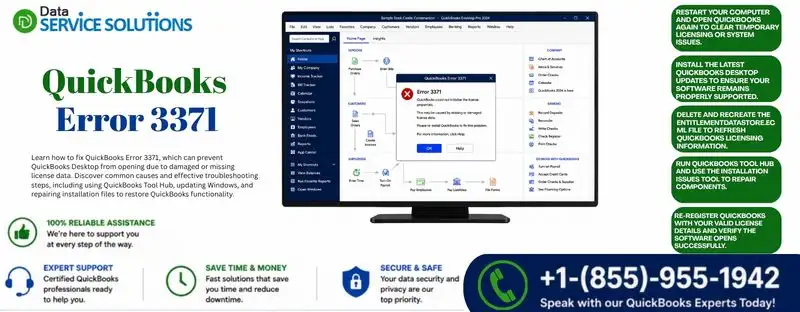
- Could not initialize license properties. Error 3371: QuickBooks could not load the license data. This may be caused by missing or damaged files.
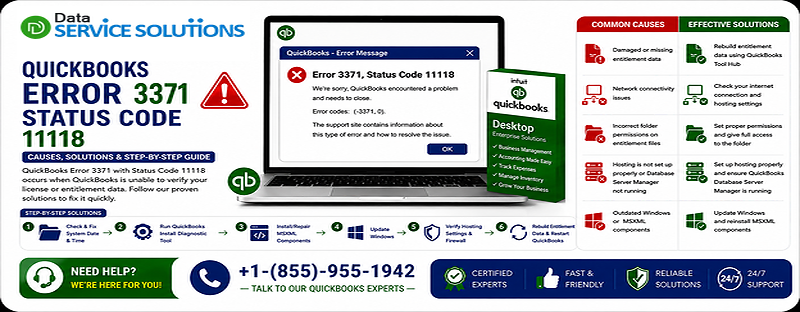
- Could not initialize license properties. [Error 3371, Status Code -11118] QuickBooks could not load the license data.
- Could not initialize license properties. [Error: 3371, Status Code -1] QuickBooks could not load the license data.
What the Status Codes Mean
The status code (-11118, -1, or none) only tells you which step of the license check failed. It doesn’t change how you fix it. All three versions respond to the same fixes below, in the same order.
When Does Error 3371 Usually Appear?
- Right after you install or reinstall QuickBooks and try to activate it.
- After a Windows update.
- After moving QuickBooks to a new computer (see our guide to moving QuickBooks to a new computer).
- When you open a downloaded bank file (.QBO) without saving it first.
- After a power cut or forced shutdown during activation.
Common Causes of QuickBooks Error 3371
- A damaged or missing EntitlementDataStore.ecml file.
- A damaged QBregistration.dat file, which also holds registration details.
- Broken Microsoft components QuickBooks relies on: MSXML or .NET Framework.
- An incomplete or corrupted QuickBooks installation.
- A weak or dropped internet connection while QuickBooks was downloading or updating, which can leave license files half-written.
- An outdated version of Windows.
- Antivirus or firewall software blocking QuickBooks from reaching its license files.
- A wrong system date or time, which can fail the license check.
- Importing a Web Connect (.QBO) file without saving it first.
Symptoms of Error 3371
- QuickBooks won’t open, or closes right after you launch it.
- The license error appears every time you start QuickBooks.
- You can’t activate or register QuickBooks after installing it.
- You can’t reach your company file, even though the file itself is fine.
- QuickBooks is slow to start before the error appears. If it’s also freezing or crashing, see QuickBooks keeps shutting down.
Before You Start
- Sign in to Windows as an administrator. Some steps change system folders.
- Find your license number and product number. You may need to enter them again. They’re in your purchase confirmation email or on the product packaging.
- Check the date and time. Make sure they match your time zone, and turn on automatic time in Windows settings.
- Close QuickBooks fully. Press Ctrl+Shift+Esc, and end any QuickBooks process still running in Task Manager.
- Don’t worry about your data. This error affects licensing only, and none of the fixes below touch your company file.
Which Fix Should You Try First?
- Error appeared after a Windows update: start with Fix 1, then Fix 2.
- Error appeared during first-time activation or after moving to a new PC: start with Fix 3.
- Error appeared when opening a bank file: go straight to Fix 4.
- Not sure: work through the fixes in order.
How to Fix QuickBooks Error 3371
Fix 1: Run the 3371 Error Fix from QuickBooks Tool Hub
The Tool Hub has a repair tool built for this exact error. It’s the fastest fix, so try it first.
- Close QuickBooks.
- Download and install the latest QuickBooks Tool Hub if you don’t have it yet.
- Open the Tool Hub and select Installation Issues.
- Click 3371 Error Fix and then OK.
- When it finishes, open QuickBooks and your company file.
Fix 2: Install the Latest Windows Updates
An out-of-date Windows can break the components QuickBooks uses for licensing.
- Open Settings > Windows Update.
- Click Check for updates and install everything that’s pending.
- Restart the computer, then open QuickBooks.
If QuickBooks itself has a pending update that hangs, see QuickBooks update stuck.
Fix 3: Recreate the EntitlementDataStore.ecml File
This is the fix that works most often. When you rename the damaged file, QuickBooks creates a new one the next time it starts.
- Close QuickBooks.
- Press Windows + R to open the Run box.
- Paste this path and press Enter:
C:\ProgramData\Intuit\Entitlement Client\v8ProgramData is a hidden folder, so typing the path directly is easier than browsing to it. If the folder isn’t there, try v6, which older versions use. - Right-click EntitlementDataStore.ecml and choose Rename.
- Add .OLD to the end of the name, so it reads EntitlementDataStore.ecml.OLD.
- Open QuickBooks. It will build a new file, and you may be asked to register or activate the program.
- If prompted, enter your license number and product number.
After you’re back in, sync your license to make sure the new file is complete. Go to Help > Manage My License > Sync License Data Online.
Fix 4: Save a Bank File Before You Open It
If the error shows up when you open a .QBO (Web Connect) file straight from your browser or email, QuickBooks may be trying to launch and import at the same time.
- Download the file from your bank’s website and save it somewhere easy to find, like your Desktop.
- Open QuickBooks and your company file.
- Go to File > Utilities > Import > Web Connect Files.
- Select the file you saved and follow the prompts.
For more on bringing bank data in, see how to import transactions into QuickBooks.
Fix 5: Repair Windows Components (.NET Framework and MSXML)
QuickBooks needs both of these to run. If either is damaged, licensing can fail.
Repair .NET Framework
- Close QuickBooks and open the Control Panel.
- Go to Programs and Features > Turn Windows features on or off.
- Find .NET Framework 4.8 (or the latest 4.x listed) and .NET Framework 3.5 (includes .NET 2.0 and 3.0).
- If a box is ticked, untick it, click OK, and restart. Then come back and tick it again.
- If a box is unticked, tick it, click OK, and restart.
If .NET problems keep showing up, our guide to QuickBooks Error 1904 covers them in more detail.
Re-register MSXML
- Click Start, type cmd, right-click Command Prompt, and choose Run as administrator.
- On a 64-bit Windows, type
cd\windows\syswow64and press Enter. - Type
regsvr32 MSXML6.dlland press Enter. - On a 32-bit Windows, skip step 2 and run the
regsvr32 MSXML6.dllcommand on its own. - Wait for the confirmation message, then restart the computer and reopen QuickBooks.
Fix 6: Run the QuickBooks Install Diagnostic Tool
If QuickBooks itself was installed badly, the fixes above won’t hold. The Install Diagnostic Tool scans for damaged installation files and repairs them.
- Open the Tool Hub and go to Installation Issues.
- Click QuickBooks Install Diagnostic Tool and let it run. It can take up to 20 minutes.
- Restart your computer and test QuickBooks again.
Full steps are in our guide to the QuickBooks Install Diagnostic Tool.
Fix 7: Check Your Antivirus and Firewall
Security software sometimes blocks QuickBooks from reading or rebuilding its license files. Temporarily turn off real-time protection, open QuickBooks, and see if the error is gone. If it is, switch protection back on and add QuickBooks to your exclusion list. Our guide on QuickBooks antivirus exclusions shows how for the most common programs. Also check that the Windows Firewall isn’t blocking QuickBooks.
Fix 8: Do a Clean Install of QuickBooks Desktop
If nothing has worked, a clean install replaces every QuickBooks program file, including the registration data. Your company file stays untouched.
- Make a backup copy of your company file first.
- Follow the steps in our clean install of QuickBooks Desktop guide to uninstall and rename the old folders.
- Download QuickBooks Desktop again and install it with administrator rights.
- Enter your license and product numbers when asked.
If the install fails partway, see can’t install QuickBooks Desktop.
A Note for Hosted, Multi-User and Remote Setups
Licensing is checked on each computer where QuickBooks runs. If you use a remote desktop or a hosted server, do the entitlement file fix on the machine where QuickBooks actually launches, not on your local PC. Always install and activate with an administrator account, because a standard user can’t write the files QuickBooks needs.
How to Prevent QuickBooks Error 3371
- Install and activate QuickBooks using Run as administrator.
- Keep Windows and QuickBooks updated.
- Don’t force-close QuickBooks, or shut down the PC, during activation or an update.
- Keep QuickBooks on the exclusion list in your antivirus and firewall.
- Save bank files to your computer before importing them.
- Keep your license and product numbers somewhere safe, so you can re-enter them after a reinstall or a move to a new computer.
- Back up your company file before big system changes like a Windows upgrade.
Still Seeing Error 3371?
If you’ve worked through all eight fixes and QuickBooks still won’t load its license, something deeper is going on. It could be a damaged Windows profile, a conflict with other software, or a license problem on the account side. If QuickBooks opens but acts oddly, check QuickBooks won’t open or QuickBooks not loading. If you’re also getting database errors in multi-user mode, see QBDBMgrN not running.
Our QuickBooks team can check the setup with you. Contact Data Service Solutions or call +1-(855)-955-1942.
Frequently Asked Questions
What does QuickBooks Error 3371 mean?
It means QuickBooks Desktop couldn’t load its license data. The usual cause is a damaged or missing EntitlementDataStore.ecml file, broken Windows components, or an incomplete installation.
What is the difference between Error 3371 and Status Code -11118?
They’re the same problem. The status code (-11118 or -1) only shows which step of the license check failed. The fixes and the order you try them in stay the same.
Will Error 3371 delete my company data?
No. The error affects license validation only, and your company file isn’t touched. It’s still good practice to make a backup before you reinstall anything.
Is it safe to rename the EntitlementDataStore.ecml file?
Yes. QuickBooks recreates it automatically when you start the program, and you may be asked to enter your license and product numbers again. Renaming the file with .OLD instead of deleting it also lets you put it back if you need to.
Why does Error 3371 appear after a Windows update?
Windows updates can replace or change the components QuickBooks uses for licensing, such as MSXML or .NET Framework. Repairing those components, or running the Tool Hub’s 3371 Error Fix, usually clears it.
Do I need to reinstall QuickBooks to fix Error 3371?
Usually not. Recreating the entitlement file, running the Tool Hub fix, or repairing Windows components solves most cases. A clean install is the last resort.
Can Error 3371 happen on QuickBooks Enterprise?
Yes, it can happen on any QuickBooks Desktop edition, including Pro, Premier and Enterprise. The fixes are the same.