You hit Save as PDF on an invoice, or press Print on a report, and QuickBooks refuses. Maybe you get a message about a missing component, a converter error, or nothing at all. Someone tells you to “run the repair tool,” and you can’t find it.
The QuickBooks Print and PDF Repair Tool is a small utility inside the QuickBooks Tool Hub. It’s built for exactly these printing, emailing and PDF failures, and it takes about a minute to run. This guide shows where it lives, how to run it safely, and what to try when it doesn’t fix the problem, which happens often enough that you should know the next steps.
What Is the QuickBooks Print and PDF Repair Tool?
It’s a repair tool for QuickBooks Desktop on Windows. QuickBooks lists it as a fix for errors such as:
- “Could not print to printer”
- “Unable to save as .pdf file”
- QuickBooks PDF Converter Activation Error -20, -30 or -41
- “Print Driver Host for 32-bit Applications has stopped working”
You’ll see it called both QuickBooks Print & PDF Repair Tool and QuickBooks PDF & Print Repair Tool. They’re the same thing. QuickBooks’ own pages use both names.
What it doesn’t do: QuickBooks doesn’t publish a detailed list of what the tool changes behind the scenes. Treat it as a first, low-risk step, not a guaranteed cure. It also doesn’t fix a damaged company file, a broken printer or a faulty printer driver.
Quick Answer: Run the Repair Tool in 5 Steps
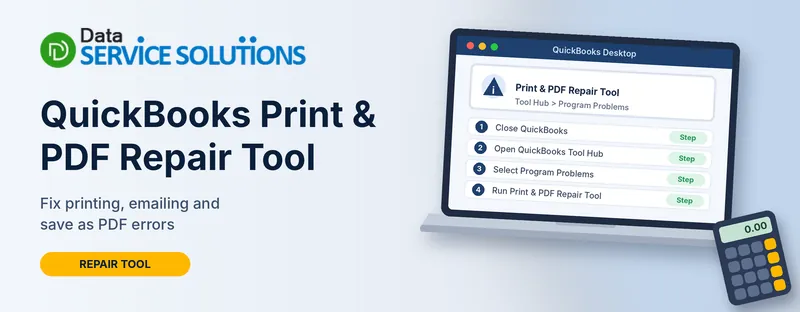
- Close QuickBooks.
- Open the QuickBooks Tool Hub (install it first if you don’t have it).
- Select Program Problems.
- Click QuickBooks Print & PDF Repair Tool and let it run for about a minute.
- Restart your computer, then try to print, email or save as PDF again.
If the problem is still there, see Fix 2 onward below.
Which Fix Matches Your Problem?
| What you see | Likely cause | Method to use |
|---|---|---|
| “Missing PDF component” or “unable to save as PDF” | Damaged PDF components or XPS turned off | Repair Tool, then Enable XPS Document Writer |
| PDF Converter Activation Error -20, -30 or -41 | PDF converter can’t activate | Repair Tool, then Reset Temp Folder Permissions |
| Print jobs stuck or “could not print to printer” | Printer, driver or spooler problem | Notepad Test, then Restart Print Spooler |
| Only one form fails | Damaged template | Create a New Template |
| Everything printed correctly before, now blank or wrong | Corrupted print settings | Rename QBPrint.qbp |
| Reconcile window seems frozen but PDF works | Window is off screen | Close All and reopen |
| Nothing above works | Damaged install | Repair QuickBooks, then Clean Install |
Before You Start
- Check you’re on Windows. The tool isn’t available for QuickBooks for Mac or QuickBooks Online. See the sections below.
- Update QuickBooks to the latest release. If updates fail, see QuickBooks not updating.
- On Windows 11, check XPS first. QuickBooks says to make sure Microsoft XPS Document Writer is turned on before you start. See Fix 3.
- Sign in as a Windows administrator, since the Tool Hub install and the fixes below change system settings.
- Back up your company file if you plan to go beyond Fix 3. See how to back up a QuickBooks Desktop company file.
- Keep antivirus and firewall on. None of these steps needs them off.
Fix 1: Run the QuickBooks Print and PDF Repair Tool
Step 1: Download and Install QuickBooks Tool Hub
- Close QuickBooks.
- Download QuickBooks Tool Hub version 1.6.0.8, the latest version QuickBooks lists. The file is QuickBooksToolHub.exe. Download it only from QuickBooks’ own site, and save it somewhere easy to find, such as Downloads or the desktop. Our QuickBooks Tool Hub guide walks through the download.
- Open QuickBooksToolHub.exe, follow the on-screen steps and accept the terms.
- When it finishes, double-click the QuickBooks Tool Hub icon on your desktop. If you can’t find it, search Windows for “QuickBooks Tool Hub.”
To check your Tool Hub version, open it and select the Home tab. The version number is at the bottom. QuickBooks recommends 64-bit Windows 10 or 11.
Step 2: Run the Tool
- In Tool Hub, select Program Problems.
- Click QuickBooks Print & PDF Repair Tool. It runs for about a minute.
- Restart your computer.
- Open QuickBooks and try again: print, email or save as PDF.
What If You Can’t Find the Tool in Tool Hub?
- Check the version. An old Tool Hub may not list it. Update to 1.6.0.8.
- Look in the right place. It’s under Program Problems, not Company File Issues or Installation Issues.
- Reopen Tool Hub. Close it fully, then open it from the desktop icon.
- Reinstall Tool Hub if the Program Problems tab is empty or Tool Hub won’t open.
- Check you’re on Windows. There’s no Mac version.
Fix 2: Restart, Then Reset Temp Folder Permissions
If the tool ran and the error is still there, QuickBooks’ next step is the temporary folder, which QuickBooks uses to build PDF files.
- Restart your computer and try again.
- Press Windows + R, type %TEMP% and press Enter.
- Right-click an empty area of the folder and choose Properties.
- Open the Security tab.
- QuickBooks says every user and group listed should have Full Control. Change it if it doesn’t.
- Try Save as PDF again.
On a shared or business computer, ask your IT person before changing folder permissions. Full Control on a temp folder is what QuickBooks recommends, but it’s a security setting you may not want to change on your own.
Fix 3: Turn On and Test Microsoft XPS Document Writer
QuickBooks’ PDF feature relies on the Microsoft XPS Document Writer. If it’s off or blocked, Save as PDF and email both fail.
Test it outside QuickBooks:
- Open Notepad, type “Test,” then choose File > Print.
- Pick XPS Document Writer and print.
- Save the file to your desktop and open it.
If that fails, the problem is Windows, not QuickBooks. Turn the feature on:
- Press Windows + R, type optionalfeatures and press Enter.
- Tick Microsoft XPS Document Writer.
- Click OK.
- On Windows 11, you can also reach this from Control Panel > Uninstall a program > Turn Windows features on or off.
Check two more things:
- Security software. QuickBooks warns that tools such as Norton or McAfee can block .xps file creation. Check that .xps files aren’t blocked, and add an exception if they are. Don’t turn the software off. Our QuickBooks antivirus exclusions guide can help.
- Windows user permissions. A user without permission to print to the XPS Document Writer can’t convert files to PDF. An administrator may need to change this.
If XPS printing fails even in Notepad after all this, contact your IT person or Microsoft.
Fix 4: Restart the Print Spooler Service
- Right-click Start, choose Run, type services.msc and click OK.
- Find Print Spooler, right-click it and choose Properties.
- Set Startup type to Automatic.
- Click Apply, then OK.
- Right-click Print Spooler again and choose Start.
- Try again.
Fix 5: Create a New Template for the Form
If one form fails and others work, the template may be the problem.
- Create a new template for that form type.
- Apply the new template to your transaction.
- Print or save as PDF again.
See also Form Does Not Fit on the Page and check alignment problems.
Fix 6: Test the Printer and the Company File
Use this when the problem is printing, not PDF.
- Print from Notepad. If it won’t print there, the problem is your printer or driver, not QuickBooks. Check that it’s online, clear stuck jobs, print a test page and update the driver.
- Check Printer Setup in QuickBooks. Go to File > Printer Setup, pick the form and confirm the right printer is selected.
- Try a different printer, such as a Microsoft XPS printer, to test.
- Print a different form, or a smaller batch.
- Open a QuickBooks sample company file and print the same kind of form. If the sample prints but yours doesn’t, your company file may be damaged. See QuickBooks File Doctor.
Fix 7: Rename the QBPrint.qbp File
QBPrint.qbp holds your QuickBooks print settings. If it’s damaged, QuickBooks may not print correctly. Renaming it forces QuickBooks to make a fresh one.
- Close QuickBooks.
- Find QBPrint.qbp for your version year (replace 20xx with it):
- Windows 10 and newer:
C:\ProgramData\Intuit\QuickBooks 20xx - Windows Server 2012 and newer:
C:\ProgramData\Intuit\QuickBooks 20xxandC:\Users\[remote user]\AppData\Roaming\Intuit\[year version]\TSPrinterSettings - Terminal Services can create duplicate copies, so check every folder.
- If you can’t see the folder, show hidden files or search Windows for the file.
- Windows 10 and newer:
- Right-click QBPrint.qbp, choose Rename and add “.old” (for example, QBPrint.qbp.old).
- Open QuickBooks and go to File > Printer Setup.
- Select any form from the Form Name list and click OK. This creates a new QBPrint.qbp.
- Try to print a transaction.
You’ll need to re-check your printer setup afterward, because the saved settings (printer, margins and so on) are reset.
Fix 8: Repair QuickBooks, Then Reinstall If Needed
- Press Windows + R, type appwiz.cpl and press Enter.
- Select QuickBooks, click Uninstall/Change and choose Repair.
- Restart and test.
You can also run the Install Diagnostic Tool from Tool Hub’s Installation Issues tab. See the QuickBooks Install Diagnostic Tool guide.
If nothing works, back up your company file and follow our QuickBooks Clean Install Tool guide. Keep your license and product number handy.
When the Reconcile Window Goes Missing
Sometimes QuickBooks seems frozen after you choose reconcile from the Banking menu, though PDF still works. The window may be off screen.
- Look through your open windows for the reconcile window.
- Choose Close All, then start the reconcile again.
QuickBooks Print and PDF Repair Tool for Mac
The tool is for Windows only, and Tool Hub doesn’t run on Mac. On a Mac, check your printer in System Settings, update QuickBooks and macOS, and use the Mac’s own PDF menu in the print dialog to save a copy.
What About QuickBooks Online?
There’s no repair tool for QuickBooks Online, because nothing is installed on your computer. Printing problems there are usually down to your browser, a pop-up blocker or your PDF viewer. Try another browser or a private window. If you can’t sign in, see QuickBooks login not working.
What Not to Do
- Don’t download “Print and PDF repair” files from anywhere except QuickBooks’ own site
- Don’t turn off antivirus or a firewall
- Don’t edit the Windows registry
- Don’t delete files from system folders you don’t recognize
- Don’t call a number from an ad or a random page and let someone take over your computer
How to Check That It Worked
- Save a report as PDF, then open the PDF
- Email a form as PDF to yourself
- Print an invoice and a report to your normal printer
- Print one more form type you use often, such as checks
How to Avoid Print and PDF Problems
- Keep QuickBooks updated
- Keep Microsoft XPS Document Writer turned on
- After a big Windows update, test printing and PDF once
- Keep your printer driver current
- Keep Tool Hub installed and current
- Back up your company file regularly
When to Get Help
If you’ve worked through Fix 8, or you can’t change Windows or security settings, write down the exact message, your QuickBooks version and release (F2), your Windows version and what you tried. The Data Service Solutions team can go through it with you.
For PDF-specific errors, see QuickBooks detected PDF component missing, QuickBooks unable to save as PDF and unable to locate PDF viewer.
Frequently Asked Questions
What is the QuickBooks Print and PDF Repair Tool?
A tool inside QuickBooks Tool Hub for Windows that targets printing, emailing and Save as PDF problems in QuickBooks Desktop.
Where do I find it?
Open Tool Hub, select Program Problems and click QuickBooks Print & PDF Repair Tool.
Is it the same as the QuickBooks PDF & Print Repair Tool?
Yes. QuickBooks uses both names for the same tool.
How long does it take?
About a minute, according to QuickBooks.
Is it safe to run?
It’s part of QuickBooks’ own Tool Hub, so it’s a reasonable first step. Download Tool Hub only from QuickBooks’ official site, and back up your company file as a habit.
Does it fix error -20, -30 or -41?
QuickBooks lists the PDF Converter Activation Error -20, -30 and -41 among the problems it’s meant for. If the error remains, reset the temp folder permissions and check XPS.
Why isn’t the tool in my Tool Hub?
Your Tool Hub may be old. Update it to 1.6.0.8, and look under Program Problems.
The tool ran and nothing changed. What now?
Restart, then try Fix 2 to Fix 8 in order. If you’re still stuck after renaming QBPrint.qbp and repairing QuickBooks, get help.
Do I need Windows 11’s XPS Document Writer turned on?
Yes. QuickBooks says to make sure it’s enabled before you start.
Does it work on Mac or QuickBooks Online?
No. It’s for QuickBooks Desktop on Windows.
Will it delete my data?
It’s not meant to touch your company file. QuickBooks doesn’t detail what it changes, so back up first.
Why can I print from Notepad but not QuickBooks?
The printer works, so the problem is inside QuickBooks, such as the print settings file, a template or a damaged installation.
Wrapping Up
The QuickBooks Print and PDF Repair Tool is worth running first, since it’s quick and sits right inside Tool Hub. But it isn’t magic. If it doesn’t help, work through the temp folder, XPS, Print Spooler and QBPrint.qbp, in that order. If you’re still stuck, the Data Service Solutions team can help.