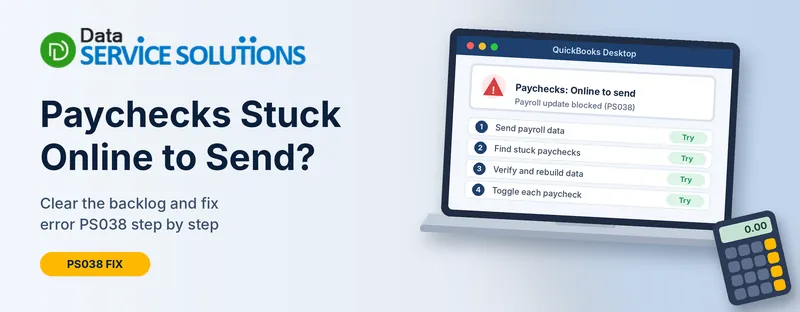
You try to download a payroll update and QuickBooks refuses with error PS038. Or you run payroll and nothing goes through. When you search your paychecks, a pile of them sit there with the status Online to Send, and none of them are moving.
That status is the real problem, and it is fixable. This guide explains what it means, how to find every stuck paycheck, and the eight fixes in the order that clears most cases fastest. The steps are for QuickBooks Desktop Payroll.
What “Online to Send” Means in QuickBooks
When you create a paycheck, QuickBooks marks it as waiting to be sent to the payroll servers. That waiting status is Online to Send. Normally you click Send Payroll Data, the paychecks go through, and the status clears.
When paychecks stay in that status, QuickBooks Desktop can stop you from running payroll or downloading the latest tax table. Error PS038 is the message you usually see when that happens.
Why Paychecks Get Stuck
QuickBooks’ own page names the stuck status as the cause. In practice, these are the usual reasons it happens in the first place:
- QuickBooks Desktop is out of date
- A send was interrupted halfway (a lost connection, a closed window, a PIN prompt nobody answered)
- Damaged data in the company file
- An inactive payroll subscription or a wrong service key
- A firewall, security tool or internet setting blocking the connection
- A damaged payroll component on the computer
Why It Matters
Without a current tax table, new paychecks may calculate with old rates. Payroll can also stop completely until the backlog clears. Don’t ignore it, and don’t keep running payroll around it.
Match Your Situation to the Right Fix
| What you see | Likely cause | Start with |
|---|---|---|
| PS038 when downloading a payroll update | Stuck paychecks | Fix 2, then Fix 3 |
| Send Payroll Data fails or times out | Connection or security software | Fix 7 |
| Subscription or service key message | Inactive subscription or wrong key | Fix 6 |
| Paychecks stay stuck even after a successful send | Data damage | Fix 4 and Fix 5 |
| Direct deposit shows rejected or failed | A deposit problem, not just the status | Our direct deposit guide, linked in Fix 6 |
| Started right after an update or a new computer | Outdated or damaged program | Fix 1 and Fix 8 |
Before You Start
- Back up your company file. Go to File > Back Up Company > Create Local Backup. You are about to edit paychecks and rebuild data, so this matters.
- Have your payroll PIN ready. If you don’t know it, see how to reset your payroll PIN.
- Work in single-user mode and close extra QuickBooks windows if you can.
- Check your internet connection. Payroll can’t send without it.
Fix 1: Update QuickBooks Desktop
An old release can fail to talk to the payroll service.
- Go to Help > Update QuickBooks Desktop.
- Open Update Now, tick the box if you want to reset updates, and click Get Updates.
- When it finishes, restart QuickBooks and install the update if you’re asked.
For the full process, see how to update QuickBooks Desktop.
Fix 2: Send Your Payroll Data
This tells QuickBooks to push the waiting paychecks through.
- Go to Employees > My Payroll Service.
- Choose Send Usage Data or Send Payroll Data. You’ll see one of the two, depending on your setup.
- In the Send/Receive Payroll Data window, click Send All.
- Enter your payroll PIN if asked.
- Wait for the confirmation.
If it works, go back and try the payroll update again. If it fails, keep going with the next fixes.
Fix 3: Find Every Stuck Paycheck
You need to know how many you have and how far back they go.
- Go to Edit > Find, then open the Advanced tab.
- Under Choose Filter, pick Detail Level and set it to Summary Only.
- Pick Online Status and set it to Online to Send.
- Click Find.
- Write down the number of results and the date of the oldest paycheck.
The oldest date shows when the problem started. That helps you spot what changed around then, such as a subscription change, an update or a new PIN.
Fix 4: Run Verify and Rebuild Data
Damaged data can stop paychecks from clearing.
- Go to File > Utilities > Verify Data.
- If it finds a problem, make a backup, then go to File > Utilities > Rebuild Data and follow the prompts. QuickBooks asks you to back up first, so let it.
- When the rebuild ends, run Verify Data again.
Then try the payroll update once more. If PS038 comes back, move on to Fix 5. Our QuickBooks File Doctor guide helps if Verify keeps finding errors.
Fix 5: Toggle Each Stuck Paycheck
This is the step QuickBooks itself recommends for paychecks that stay stuck. You re-save each one so QuickBooks refreshes its status. You’ll do it for every paycheck from Fix 3, so set aside time.
Use your backup from earlier. Check the numbers on every paycheck before you save it.
For each stuck paycheck:
- Open the paycheck and click Paycheck Detail.
- In the Earnings section, add a second copy of the last earnings item in the list.
- If you see the Net Pay Locked message, click No.
- Look at the taxes and net pay. They should not have changed. If they did, stop, cancel out without saving, and get help before you go further.
- Click OK. If a Past Transaction message appears, click Yes.
- Click Save & Close. If a Recording Transaction warning appears, click Yes.
- Reopen the same paycheck and click Paycheck Detail.
- Delete the extra earnings line you added.
- Check that taxes and net pay are still correct, click OK, then Save & Close.
When you finish, rerun Fix 3. The number of stuck paychecks should be zero. Then repeat Fix 2 to send the data and try the payroll update again.
If a paycheck is a direct deposit that has already been paid, don’t change any amounts on it. Add and remove only the extra line, and ask payroll support first if you’re unsure.
Fix 6: Check Your Payroll Subscription and Service Key
An inactive subscription or a mistyped key can block both sending and updates.
- Go to Employees > My Payroll Service > Manage Service Key.
- Check that the service shows as Active and the key is the right one.
- If you need to fix the key, click Edit, enter it, and click Next until it finishes.
- Download the update: Employees > Get Payroll Updates > Download Entire Update.
If the subscription has lapsed, renew it before you go further. See our QuickBooks payroll tax table update guide for the update steps, and QuickBooks direct deposit rejected or failed if a deposit has failed.
Fix 7: Check the Connection, Firewall and Security Software
If Send Payroll Data fails or times out, something may be blocking QuickBooks.
- Test the internet by opening a normal website.
- Add QuickBooks as an exception in your firewall and security software. Payroll uses the standard web ports, 80 and 443, so those need to be open.
- Check TLS 1.2. Open Internet Options from the Windows search box, go to the Advanced tab, and make sure Use TLS 1.2 is ticked.
- Don’t switch protection off to fix this. Add exceptions instead. If you test with security off, turn it back on straight away.
See our guide on Windows Firewall blocking QuickBooks for the steps.
Fix 8: Repair the QuickBooks Program
If nothing has worked, the program or payroll components may be damaged.
- Download and open the Tool Hub. See how to download QuickBooks Tool Hub.
- Open Program Problems and click Quick Fix my Program.
- Open Installation Issues and run the QuickBooks Install Diagnostic Tool. It can take up to 20 minutes.
- Restart the computer, then try Fix 2 again.
Last resort, third-party advice: some guides suggest renaming the payroll CPS folder, which sits inside your QuickBooks install folder under Components > Payroll. Close QuickBooks first, rename the folder (add .old) and don’t delete it. QuickBooks’ own page doesn’t list this step, so only try it after everything above, and put the original back if it makes things worse. If you can’t find the folder, skip it.
If PS038 Still Appears
- Check the count again. Rerun Fix 3. If paychecks are still stuck, repeat Fix 5 on those.
- Look at the exact message. A different payroll message, such as an inactive subscription, needs its own fix.
- Try payroll in single-user mode with other users logged out.
- Restore your backup and repeat Fix 4 and Fix 5 if you changed anything by mistake.
- Ask for help. Our QuickBooks payroll support page explains how we can go through it with you.
If payroll problems go beyond this status, these may help: QuickBooks payroll not working and payroll liabilities wrong.
How to Stop Paychecks From Getting Stuck Again
- Click Send Payroll Data after every payroll run
- Never close the send window or skip the PIN prompt halfway through
- Keep QuickBooks Desktop and the payroll tax table up to date
- Keep your payroll subscription active and your service key correct
- Add QuickBooks to your firewall and security exceptions
- Back up before every payroll run
- Rerun the Fix 3 search now and then to confirm nothing is waiting
Frequently Asked Questions
What does “Online to Send” mean in QuickBooks?
It means a paycheck is waiting to be sent to the payroll servers. Once the send succeeds, the status clears.
Why are my paychecks stuck on “Online to Send”?
Usually because a send was interrupted, QuickBooks is out of date, the payroll subscription or service key has a problem, something is blocking the connection, or the company data is damaged.
What is error PS038?
It’s the payroll update error you typically get when paychecks are stuck in that status. Clear the stuck paychecks and the update can run again.
Is it safe to edit a paycheck to clear the status?
Yes, if you back up first and follow the steps exactly. Add the extra earnings line, save, remove it, and confirm that taxes and net pay never change.
Will toggling a paycheck change what my employee is paid?
It shouldn’t. If taxes or net pay change at any point, stop, cancel without saving, and get help.
Will Rebuild Data delete my data?
It repairs the file, but you should always make a backup first so you can restore if needed.
Do I have to fix every stuck paycheck?
Yes. One paycheck left in that status can bring the error back.
Can I keep running payroll while paychecks are stuck?
It’s not a good idea. Clear the backlog first so you can download the current tax table.
Why does Send Payroll Data fail?
Common causes are the internet connection, a firewall or security tool, an outdated QuickBooks, or a wrong PIN or service key.
Should I turn off my antivirus to fix this?
No. Add QuickBooks as an exception instead. If you test with it off, turn it back on afterward.
Does this also fix direct deposit problems?
Not always. If a deposit shows as rejected or failed, that is a separate issue. See our direct deposit guide.
How often should I update the payroll tax table?
Download updates whenever QuickBooks offers them, and before each payroll run.
When should I get professional help?
If paychecks stay stuck after Fix 5, if net pay or taxes change when you edit, or if you aren’t sure whether a paycheck has already been paid.
Wrapping Up
Paychecks stuck on “Online to Send” look scary because they stop payroll, but the cause is almost always a send that never finished. Update QuickBooks, send your payroll data, find every stuck paycheck, and clear them one at a time. If you get stuck, the Data Service Solutions team can help.