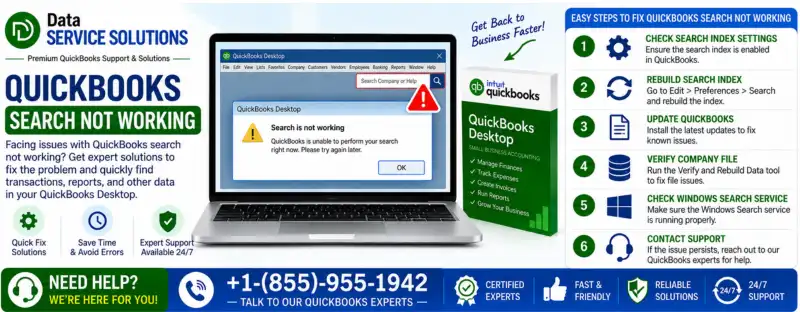
You type an invoice number into the search bar, hit Enter, and nothing comes back. Or the box just sits there. If your QuickBooks search is not working, the cause is usually a damaged search index, an outdated version, or something on your computer (antivirus, firewall, browser cache) getting in the way. The good news is that most cases are fixable in under 30 minutes without touching your actual books.
This guide covers both QuickBooks Desktop and QuickBooks Online, starts with the quickest fixes, and ends with workarounds so you can find your transactions while you sort out the real problem.
Quick Answer: What to Try First
- Desktop: update QuickBooks, then rename the .SearchIndex file so QuickBooks rebuilds it.
- Online: open QuickBooks in a private window. If search works there, clear your browser cache and cookies.
- Still stuck: run Verify and Rebuild Data, then check your antivirus and firewall.
How QuickBooks Search Works (and Why It Breaks)
QuickBooks Desktop doesn’t search your company file live every time you type. It builds a separate search index, a lookup file stored next to your company file, and reads from that. That’s why search is fast, and also why it fails in a few predictable ways:
- If the index file gets damaged, search returns nothing or freezes.
- If the index hasn’t refreshed yet, a transaction you entered five minutes ago may not show up. That’s normal behavior, not a bug.
- If QuickBooks can’t read or write the index because of permissions or security software, search quietly fails.
QuickBooks Online works differently. Its search runs in your browser, so the problems there are almost always cache, cookies, or extensions.
Why Is QuickBooks Search Not Working?
- Damaged or corrupted search index file (the most common cause on Desktop).
- Outdated QuickBooks or Windows, especially after a Windows update that QuickBooks hasn’t caught up with.
- Antivirus or firewall blocking QuickBooks from reading or writing its own files. See our guide on Windows Firewall blocking QuickBooks.
- Data damage in the company file, such as broken list entries or transactions.
- A very large company file that makes the index slow to build or refresh.
- Damaged Windows system files or a broken QuickBooks installation.
- Stale browser cache, cookies, or extensions (QuickBooks Online only).
Before You Start
- Back up your company file. Go to File > Back Up Company > Create Local Backup. Do this before any Verify or Rebuild step.
- Test a sample company file. From the No Company Open window, open a sample file and try searching. If search works there, the problem is your company file. If it fails there too, the problem is the QuickBooks installation or your computer.
- Check whether it’s one user or everyone. If only one computer is affected, focus on that machine’s settings and security software.
How to Fix QuickBooks Desktop Search Not Working
Work through these in order. Stop as soon as search starts working.
Fix 1: Update QuickBooks Desktop and Windows
Running an old release is a common reason the QuickBooks Desktop search not working problem shows up after a Windows update.
- Open QuickBooks and go to the Help menu.
- Select Update QuickBooks Desktop.
- Click Update Now, tick Reset Update, then choose Get Updates.
- Restart QuickBooks when it finishes and accept the install prompt.
Also run Windows Update and restart the computer. If the update itself hangs, see QuickBooks update stuck.
Fix 2: Rename the QuickBooks Search Index File
This fixes most cases. Renaming the old index forces QuickBooks to build a fresh one the next time you open the file.
- Close QuickBooks completely, including any open company file.
- Click the Windows Start button and type *.SearchIndex in the search box. Press Enter.
- Windows will show the search index file stored with your company file. If you don’t see it, open the folder where your company file (.QBW) is saved and look there.
- Right-click the file ending in .SearchIndex and choose Rename.
- Add .old to the end of the name and press Enter.
- Reopen QuickBooks and your company file, then try the search box again.
Give it a few minutes on larger files. QuickBooks needs time to rebuild the index in the background, and results can look incomplete until it finishes.
Fix 3: Check Your Search Preferences
If search works but always seems behind, the refresh setting may be too slow.
- Go to Edit > Preferences > Search.
- Open the Company Preferences tab.
- Check the automatic update option and choose a shorter refresh interval if one is available in your version.
- Click OK.
Fix 4: Run Verify and Rebuild Data
If the company file has data damage, the index can’t build cleanly. Make that backup first, then:
- Go to File > Utilities > Verify Data. Let it finish.
- If it reports problems, go to File > Utilities > Rebuild Data and follow the prompts. QuickBooks will ask you to back up again.
- Run Verify Data a second time to confirm the file is clean.
Rebuild can take a while on big files, so don’t interrupt it. If you can’t open the file at all, try the steps in QuickBooks File Doctor not working.
Fix 5: Allow QuickBooks Through Antivirus and Firewall
Security software sometimes blocks QuickBooks from writing the search index. Add QuickBooks and its company file folder to your antivirus exclusion list. Our walkthrough on QuickBooks antivirus exclusions covers Windows Defender, Norton, McAfee, ESET and others. Then confirm the firewall isn’t blocking QuickBooks.
Fix 6: Run the Install Diagnostic Tool
Damaged Microsoft components that QuickBooks depends on (.NET Framework, MSXML, C++) can break search. The diagnostic tool repairs them.
- Download and install the QuickBooks Tool Hub, then close QuickBooks.
- Open the Tool Hub and select Installation Issues.
- Click QuickBooks Install Diagnostic Tool and let it run. It can take up to 20 minutes.
- Restart your computer and test the search.
More detail is in our guide to the QuickBooks Install Diagnostic Tool.
Fix 7: Repair Windows System Files
Some guides tell you to hand-edit the Windows registry. That’s risky, and one wrong entry can cause bigger problems than the one you started with. Let Windows repair itself instead:
- Click Start, type cmd, right-click Command Prompt, and choose Run as administrator.
- Type sfc /scannow and press Enter.
- Wait until it reaches 100%, restart the PC, and test QuickBooks again.
Fix 8: Do a Clean Install of QuickBooks
If nothing else works, a clean install replaces every QuickBooks program file while leaving your company data alone. Follow our steps for a clean install of QuickBooks Desktop, and keep your license number and a fresh backup handy before you start.
How to Fix QuickBooks Online Search Not Working
If the QuickBooks Online search not working problem hits you in the browser, the fix is nearly always on your side, not in your books.
Step 1: Test in a Private Window
Open an Incognito (Chrome), InPrivate (Edge), or Private (Firefox/Safari) window and sign in to QuickBooks Online. If search works there, your cache, cookies, or an extension is the culprit.
Step 2: Clear Cache and Cookies
Google Chrome
- Click the three dots, then Settings > Privacy and security > Delete browsing data.
- Open the Advanced tab and set the time range to All time.
- Tick Cookies and other site data and Cached images and files, then click Delete data.
Microsoft Edge
- Go to Settings > Privacy, search, and services.
- Under Clear browsing data, click Choose what to clear.
- Set the range to All time, tick cookies and cached files, then click Clear now.
Mozilla Firefox
- Open the menu (three lines) and go to Settings > Privacy & Security.
- Scroll to Cookies and Site Data and click Clear Data.
- Tick both boxes and confirm.
Safari (Mac)
- Open Safari > Settings > Privacy and click Manage Website Data.
- Type qbo in the search field.
- Click Remove All, then Done.
Restart the browser and sign back in. The same cleanup also helps with browser-based errors like QuickBooks Error 400.
Step 3: Disable Extensions or Switch Browsers
Ad blockers and privacy extensions can interfere with the search bar. Turn them off one at a time, or try a different browser. Keep your browser up to date as well.
Workarounds While You Fix Search
You don’t have to stop working. These get you to the same transactions:
Use the Find Window
Press Ctrl+F (Windows) or Command+F (Mac) to open Find. The Simple tab searches by transaction type, customer name, or number. The Advanced tab lets you filter by amount, date range, account, and more. Find reads your company file directly, so it works even when the search index is broken.
Open the Centers
Go to Customers or Vendors, pick the name, and browse their transactions. If invoices look like they’ve vanished, see QuickBooks missing invoices.
Export and Search in Excel
Open the report you need, click Excel > Create New Worksheet, then press Ctrl+F inside Excel to locate the number or name.
How to Keep QuickBooks Search Working
- Install updates when they come out, for both QuickBooks and Windows.
- Keep the company file lean. Oversized files slow indexing. If yours keeps growing, look at condensing your data.
- Keep QuickBooks on the exclusion list in your antivirus and firewall after you change security software.
- Run Verify Data now and then, so small data issues don’t turn into bigger ones.
- Store the company file locally or on a properly hosted server. Shared setups with problems are covered in QuickBooks multi-user mode not working, and the QuickBooks Database Server Manager guide explains hosting setup.
- Keep regular backups so you can recover quickly if a file does get damaged.
Still Can’t Fix QuickBooks Search?
If you’ve been through the steps above and the search bar still doesn’t respond, the problem is likely deeper: a damaged company file, a conflict with other software, or a broken installation. If QuickBooks is also slow, freezing, or crashing, check QuickBooks running slow or QuickBooks keeps shutting down, since those often share the same root cause.
Our QuickBooks team can look at it with you. Contact Data Service Solutions or call +1-(855)-955-1942.
Frequently Asked Questions
Why is my QuickBooks search bar not working?
The most common reasons are a damaged search index, an outdated QuickBooks version, security software blocking the program, or data damage in the company file. On QuickBooks Online, it’s usually browser cache or cookies. Start by updating QuickBooks and renaming the .SearchIndex file.
How do I rebuild the QuickBooks search index?
Close QuickBooks, search Windows for *.SearchIndex, and rename the file by adding .old to the end. Reopen your company file and QuickBooks will build a new index automatically. It can take several minutes on large files.
Why doesn’t QuickBooks search show a transaction I just entered?
The search index refreshes on a schedule, not instantly. Give it a few minutes, check your Search preferences for the update setting, or use Ctrl+F (Find), which reads the company file directly.
Why is QuickBooks Online search not working?
Cached data, cookies, or a browser extension is usually responsible. Test in a private window first. If search works there, clear your cache and cookies for all time, or disable extensions one by one.
Will Verify and Rebuild Data delete my transactions?
Verify only checks the file. Rebuild repairs structural problems and, in rare cases, can remove or change damaged entries. That’s why you should always create a backup first and review the results afterward.
Can a large company file cause search problems?
Yes. Very large files take longer to index and can leave search slow or incomplete. Keeping the file healthy, condensing old data when appropriate, and running Verify Data regularly all help.
What is the keyboard shortcut to search in QuickBooks?
Press Ctrl+F on Windows or Command+F on Mac to open the Find window. Use the Advanced tab to filter by amount, date, name, or transaction type.