
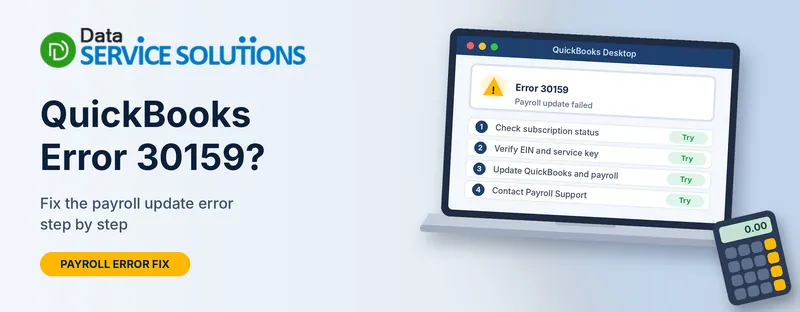
You open payroll, or try to download an update, and QuickBooks stops with error 30159. The message may read “Unable to load account for PSID null: Entitlement is Enabled, but Entitlement Unit is deactivated.” On some versions it says, “We’re having a problem verifying your account status. Contact Us for help resolving the issue.”
It looks technical, but the message is about your payroll account, not your computer. This guide explains what it means and gives you eight fixes in an order that solves most cases fastest, including what to say when you contact Payroll Support. The steps are for QuickBooks Desktop Payroll.
What QuickBooks Error 30159 Means
When you use payroll, QuickBooks checks with the payroll service that your account is allowed to use it. The check looks at your subscription, your EIN (your company’s federal employer ID) and your service key.
Error 30159 means that check failed. In the longer message, “PSID null” means QuickBooks couldn’t match your company to a payroll account. “Entitlement” is the word for your right to use the service, and the message says it’s enabled but its unit is deactivated, so the account and the company file don’t line up.
That’s why many guides that send you to Windows file repairs miss the point. Fix the account side first, then rule out the local causes.
Why Error 30159 Happens
Account-side causes (most likely):
- The payroll subscription is inactive, expired or didn’t renew
- The EIN was removed from the subscription, or never added
- The service key is wrong, out of date or tied to another account
- An EIN was added to a subscription it didn’t belong to, or was registered before
Local causes (less likely, but worth checking):
- QuickBooks Desktop or the payroll tax table is out of date
- Windows date and time are wrong
- Security software or a bad connection blocks the check
- A damaged Paysub.ini file
- A damaged company file or installation
Where You’ll See It and What to Try First
| What happened | Likely cause | Start with |
|---|---|---|
| Error while adding an EIN to a subscription | EIN not on the account | Confirm the EIN Is on the Subscription |
| Error right after switching editions or versions | Subscription not linked to the new setup | Check Your Payroll Subscription Status, then Re-Sync the Service Key |
| Error when downloading a payroll update | Outdated software or account issue | Update QuickBooks and the Payroll Tax Table |
| “Reactivate subscription” shows even though you paid | Service key or account status mismatch | Re-Sync the Service Key |
| Error after an EIN was deleted by mistake | EIN missing from the subscription | Confirm the EIN Is on the Subscription, then Contact Payroll Support |
| Error after a Windows change, with account details correct | Local settings | Check the Date, Time and Windows Updates, then Check Security Software |
Before You Start
- Back up your company file. Go to File > Back Up Company > Create Local Backup.
- Have your details ready: the account email you used for payroll, your service key (if you have it) and your company’s EIN.
- Write down the exact message and your QuickBooks version and release. Support will ask for them.
- Don’t buy a new subscription yet. A second subscription can add a second problem. Check what you already have first.
- Sign in as the QuickBooks admin if you can.
Fix 1: Check Your Payroll Subscription Status
Inside QuickBooks:
- Go to Employees > My Payroll Service > Manage Service Key.
- Check that your service shows Active in the Status column.
In your account:
- Sign in to the account your payroll subscription is registered to, through the customer account portal.
- Open your products and services, then your payroll subscription details.
- Check that the status is Active and note how many EINs the subscription covers.
If the subscription has lapsed, renew or reactivate it. A failed renewal often traces back to an expired card or a billing problem. QuickBooks’ notice says billing problems get a 30-day grace period to renew after the final notice. After a reactivation, give it some time before you try again. See our guide on QuickBooks payroll subscription inactive for the full steps.
Fix 2: Confirm the EIN Is on the Subscription
Error 30159 is common when an EIN is missing, removed or mistyped.
- In your account (from Fix 1), check that the EIN you’re using appears on the subscription.
- In QuickBooks, check the EIN on your company information. Go to Company > My Company and edit the company details, or open Company Information, and look at the Federal Employer Identification Number. Menu names vary a little by version.
- Make sure the two match exactly.
- If you need to add an EIN, look for the Add More link beside the total number of EINs on your payroll account page, or ask Payroll Support to add it.
If an EIN was deleted by mistake, you may not be able to add it back yourself. That’s an account-level fix, so go to “If Error 30159 Still Appears” and ask Payroll Support to restore it. Our QuickBooks payroll EIN mismatch guide covers EIN problems in more detail.
Fix 3: Re-Sync the Service Key
- Go to Employees > My Payroll Service > Manage Service Key.
- Select your service and click Edit.
- Check that the key is the right one, then click Next.
- Uncheck Open Payroll Setup, then click Finish.
- Download the latest tax table (Fix 4) and create a test paycheck to see that taxes calculate.
If you’ve lost your key, use the service key retrieval option and sign in with the account the subscription is registered to.
Only remove and re-add the key as a later step. If the key doesn’t re-sync, some staff suggest removing it in Manage Service Key and adding it again. Do that only when you have the active key in front of you, or you can leave payroll without a key.
Fix 4: Update QuickBooks and the Payroll Tax Table
An old release or tax table can fail the account check.
- Go to Help > Update QuickBooks Desktop, open Update Now, tick the reset option if you like, and click Get Updates.
- Restart QuickBooks and install the update if you’re asked.
- Go to Employees > Get Payroll Updates, tick Download Entire Update, and click Download Latest Update.
- Restart the computer and try payroll again.
See how to update QuickBooks Desktop and our QuickBooks payroll tax table update guide for more. If the update itself won’t install, see QuickBooks error 15101.
Fix 5: Check the Date, Time and Windows Updates
Online checks can fail when your computer’s clock is wrong.
- Open Windows Settings > Time & language > Date & time and make sure the date, time and time zone are right and set automatically.
- Run Windows Update and install pending updates.
- Restart, then open QuickBooks with Run as administrator and try again.
Fix 6: Check Security Software and the Connection
- Test your internet with a normal website.
- Add QuickBooks as an exception in your firewall and security software.
- Don’t switch your protection off to fix this. If you test with it off, turn it back on straight afterward.
See our guide on Windows Firewall blocking QuickBooks for the steps.
Fix 7: Rename the Paysub.ini File (Careful)
Paysub.ini is a small file that stores payroll subscription details. A damaged one can cause this error. QuickBooks staff have said renaming it doesn’t affect other EINs, but they don’t advise it for direct deposit users without contacting support first.
- If you use direct deposit, contact Payroll Support before you rename anything.
- Close QuickBooks and back up your company file.
- Turn on hidden files in File Explorer.
- Search for Paysub.ini, starting in the folder that holds your company file.
- Right-click it, choose Rename, and change the ending to .old. Rename only one copy at a time.
- Reopen QuickBooks, repeat Fix 3 to verify the service key, and test payroll.
Rename, don’t delete. If renaming makes things worse, put the original name back. This step isn’t on QuickBooks’ own help pages for this error, so keep it for after Fixes 1 to 6.
Fix 8: Repair the Installation or Company File
If the account checks are all correct and the error still shows, rule out a damaged installation or file.
- Run Quick Fix my Program and the QuickBooks Install Diagnostic Tool from the Tool Hub. See how to download QuickBooks Tool Hub.
- Verify, then rebuild. Go to File > Utilities > Verify Data. If it reports a problem, back up, then go to File > Utilities > Rebuild Data.
- Reinstall QuickBooks as a last step. Back up your file, and keep your license details to hand.
If Error 30159 Still Appears: Contact Payroll Support
Since 30159 is an account error, Payroll Support often has to fix it from their side. They can see your account and open an investigation ticket if needed. In QuickBooks, go to Help > QuickBooks Desktop Help > Contact Us. Availability depends on your plan and QuickBooks version.
Tell them:
- The exact error message and where it appears
- Your QuickBooks version and release, and whether it’s Desktop Payroll Enhanced or an Accountant edition
- The EIN or EINs involved, and whether any were deleted
- Your subscription status and what the account page shows
- What you’ve already tried
Keep a note of the ticket number and the name of whoever helped you. Our QuickBooks payroll support page also explains how we can help you prepare.
For Accountants and Multiple EINs
If you use QuickBooks Desktop with Enhanced Payroll for Accountants, one subscription covers several client EINs. Deleting a client’s EIN by mistake can trigger error 30159 the next time you open that client’s file. Staff in QuickBooks’ community recommend contacting Payroll Support, and some users report the fix took repeat calls.
Also note that a client whose books are in QuickBooks Online can’t be merged into a Desktop payroll service, according to QuickBooks staff, so check where the books live before adding an EIN.
Is Your QuickBooks Version Still Supported?
Desktop Payroll depends on a supported version of QuickBooks Desktop. According to QuickBooks’ own notice, it stopped selling Desktop Payroll to new U.S. subscribers after September 30, 2024, while existing subscribers can keep renewing. It also says unsupported versions lose services such as Desktop Payroll.
So if your subscription lapsed completely, ask Payroll Support what you can still do before you pay for anything. You may need to renew an existing plan, or look at other payroll options.
What Not to Do
- Don’t delete files from your system or run registry edits you can’t undo
- Don’t download unnamed “repair utilities”
- Don’t switch off your antivirus or firewall for good
- Don’t buy a second subscription before checking your first
- Don’t rename Paysub.ini if you use direct deposit, until support says it’s safe
- Don’t remove the service key unless you have it ready to re-enter
How to Prevent Error 30159
- Renew your payroll subscription before it lapses, and keep your billing details current
- Keep the right EIN on the subscription, and think twice before deleting one
- Keep your service key somewhere safe
- Keep QuickBooks, Windows and the tax table up to date
- Back up before payroll runs, updates and account changes
- Add QuickBooks to your security exceptions
Frequently Asked Questions
What is QuickBooks error 30159?
It’s a payroll error where QuickBooks can’t verify your payroll account. The usual cause is a subscription, EIN or service key problem.
What does “PSID null” mean?
It means QuickBooks couldn’t match your company to a payroll account, so the account ID came back empty.
Is error 30159 caused by Windows or a virus?
It can be, but it’s much more often an account problem. Check your subscription, EIN and service key first.
Why did the error appear after I added an EIN?
The EIN may not be linked to your subscription yet. Use the Add More link on your payroll account page or ask Payroll Support to add it.
I deleted an EIN by mistake. Can I add it back?
Sometimes you can’t add it back yourself. Payroll Support can restore it from their side.
Will I lose payroll data?
No. The error blocks the payroll account check, not your data. Make a backup before you try fixes anyway.
Is it safe to rename Paysub.ini?
Rename it only after the account checks, with a backup first. Don’t do it if you use direct deposit until support says it’s safe.
Do I need to turn off my antivirus?
No. Add QuickBooks as an exception instead.
Does updating QuickBooks fix it?
It can if the release or tax table is old. It won’t fix a missing EIN or an inactive subscription.
Why does QuickBooks say reactivate when I paid?
The service key or account status may not have re-synced. Re-sync the key in Manage Service Key, and ask support if the notice stays.
Can I buy a new Desktop payroll subscription?
QuickBooks says it stopped selling Desktop Payroll to new U.S. subscribers after September 30, 2024, while existing subscribers can renew. Ask Payroll Support what applies to you.
When should I contact Payroll Support?
If an EIN was deleted, if your subscription shows Active but the error stays, or after you’ve tried Fixes 1 to 4.
Wrapping Up
Error 30159 looks like a computer problem, but it’s almost always your payroll account: the subscription, the EIN or the service key. Check those first, update QuickBooks, rule out the local causes, and bring Payroll Support the right details. If you get stuck, the Data Service Solutions team can help.
