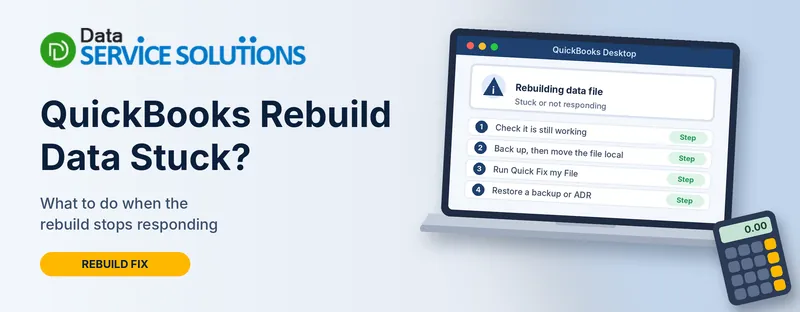
You started the Rebuild Data utility, and the window now says “QuickBooks is not responding.” The progress bar hasn’t moved in half an hour. You don’t know whether to wait or pull the plug.
Here’s the short answer. A rebuild that looks stuck is very often still working, and QuickBooks says to wait if your mouse pointer still moves. Contact support if it has run for more than two hours. The rest of this guide shows how to tell the difference, what to do if it really has frozen and how to get your file back safely either way.
How Long Does QuickBooks Rebuild Data Take?
QuickBooks doesn’t publish a time. It depends on your file size, how damaged the data is and how fast your computer and drive are. Small files can finish in minutes. Large files take much longer, and the window may say “(Not Responding)” the whole time.
QuickBooks gives two rules:
- If the window looks frozen but you can still move the mouse, the rebuild is still working.
- If the first rebuild takes more than two hours, contact support.
How to Tell If QuickBooks Rebuild Is Stuck or Just Slow
| What you see | What it likely means | What to do |
|---|---|---|
| “Not Responding” in the title bar, but the pointer moves and the drive light blinks | Rebuild still working | Confirm It’s Still Working and wait |
| No drive activity and no change for 2+ hours | Probably stuck | Stop the Rebuild Safely, then Restore a Backup |
| Rebuild finishes but Verify still reports problems | Damage Rebuild couldn’t fix | Read QBWin.log, then run Quick Fix my File and File Doctor |
| Rebuild keeps coming back every time you close QuickBooks | Deeper file damage | Read QBWin.log, then Restore a Backup or Use ADR |
| File is on a server or cloud folder | Slow or interrupted access | Move the File to a Local Drive |
| The sample file also freezes | Program problem | Repair QuickBooks Itself |
Why QuickBooks Rebuild Data Gets Stuck
- A large company file. QuickBooks staff have said a 700 MB file is large for Pro or Premier.
- Heavy data damage. The utility has more to check and repair.
- A weak or busy computer. Low memory, a nearly full drive, or other programs fighting for resources.
- The file isn’t on your local drive. Rebuilding over a network or from a synced folder is slower and riskier.
- Security software or sync tools. Scanning or syncing the file while it rebuilds can slow it or interrupt it.
- A damaged QuickBooks installation. The sample file freezes too.
- Rebuild was the wrong first step. QuickBooks says rebuild only when Verify reports lost integrity.
Before You Do Anything Else
- Don’t click around or start a second program. Let the current rebuild keep the machine to itself for now.
- Back up first. The rebuild prompts you for a backup before it starts. If that backup exists, find it and note the name and location. See how to back up a QuickBooks Desktop company file.
- Never save over an old backup. QuickBooks says not to replace an existing backup file.
- Assisted Payroll users: contact QuickBooks support before you rebuild. QuickBooks says so on its own page.
- Keep antivirus and firewall on. None of the fixes here needs them off.
Fix 1: Confirm QuickBooks Rebuild Is Still Working
- Look at the pointer. If you can still move it and click elsewhere on the screen, the computer is alive.
- Open Task Manager (Ctrl + Shift + Esc) and look at QBW32.exe. If its CPU, disk or memory numbers are changing, it’s working.
- Look at the drive light on the computer, if it has one.
- Wait. Write down the time you started and give it up to two hours, as QuickBooks advises.
Don’t close the window just because the title says “Not Responding.” That’s the normal look of a rebuild at work.
Fix 2: Free Up Your Computer for the Rebuild
If the rebuild is crawling, other programs may be using the same resources.
- Wait for the current run to finish or fail before you change anything.
- For the next attempt, close email, browsers and other heavy programs.
- Check that the drive holding the file has plenty of free space.
- Pause cloud syncing (OneDrive, Dropbox, Google Drive) for the folder the file lives in.
- Restart the computer before you try again.
Don’t turn off your antivirus. If you think it’s slowing the rebuild, add QuickBooks as an exclusion. See QuickBooks antivirus exclusions.
Fix 3: Stop the Rebuild Safely (Only If It Is Really Stuck)
Use this only if there’s no activity at all and more than two hours have passed.
- Open Task Manager (Ctrl + Shift + Esc).
- Select QuickBooks and click End task. If it won’t close, end QBW32.exe on the Details tab.
- Restart the computer.
- Don’t open your original company file for real work. Treat it as suspect until Verify passes.
- Find the backup the rebuild made, so you have a safe copy.
A QuickBooks community moderator said that forcing a stuck rebuild to close shouldn’t harm anything. We’d still treat the file as unchecked, because stopping a repair halfway can leave it in a mixed state. That’s why the backup matters.
Fix 4: Move the File to a Local Drive and Use Single-User Mode
A rebuild is slower and riskier over a network or from a synced folder.
- Copy your company file (the .QBW) from the server or cloud folder to a local folder, for example C:\QBFiles. Copy it, don’t move it.
- Open QuickBooks and open the copy. If asked, switch to single-user mode (File > Switch to Single-user Mode).
- Close all other QuickBooks windows.
- Run the rebuild on the copy.
- If the rebuild works, move the repaired file back to its normal location and keep the old one as a backup.
If you’re hosted or use a server, follow your host’s rules first. See QuickBooks multi-user mode not working.
Fix 5: Run Verify Data First, Then Rebuild Only If Needed
QuickBooks says to rebuild only when Verify reports lost integrity. Running a rebuild “just in case” can waste hours and may not help.
- Go to Window > Close All.
- Go to File > Utilities > Verify Data.
- Read the message:
- “QuickBooks detected no problems with your data”: stop. Rebuild won’t help, and the problem is elsewhere.
- An error message: search it, or see Fix 7.
- “Your data has lost integrity”: continue to the rebuild.
- Go to File > Utilities > Rebuild Data.
- Click OK at the backup prompt, choose a location, enter a new file name (don’t overwrite another backup) and click Save.
- Let the rebuild run. When you see “Rebuild has completed,” click OK.
- Run Verify Data again.
Rebuilding two or three times is common if the error messages are changing. If it keeps showing the same problem after several runs, stop and go to Fix 6.
Fix 6: Run Quick Fix my File and QuickBooks File Doctor
- Close QuickBooks. Open the Tool Hub. See how to download QuickBooks Tool Hub.
- Select Company File Issues.
- Click Quick Fix my File, then reopen QuickBooks and the file.
- If it still fails, click Run QuickBooks File Doctor, choose your company file and run Check your file (or the option that fits your problem).
- Run Verify Data again.
For more on File Doctor, see QuickBooks File Doctor and QuickBooks File Doctor not working.
Fix 7: Read QBWin.log and Repair the Errors by Hand
If Verify reports problems the rebuild can’t fix, QuickBooks tells you exactly what’s wrong.
- In the Verify results window, click Expand All to see every error.
- For each error, select See Online Article and follow its steps.
- Or open the log: on the Home page press F2 (or Ctrl + 1) for Product Information, then F3 (or Ctrl + 2) for Tech Help, open the Open File tab, select QBWin.log and click Open File.
- Press Ctrl + F and search for Begin Verify to jump to the latest check.
- Fix each error one at a time, then run Verify again.
The log lives at %localappdata%\Intuit\QuickBooks\log\XX.X\QBWin.log (XX.X is your version number), if you’d rather open it from File Explorer.
If a repair involves accounting entries (unpaid bills, credits, closed periods), fix those before you rebuild again. A community reply notes that a rebuild once left old bills showing as unpaid, so ask your accountant if you’re unsure.
Fix 8: Restore a Recent Backup or Use Auto Data Recovery
If the repair has failed, go back to a copy that worked.
Restore a backup:
- Go to File > Open or Restore Company.
- Choose Restore a backup copy, then Local backup, and browse to your backup.
- Pick a folder, give the restored file a new name and click Save.
- Open it, run Verify Data and re-enter any work done since the backup.
If the restore fails, see QuickBooks restore failed, invalid format.
Auto Data Recovery (ADR): QuickBooks says to use ADR only after standard troubleshooting. It only works in Pro, Premier and Enterprise for Windows (not Accountant editions), and files over 1.5 GB don’t get an ADR copy. It can restore most or all of your recent work.
- Make a folder called QBTest on your Desktop.
- Open the QuickBooksAutoDataRecovery folder next to your company file.
- Copy the .QBW.adr and .TLG.adr files into QBTest, and remove the .adr from both names. (If your recent transactions matter more than the last few hours, QuickBooks has a second method using your original .TLG with the .QBW.adr. Follow its steps in order.)
- Open the copy from QBTest and check your registers.
- Run Verify Data. Only replace the damaged file if the copy is good.
Fix 9: Repair QuickBooks Itself
If even the sample file freezes, the program is the problem.
- Open QuickBooks and choose Open a sample file.
- If the sample freezes too, open Tool Hub and select Installation Issues > QuickBooks Install Diagnostic Tool. See the QuickBooks Install Diagnostic Tool.
- Restart, then try again. If that fails, use appwiz.cpl to Repair QuickBooks.
- As a last resort, reinstall. See the QuickBooks Clean Install Tool guide.
Back up your file first. If QuickBooks closes by itself, see QuickBooks has stopped working.
What Not to Do During a Stuck Rebuild
- Don’t power the computer off by holding the button, unless you have no other choice
- Don’t start a second rebuild on top of the first
- Don’t overwrite your only backup
- Don’t turn off antivirus or firewall
- Don’t use Condense Data as a quick fix, since it removes transaction detail
- Don’t run a “repair tool” from a pop-up or an unknown site
- Don’t pay anyone who contacts you out of the blue to “fix” the file
What to Do After the Rebuild Finishes
- Run Verify Data one more time and confirm it passes
- Check your account balances and open a few reports (Balance Sheet, A/R and A/P aging)
- Reconcile your bank accounts
- Make a fresh backup with a clear name and date
- If you rely on payroll, run a test paycheck before the next real run
How to Avoid a Rebuild That Gets Stuck
- Run Verify Data on a schedule, so problems are small
- Keep a recent backup every day you use QuickBooks
- Keep the company file on a healthy, local drive when you repair it
- Keep QuickBooks and Windows updated
- Keep your file at a sensible size, and ask your accountant about a new file at year-end
- Don’t run a rebuild while other people are working in the file
When to Get Help
Get help if a rebuild runs for more than two hours, if Verify keeps failing after several rebuilds, or if you’re on Assisted Payroll, or you can’t afford downtime. Write down the exact message, your QuickBooks year and release, the file size, how long the rebuild ran and what Verify and QBWin.log said. The Data Service Solutions team can go through it with you.
If QuickBooks can’t find or open your file at all, see QuickBooks company file not found and QuickBooks cannot communicate with the company file. For general freezing, read QuickBooks freezing.
Frequently Asked Questions
Why is QuickBooks rebuilding my data file so slowly?
Large files, heavy damage, a busy or weak computer, or running the rebuild over a network all slow it down. QuickBooks says it can look stuck while it’s working.
How long should I wait for Rebuild Data to finish?
Wait as long as the pointer moves and the computer shows activity. QuickBooks says to contact support if the first rebuild takes more than two hours.
Is “QuickBooks is not responding” during a rebuild normal?
Yes. QuickBooks says that if your pointer still moves, the rebuild is still running.
Can I cancel a stuck rebuild?
Only as a last resort, after waiting and checking Task Manager. Treat the file as unchecked, and use your backup if Verify doesn’t pass.
Will force-closing QuickBooks destroy my file?
QuickBooks community staff said it shouldn’t harm anything, but we’d still verify the file and keep your backup safe, since stopping a repair midway can leave it unstable.
Do I have to run Rebuild every time Verify finds something?
Only when Verify reports that your data has lost integrity. For specific errors, open See Online Article instead.
Why does QuickBooks keep asking me to rebuild?
The same damage may be coming back. Run Verify, read QBWin.log and fix each error. If it keeps happening after several rebuilds, restore a backup or get help.
Does Rebuild Data delete my transactions?
It repairs the file’s structure, and sometimes the damage can’t be fully fixed. QuickBooks makes you back up first for that reason. Check your reports afterwards.
Should I rebuild on a server or in a cloud folder?
No. Copy the file to a local drive, switch to single-user mode and rebuild there.
What’s the difference between Verify and Rebuild?
Verify checks your file for damage. Rebuild repairs it. Run Verify first and rebuild only if it reports lost integrity.
Can I use Auto Data Recovery instead?
Only after standard troubleshooting, and only in Pro, Premier or Enterprise for Windows with a file under 1.5 GB.
Should I use Condense Data to speed it up?
Not as a quick fix. It removes transaction detail and should be planned with your accountant and a full backup.
Wrapping Up
When QuickBooks rebuilding a data file looks stuck, don’t panic and don’t pull the plug. Check that it’s still working, give it up to two hours, back up and then work through the steps in order. If you’re still stuck, the Data Service Solutions team can help.