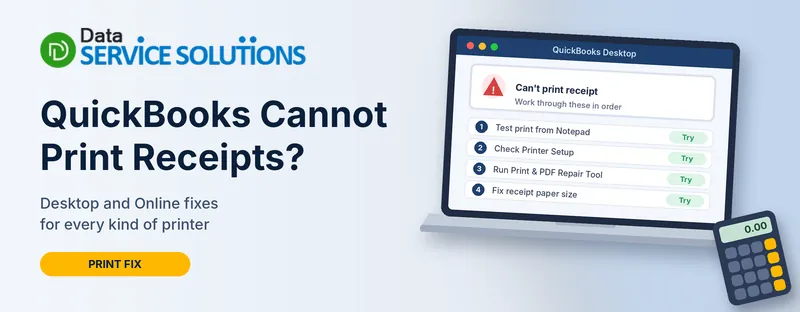
A customer is standing at the counter, or waiting for an email, and QuickBooks won’t print their receipt. Sometimes nothing happens when you click Print. Sometimes you get a blank page, a half-cut receipt, or a message that says something about the printer.
This guide walks through the fixes in the order that solves most cases fastest. It covers QuickBooks Desktop on Windows, QuickBooks Online, and the common problem where a receipt printer cuts off your text.
Why QuickBooks Can’t Print a Receipt
QuickBooks hands the receipt to Windows, and Windows hands it to the printer. A fault anywhere along that chain stops the receipt. The usual causes are:
- The printer is offline, jammed or has a queue stuck with old jobs
- QuickBooks is set to the wrong printer for that form
- An out-of-date printer driver or QuickBooks release
- A damaged QuickBooks print settings file
- A damaged receipt template
- Damaged QuickBooks print components
- In QuickBooks Online, a blocked pop-up or a paper size that doesn’t match your receipt printer
Match Your Problem to the Right Fix
| What you see | Likely cause | Start with |
|---|---|---|
| Nothing happens when you click Print | Printer offline, queue stuck or wrong printer | Test a Print Outside QuickBooks |
| Other programs print fine, QuickBooks doesn’t | Wrong printer or damaged print settings | Check Printer Setup for the Receipt Form, then Rename the QBPrint.qbp File |
| Only sales receipts fail, other forms print | A damaged template or form settings | Fix a Damaged Receipt Template |
| Receipt prints blank or cut off | Wrong paper size or scale | Receipt Printer Cutting Off Text |
| “Missing PDF component” or save as PDF fails too | Damaged print components | Run the QuickBooks Print & PDF Repair Tool |
| Fails after an update | Out-of-date driver or QuickBooks | Update QuickBooks and the Printer Driver |
| QuickBooks Online | Browser or pop-ups | QuickBooks Online: Receipts Won’t Print |
Before You Start
- Check the printer. Make sure it’s on, has paper and shows no error light.
- Restart your computer and printer. Turn the printer off, restart the computer, then turn the printer back on.
- Run QuickBooks as an administrator. Right-click the icon and choose Run as administrator.
- Note which forms fail. Receipts only, or invoices and reports too? It tells you where to look.
Fix 1: Test a Print Outside QuickBooks
This one test tells you whether the problem is QuickBooks or Windows.
- Open Notepad and type a few words.
- Go to File > Print, choose your printer and click Print.
If it prints, the printer works and the fault is inside QuickBooks, so skip to Check Printer Setup for the Receipt Form.
If it doesn’t print, the problem is the printer or Windows, so continue with the next fix.
Fix 2: Check the Printer Itself
- Turn off the printer, restart the computer, then turn the printer back on. Load the paper correctly.
- Open Control Panel and go to your list of printers.
- If your printer shows Offline, right-click it and choose Use Printer Online.
- Double-click the printer. If jobs are waiting, choose Printer > Cancel All Documents.
- Right-click the printer, choose Properties, then click Print Test Page.
If the test page fails and it’s a network printer, the network may be the cause. Check the cable, Wi-Fi and the printer’s connection, and ask your IT person if you can’t solve it.
Fix 3: Check Printer Setup for the Receipt Form
QuickBooks remembers a printer for each type of form. If it points to a printer you no longer use, nothing prints.
- Go to File > Printer Setup.
- Select the form you’re printing from the Form Name list.
- Confirm the printer name matches the printer you want, exactly as Windows shows it.
- Set the correct paper size and print settings, then click OK.
If the printer name doesn’t match what Windows shows, fix the printer in Windows first. As a test, pick a different printer for that form, such as a PDF printer, and see whether it prints.
Fix 4: Try a Different Form, One Receipt, or the Sample Company
These tests narrow down whether the cause is the receipt, the company file or the QuickBooks install.
- Print a different form, such as an invoice or a standard report. If you use custom forms, test a standard one.
- Print one receipt, not a batch. If a single receipt works, print smaller batches.
- Open a sample company file from the QuickBooks start screen and print the same kind of receipt. If it works there, your company file may have damaged data. Run QuickBooks File Doctor, then try again.
- If the sample file fails too, the problem is your QuickBooks install or Windows, so continue.
Fix 5: Update QuickBooks and the Printer Driver
- Update QuickBooks. Our guide on how to update QuickBooks Desktop walks through it.
- Download the latest driver for your exact printer model from the printer maker’s site.
- Install it, restart and test again.
Fix 6: Run the QuickBooks Print & PDF Repair Tool
- Close QuickBooks.
- Download and install the QuickBooks Tool Hub if you don’t have it. See our QuickBooks Tool Hub guide.
- Open the Tool Hub and go to Program Problems.
- Click QuickBooks Print & PDF Repair Tool. It takes about a minute.
- Open QuickBooks and test again.
If you also see a PDF message, read QuickBooks missing PDF component and QuickBooks unable to save as PDF.
Fix 7: Rename the QBPrint.qbp File
QuickBooks stores your print settings in a file called QBPrint.qbp. If it’s damaged, printing can fail. Renaming it makes QuickBooks create a fresh one.
- Close QuickBooks.
- Turn on hidden files in File Explorer.
- On Windows 10 or newer, open C:\ProgramData\Intuit\QuickBooks 20xx (use your QuickBooks year). On a terminal server, check for copies in the user’s profile as well.
- Right-click QBPrint.qbp, choose Rename, and add .old to the end.
- Open QuickBooks and go to File > Printer Setup. Select any form and click OK so QuickBooks creates a new file.
- Try to print the receipt.
You’ll need to set your printers up again for each form, so note your current settings first. Renaming keeps the old file, so you can switch back.
Fix 8: Fix a Damaged Receipt Template
If only sales receipts fail, the template may be the problem.
- Go to Lists > Templates.
- Click the Templates dropdown and choose New.
- Pick the template type for your receipt and click OK.
- Click Additional Customization, set it up the way you want, and save.
- Open the receipt, choose the new template and print again.
A simpler layout often prints more reliably than a heavy custom one with large logos or many fields.
Fix 9: Repair or Reinstall QuickBooks
If nothing so far worked, the installation may be damaged.
- Run Quick Fix my Program from the Tool Hub’s Program Problems tab.
- Run the QuickBooks Install Diagnostic Tool from the Installation Issues tab, then restart.
- Check that Microsoft XPS Document Writer is turned on (press Windows + R, type optionalfeatures, and tick it) and that the Print Spooler service is set to Automatic and running (services.msc).
- If it still fails, repair QuickBooks: press Windows + R, type appwiz.cpl, select QuickBooks, click Uninstall/Change, then Repair.
If QuickBooks won’t open at all, see QuickBooks won’t open.
Receipt Printer Cutting Off Text
Using a narrow receipt (thermal) printer, around two to three inches wide? A common problem is a receipt that prints with only the left edge of the text.
QuickBooks prepares a sales receipt as a regular-sized page, then sends it to the printer. A narrow roll can’t fit the full width, so the right side gets cut off. QuickBooks’ own community team says this can’t be changed in the settings, but you can work around it:
- Create the sales receipt and choose to print or save it as a PDF.
- Open the PDF and click Print.
- In the print window, open More settings and pick the paper size that matches your receipt roll.
- Set Scale to Fit to page (or fit to paper).
- Print.
To make this easier next time:
- Set up a custom paper size for your receipt printer in the printer’s properties in Windows
- Use a simplified receipt template with fewer columns and no large logo
- Test with one receipt before printing a batch
If you run a retail store and print receipts all day, a dedicated point-of-sale system built for receipt printers will be smoother than printing sales receipts from accounting software.
QuickBooks Online: Receipts Won’t Print
QuickBooks Online creates a PDF in your browser, so the cause is usually the browser or the paper settings.
- Allow pop-ups for QuickBooks in your browser settings. A blocked pop-up is the most common reason nothing appears.
- Refresh the page with Ctrl + Shift + R, then try again.
- Try another browser or a private window. If it works there, clear the cache and cookies in your usual browser.
- Use the browser’s print. Open the receipt’s print preview, press Ctrl + P (Windows) or Cmd + P (Mac), and print from there.
- Check the printer in the browser’s print window. Make sure the right printer and paper size are selected.
- Blank PDF? Try printing in landscape, or save the PDF and open it in another PDF viewer before printing.
- Try a different template under the Gear icon and Custom Form Styles.
What If Only Some Receipts Fail?
- One customer’s receipts fail: check the customer’s name and address for unusual symbols
- Only long receipts fail: try fewer lines per receipt, or a simpler template
- Only one computer fails: it’s that computer’s printer or driver, so repeat the printer checks there
- Only after a Windows update: reinstall the printer driver and run the Print & PDF Repair Tool again
How to Prevent Receipt Printing Problems
- Keep QuickBooks, Windows and your printer driver up to date
- Set a default printer and check Printer Setup after changing printers
- Keep a short, simple receipt template for counter use
- Clear stuck print jobs when a receipt doesn’t print
- Run the Print & PDF Repair Tool after large Windows updates
- Keep a PDF copy as a backup
When to Get Help
Get help if the Notepad test fails and you can’t find why, if the sample company file also fails, or if you’re on a locked-down company computer where you can’t change settings. Our team at Data Service Solutions can go through it with you, and your IT person can check the printer and network.
Frequently Asked Questions
Why can’t QuickBooks print my receipts?
Usually the printer is offline, QuickBooks is set to the wrong printer for that form, or the print settings or components are damaged.
What is the fastest thing to try?
Print from Notepad. If it prints, the problem is in QuickBooks. If it doesn’t, check the printer and Windows first.
Why does my receipt print blank?
It could be the wrong paper size, a damaged template, or a browser problem in QuickBooks Online. Try a simpler template and a different browser.
Why is my receipt cut off on a receipt printer?
QuickBooks creates a regular-sized page, and a narrow roll can’t fit it. Open the PDF, pick your paper size and set the scale to fit before printing.
Is it safe to rename the QBPrint.qbp file?
Yes. QuickBooks creates a new one, and renaming keeps the old one. You’ll need to set up your printers again for each form.
Will updating the printer driver help?
Often, especially after a Windows update. Download the driver for your exact model from the printer maker.
Does this work for payment receipts too?
The same printer fixes apply to payment receipts. If only one form fails, test a different template.
Why does QuickBooks Online not print receipts?
Usually a blocked pop-up or a browser issue. Allow pop-ups, refresh, or try another browser.
Can I print a receipt if I can’t fix the printer today?
Yes. Save the receipt as a PDF, then print it from another device, or email it to the customer.
Is the “missing PDF component” error the same problem?
It’s related. Use the Print & PDF Repair Tool, and see our missing PDF component guide.
Will reinstalling QuickBooks fix it?
Only if the installation is damaged. Try the printer checks, repair tool and QBPrint.qbp rename first.
When should I call a professional?
If a printer that works in Notepad still won’t print from QuickBooks after the repair tool and installation checks.
Wrapping Up
Receipts that won’t print almost always come down to the printer, the printer setup in QuickBooks, or a damaged print setting. Start with the Notepad test, work through the fixes in order, and use the paper-size workaround if your receipt printer cuts text off. If you’re still stuck, the Data Service Solutions team can help.