An employee emails you in March. They lost their W-2, or it never arrived, or the one you mailed has the wrong address. Now you need to reprint the W-2 in QuickBooks, and you’d like to do it without redoing the whole year’s forms.
You can. The steps depend on your QuickBooks version (Desktop or Online), your payroll plan, and whether you need the current year or an older one. This guide walks through each case, shows how to mark a reprint the way the IRS expects, and covers what to do when the form won’t print or the numbers look wrong.
Quick Answer: How to Reprint a W-2 in QuickBooks
- QuickBooks Desktop Payroll Assisted: go to Employees > Payroll Center > File Forms tab > View/Print Forms & W-2s, enter your payroll PIN, choose the W-2s tab and the employee, and print.
- QuickBooks Desktop Payroll Enhanced: go to Employees > Payroll Tax Forms & W-2s > Process Payroll Forms, then use Filing History on the File Forms tab for saved forms.
- QuickBooks Online: go to Payroll > Payroll taxes > Filings, open the W-2 area for the right year, and print from there.
- Always mark it “REISSUED STATEMENT” when you give an employee a replacement copy.
Before You Reprint: Know Which Copy You Need
A W-2 has several copies, and each goes somewhere different.
- Copy B: the employee files this with their federal tax return.
- Copy C: the employee keeps this for their records.
- Copy 2: the employee files this with their state or local return.
- Copy A: goes to the Social Security Administration. You don’t give this to the employee.
- Copy D: stays with you, the employer.
For a lost W-2, you normally reprint Copies B, C and 2. You can print these on plain paper, and perforated W-2 paper is optional.
What to Do Before You Start
- Sign in as an admin or a user with payroll form access.
- Make sure your payroll subscription is active. If payroll shows locked, see QuickBooks payroll subscription inactive.
- Update QuickBooks and the tax table. See how to update QuickBooks Desktop.
- Have your payroll PIN ready if you use Payroll Assisted.
- Check the employee’s details: name, address and tax year, so you reprint the right form.
- Check your printer and have Adobe Reader (or another PDF viewer) installed.
- Back up your company file first. See how to back up a QuickBooks company file.
How to Reprint a W-2 in QuickBooks Desktop Payroll Assisted
- Go to Employees > Payroll Center and open the File Forms tab.
- Click View/Print Forms & W-2s.
- Enter your payroll PIN and click OK.
- Open the W-2s tab and choose the tax year.
- Select the employee you need, or tick several.
- Click Open/Save Selected and choose the reason for printing (for example, a lost or missing W-2).
- When the PDF opens, go to File > Print in Adobe Reader.
If you chose Intuit’s print-and-mail service earlier, you only need to reprint when an employee lost or never received their original.
How to Reprint a W-2 in QuickBooks Desktop Payroll Enhanced or Standard
Option 1: Print From Filing History (Safest for Past Years)
- Go to Employees > Payroll Tax Forms & W-2s > Process Payroll Forms.
- On the File Forms tab, open Filing History.
- Find the W-2 filing for the year you need.
- Click the link in the Saved PDF column.
- Print the file from the PDF viewer.
This is the safest way to get an older year without changing the year on the form. Note that the saved filing may include only certain copies, such as Copy A. If you can’t find Copies B, C and 2 here, try Option 2 or the employee’s own access (below).
Option 2: Create the Form Again for One Employee
- Go to Employees > Payroll Tax Forms & W-2s > Process Payroll Forms.
- On the File Forms tab, select Annual Form W-2/W-3 and click Create Form.
- Pick the employee and the year, then click OK.
- Click Review/Edit on the employee’s W-2 until a check mark appears.
- Click Submit Form, then choose Print or E-file and follow the prompts.
Important: this route is designed for the current year. Some users report that using it for an older year puts the current year’s label on the form, so a 2023 W-2 may print as 2024. Don’t use it to reprint a past year unless you’ve checked the year on the printed form before you hand it over. Also, don’t submit or e-file again, because it may count as another filing. If you’re unsure, ask your accountant or our team first.
Option 3: Use Reprint From the Payroll Center (Where Available)
- Go to Employees > Payroll Center and open the Taxes and Forms tab (or File Forms in some versions).
- Under Forms, choose Annual Forms.
- Select the employee and the W-2 option for Copies B, C and 2.
- Choose the year and click View Reprints.
- Check that the PDF shows REISSUED STATEMENT, then print.
Menu names differ between versions, so check which of these your screen shows.
How to Reprint a W-2 in QuickBooks Online Payroll
Where you click depends on whether your plan automates tax forms.
If Your Plan Doesn’t Automate Tax Forms (You Print the Forms)
- Go to Payroll > Payroll taxes and open Filings.
- Open Resources, then W-2s, and choose the year.
- Check the employee list and the print settings.
- Choose View or Manage next to Copies B/C/2.
- Click View and print, then print from Adobe Reader.
If Your Plan Automates Tax Forms
- Go to Payroll > Payroll taxes > Filings.
- Open the W-2 Copies B, C, 2 area and choose Manage W-2s.
- Select the employees and click Print.
For Employer Copies and the W-3
- Go to Payroll > Payroll taxes and open Archive (or Archived forms and filings).
- Choose a date range or search for the form, click View, then use the print icon.
For Years More Than One Year Back
Open Archived forms and filings, choose the date range or search for the year, click View, and print from there. Menu names change often, so follow what your screen shows.
Let the Employee Print Their Own Copy
If you’ve invited employees to QuickBooks Workforce, they can sign in, view their W-2 and print it themselves, usually for the current year and the two years before, when payroll ran through QuickBooks. This is often the quickest fix for a lost copy. Ask your employee to check their account before you reprint.
How to Mark a Reprinted W-2 as a Reissued Statement
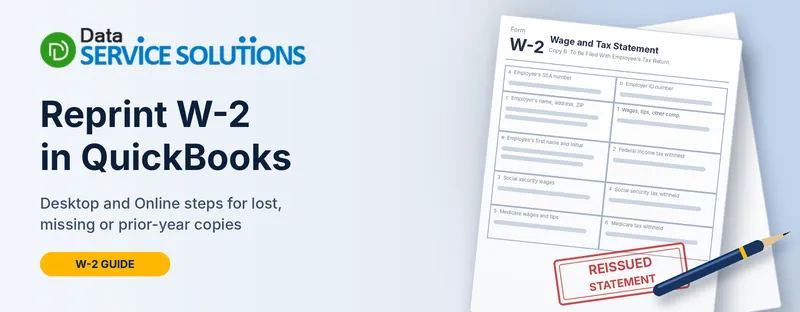
When you give an employee a replacement W-2, the IRS expects it to be marked as a REISSUED STATEMENT.
- QuickBooks usually adds the words when you print through the reprint or reissue options.
- If it doesn’t, write REISSUED STATEMENT clearly at the top of the form.
- Include a copy of the W-2 instructions if you can, so the employee knows how to use it.
- Don’t give an employee the reissued copy if it differs from the original. If the numbers are wrong, correct the form instead (see below).
What If the W-2 Is Wrong, Not Lost?
Reprinting won’t fix incorrect wages, withholding or names. If the information is wrong:
- Find out what’s wrong, using the payroll reports and the employee’s paychecks. See QuickBooks incorrect payroll items and payroll not deducting taxes.
- Correct the payroll data first.
- File a corrected W-2 (W-2c) with the SSA and give the employee the corrected copy. Ask your accountant how to do it for a past year.
We’re not tax advisors, so check the rules for your situation with your accountant.
What If the W-2 Won’t Print or Looks Wrong?
- The option is missing or greyed out: your payroll subscription may be inactive, QuickBooks may be out of date, or the W-2 form isn’t active. Update and check your subscription.
- The PDF won’t open: update Adobe Reader, or set another PDF viewer as the default. If it’s a PDF component error, see QuickBooks missing PDF component.
- The wrong year appears on the form: stop and use the Filing History route, or contact support.
- The form is blank or has wrong numbers: check the employee’s payroll items and year-end totals, and run the payroll summary report.
- It prints misaligned on preprinted paper: print a test on plain paper first and use the alignment option.
- Payroll update errors block you: see error PS038.
For general printing help, see how to print a paycheck in QuickBooks and how to e-file W-2s with QuickBooks Desktop.
How to Handle a Reprinted W-2 Safely
A W-2 holds a Social Security number and income details.
- Don’t email the PDF unless it’s encrypted or sent through a secure portal.
- Hand it over in person, or mail it to a confirmed address.
- Confirm the employee’s identity before you release it.
- Shred or delete any extra copies you printed.
- Keep a note of when you reissued it and to whom.
How to Avoid Reprints Next Year
- Confirm every employee’s address before you run year-end forms.
- Invite employees to Workforce so they can get their own copy.
- Ask employees to confirm the address and whether they want paper or electronic copies.
- Keep your Filing History PDFs in a safe place after you file.
- File and distribute on time, so there’s less chance of missing copies. Check the deadlines with your accountant.
- Run payroll reports before year-end to catch errors early. See QuickBooks Form 941.
Still Can’t Reprint a W-2? Get Help From Our QuickBooks Team
If the W-2 won’t print, the year is wrong, or you need a prior-year copy that QuickBooks won’t give you, our team can help you get it out correctly. Contact Data Service Solutions, visit our QuickBooks payroll support page, or call +1-(855)-955-1942.
Frequently Asked Questions
How do I reprint a W-2 in QuickBooks Desktop?
In Payroll Assisted, go to Employees > Payroll Center > File Forms > View/Print Forms & W-2s, enter your PIN, choose the employee and print. In Enhanced or Standard, use Employees > Payroll Tax Forms & W-2s > Process Payroll Forms, then Filing History for saved forms.
How do I reprint a W-2 in QuickBooks Online?
Go to Payroll > Payroll taxes > Filings, open the W-2 area for the right year, choose the copies you need and print. For older years, use Archived forms and filings.
Can I reprint a W-2 for just one employee?
Yes. Select only that employee when you choose the form, or ask the employee to print it from their Workforce account.
Can I reprint a W-2 from a previous year?
Usually yes, but the path differs. In Desktop, use Filing History for saved forms and check the year on the form. In Online, use Archived forms and filings.
Why does my old W-2 show the current year?
Some Desktop versions create forms for the current year only. Use Filing History instead, or contact support before giving the form to the employee.
What does “REISSUED STATEMENT” mean on a W-2?
It marks a replacement copy for a W-2 an employee lost or never received. Write it on the form if QuickBooks doesn’t add it.
Do I need special paper to reprint a W-2?
No for employee copies. Plain paper is fine, and perforated W-2 paper is optional. Don’t use plain paper for any copy you file with the SSA, such as Copy A.
What if the W-2 has the wrong information?
Don’t just reprint it. Correct the payroll data and file a corrected W-2 (W-2c). Ask your accountant how to handle a past year.
Can my employee get the W-2 without me?
If you’ve invited them to QuickBooks Workforce, they can usually view and print their own W-2s for recent years.