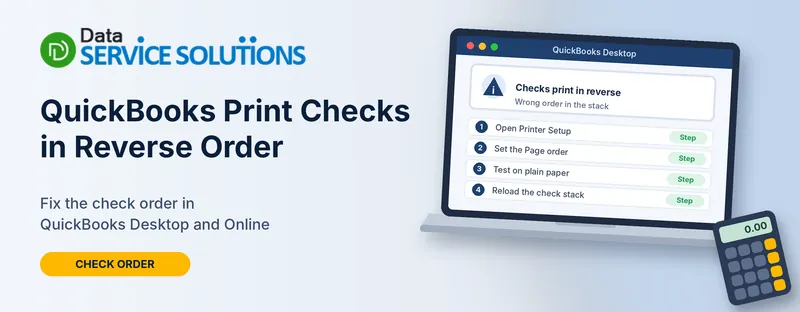
Your checks come out of the printer in the wrong order. Check 1001 prints on the page meant for 1010, or the whole stack runs backwards. Or maybe you want them reversed, because your printer feeds the stack upside down and the numbers don’t line up.
Either way, the cause is almost always the printer’s feed or page order, not your books. The fix depends on which QuickBooks you use. QuickBooks Desktop has a page order setting. QuickBooks Online doesn’t, so you need a workaround. This guide covers both, in plain steps.
Why QuickBooks Prints Checks in Reverse Order
QuickBooks sends the checks to your printer in a set order, and the printer decides how they land on the paper. These things change the result:
- How your printer takes paper. Some printers feed face down, or pull from the bottom of the stack. That can print the last check first.
- The printer’s page order setting. Many drivers have “print last page first,” or a reverse option.
- The page order setting in QuickBooks Desktop. It can be set to Front to back or Back to front.
- How you loaded the stack. Pre-printed checks have numbers on the paper, and the stack needs to match the order QuickBooks prints.
- A setting that changed. A new printer, a driver update or a print dialog set to Reverse can change the order overnight.
Which Fix Should You Start With?
| Your setup | What’s going on | Start with |
|---|---|---|
| QuickBooks Desktop on Windows | A page order setting exists | Set the Page Order in Printer Setup |
| QuickBooks Online | QuickBooks has no page order setting | Reload the Check Stack, then Reverse the Page Order in the Print Window |
| QuickBooks Desktop for Mac | The Mac print dialog has a page order option | Reverse the Page Order in the Print Window |
| Printer feeds face down or from the bottom | Feed direction | Reload the Check Stack |
| Order is right but numbers don’t match the paper | Check number mismatch | Fix the Check Numbers |
| It used to print fine, now it’s backwards | A setting or driver changed | Get Back to Normal Order |
Before You Print Anything
- Test on plain paper. Number five or six sheets in pencil, put them in the paper tray the way you load checks and print a test batch. Don’t use real checks to test.
- Know how your printer feeds. Is it face up or face down? Top tray or bottom tray? That decides which check prints first.
- Count your checks. Note the first and last pre-printed numbers in the stack.
- Keep the next real check number handy. You’ll need it for the starting check number.
How to Print Checks in Reverse Order in QuickBooks Desktop
QuickBooks Desktop has a setting for this.
- Go to File > Printer setup.
- In the Form Name dropdown, choose Check/Paycheck.
- Select Options.
- In the Page order dropdown, choose Front to back or Back to front.
- Click OK, then OK again to close Printer Setup.
- Print a plain-paper test with several checks and see which way they come out.
- If the order is wrong, switch to the other choice and test again.
The page order option can sit in a different place depending on your printer. Some show it under an Advanced tab after you select Options. If you can’t find it, look in your printer’s manual or its own settings (see the printer method below).
The setting covers checks and paychecks, because both use the Check/Paycheck form. For the full paycheck steps, see how to print paychecks in QuickBooks.
How to Print Checks in Reverse Order in QuickBooks Online
QuickBooks Online has no page order setting. QuickBooks community staff have confirmed that it can’t be set in QBO, so the File > Printer setup steps above won’t work, because Online has no File menu for that. You have four ways around it.
Method 1: Reload the Check Stack the Other Way
This is often the simplest fix. Here’s why it works. QuickBooks prints your checks in order and assigns numbers as you enter a starting check number. If your printer takes sheets from the wrong end of the stack, check 1001’s data lands on the sheet that already says 1010.
- Work out which sheet your printer takes first. Do a test with a numbered plain-paper stack if you’re not sure.
- Reload your real checks so the sheet with your starting check number goes in first.
- In QuickBooks, enter that number in Starting check number.
- Print a short batch and check the numbers.
If the stack is face up or face down, check your printer’s manual for which side prints.
Method 2: Reverse the Page Order in the Print Window
If you can’t reverse the stack, reverse the pages as they print. QuickBooks Online creates a PDF, so you can change the order in the PDF viewer or print dialog.
- On a Mac: Open the PDF and choose File > Print. Open the drop-down in the print window and select Paper Handling. Set Page Order to Reverse.
- On Windows: Choose Print, then open Preferences or Properties. Look for Page order, Reverse order or Print last page first. The name varies by printer and viewer.
Remember that standard checks come three to a page, so this reverses whole pages, not the checks on a single page. For one-per-page voucher checks it works the way you’d expect.
Method 3: Check the Printer’s Own Page Order Setting
Many printers have their own page order option, and some print the last page first by default.
- Open Printers & scanners (Windows) or Printers & Scanners (Mac) and select the printer you use for checks.
- Open Printing preferences.
- Look for Page order, Reverse order or Print last page first, then choose Front to back or Back to front.
- Save, then print a plain-paper test.
If your printer driver has no such option, as some users report, go back to Method 1 or 2. If a driver update changed the order, you can reinstall the printer driver from the manufacturer’s site.
Method 4: Fix the Check Numbers After Printing
If the checks printed in the wrong order and the numbers on the paper don’t match what’s in QuickBooks, you can correct the numbers.
- In QuickBooks Online, open Expenses and filter the list to Check.
- Find the check, then click View/Edit in the Action column.
- Change the Check no. to match the number on the paper check.
- Click Save and close.
QuickBooks staff suggested this for a few checks. It’s slow for a big batch, so use it to rescue a small run, not as your usual routine. If QuickBooks asks whether the checks printed correctly, choose Some checks need reprinting and enter the first check number that needs fixing, so QuickBooks can reprint them.
To view the sequence while you check, open your checking account’s register and click the Ref no. column header to flip the order. That changes the view only. It won’t change how checks print.
QuickBooks Desktop for Mac
Mac Desktop doesn’t use the Windows Printer Setup option the same way. Use the Mac print dialog:
- Click Print to open the Mac print window.
- From the drop-down, choose Paper Handling.
- Set Page Order to Reverse (or Normal if you want the opposite).
- Print a test.
Community reports on Mac are mixed, and one staff reply said there’s no reverse-numerical sort inside QuickBooks, so rely on this print dialog and the stack method.
If Checks Started Printing in Reverse and You Want Normal Order
If checks have always printed fine and suddenly reverse, a setting changed.
- Check Desktop’s Page order: go to File > Printer setup > Check/Paycheck > Options and set it back to the other option.
- Check the print dialog: make sure Page Order isn’t set to Reverse.
- Check the printer’s preferences: turn off “print last page first” if it’s on.
- Check the paper tray: make sure the stack is loaded the way it was before.
- Check for a printer change: a new printer, a driver update or a new tray can flip the order.
Print a test on plain paper after each change.
When the Order Is Right but the Check Numbers Don’t Match
- Check that Starting check number matches the first sheet that will actually print.
- Print only a few checks at a time while you fix the setup.
- If a check printed with the wrong number, don’t void it right away. Use the reprint option or correct the number first.
- If QuickBooks shows “To print” checks you already printed, finish the print flow by confirming which printed correctly.
If the text is in the wrong place on the check, see QuickBooks check alignment problems. If you get a “form does not fit on the page” message, see QuickBooks form does not fit on the page.
What Not to Do
- Don’t test on real checks
- Don’t change several things at once. Change one setting, then test
- Don’t edit check dates or amounts to “fix” the order
- Don’t void a check just because it printed in the wrong spot, unless you can’t reuse it
- Don’t download “check printing” tools from pop-ups
- Don’t pay anyone who contacts you out of the blue to “fix” your printing
How to Avoid Check Order Problems
- Load checks the same way every time
- Keep the same tray and printer for checks
- Print a plain-paper test after any printer or driver change
- Print a small batch first when you start a new box of checks
- Note the starting check number before each batch
- Write down the setting that works, so you can restore it
When to Get Help
Get help if your printer has no page order option, if you print hundreds of checks and can’t reload the stack, or if checks keep printing wrong after a driver reinstall. Note your QuickBooks version (Desktop, Online or Mac), your printer model, how it feeds paper and what you tried. The Data Service Solutions team can walk you through it.
If preview or PDF problems stop you from printing at all, see QuickBooks print preview not working, QuickBooks unable to locate PDF viewer and QuickBooks missing PDF component.
Frequently Asked Questions
Can QuickBooks print checks in reverse order?
In QuickBooks Desktop, yes: use Printer setup and set the page order under Options. In QuickBooks Online there’s no page order setting, so use your printer, the print dialog or the way you load the stack.
Where is the page order setting in QuickBooks Desktop?
Go to File > Printer setup, choose Check/Paycheck, select Options and use the Page order dropdown. On some printers it’s under an Advanced tab.
Why does QuickBooks Online print my checks in reverse?
QuickBooks hands the checks to your printer in order, and your printer’s feed or page order setting decides how they land. Some printers feed from the bottom of the stack or print face down.
Does QuickBooks Online have a page order setting?
No. QuickBooks community staff say page order can’t be set in QBO.
How do I stop my checks printing backwards?
Change the page order in your printer’s preferences or the print dialog, or reload the stack the other way. For Desktop, use the Page order setting.
Will reversing the page order change my check numbers?
It changes the order the pages come out, not the numbers QuickBooks assigns. Always test on plain paper and match the starting check number to the first sheet that prints.
Can I fix check numbers after printing?
Yes, in QuickBooks Online use View/Edit on the check and change the Check no. It’s slow for large batches.
Does reverse page order work for three-checks-per-page stock?
It reverses whole pages, not the checks on a page, so you may still need to reload the stack.
Is this the same as check alignment?
No. Alignment is about where text sits on the check. Order is about which check prints first.
Why did my checks start printing in reverse after a printer change?
A new printer, tray or driver can change page order or feed direction. Check the preferences and print a test.
Do paychecks follow the same setting?
In QuickBooks Desktop, yes, because checks and paychecks share the Check/Paycheck form.
Should I contact support?
If your printer has no reverse option and reloading doesn’t help, or you print large batches, ask for help.
Wrapping Up
Checks printing in reverse order comes down to your printer’s feed, your page order setting and how the stack is loaded. QuickBooks Desktop has a setting. QuickBooks Online doesn’t, so try reloading the stack, the print dialog or your printer’s preferences, and always test on plain paper first. If you’re still stuck, the Data Service Solutions team can help.