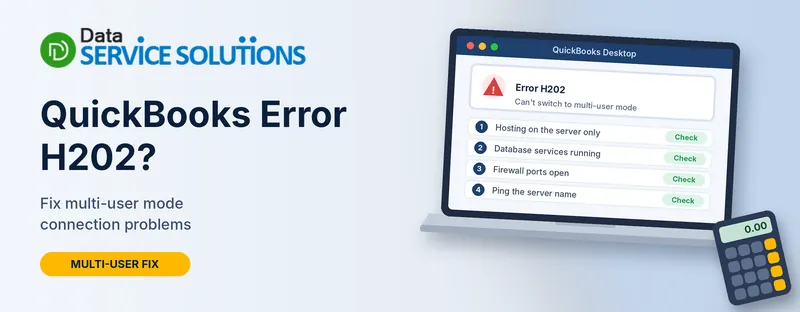
You open QuickBooks on a workstation, choose File > Switch to Multi-user Mode, and get a message that the company file is on another computer and QuickBooks needs help connecting. That is QuickBooks error H202. This guide walks you through the fix in the order that solves it fastest, with the exact menus and settings. Every step says whether to do it on the server or on the workstation, because mixing those up is how most people lose an afternoon.
What Is QuickBooks Error H202?
H202 is a QuickBooks Desktop multi-user error. It appears when a workstation tries to open a company file stored on another computer (the server) and can’t reach it. The message usually reads something like “This company file is on another computer, and QuickBooks needs some help connecting.”
H202 belongs to a family of connection errors (H101, H202, H303 and H505). They look alike but have slightly different causes, which the table below covers.
How Multi-User Mode Works in QuickBooks Desktop
Knowing what happens behind the scenes makes the fixes below much easier to follow.
In multi-user mode, one computer, the server, stores the company file. Every other computer, a workstation, opens that same file over your network. Four pieces have to work together for that to happen:
- Hosting: the server is set to share the file with other computers. Only one computer should do this.
- Database services: QuickBooksDBXX and QBCFMonitorService run on the server. They answer requests from workstations and keep track of the file.
- The network data (.ND) file: a small file QuickBooks creates next to your company file. It tells workstations where the file is and who is using it.
- The connection: the workstation finds the server by name or IP address and talks to it through specific ports that the firewall must allow.
H202 means one of those four broke. When a workstation asks “where is the file?” and gets no answer, you see the error. That is why the fixes below work through hosting, services, the .ND file and the network in turn.
Why QuickBooks Error H202 Happens
Most cases come down to one of these:
- QuickBooks can’t find the server’s IP address or name
- More than one computer is set to host the company file
- The QuickBooks database services aren’t running on the server
- A firewall or security program is blocking QuickBooks traffic
- The network data file (.ND) is damaged
- The workstation can’t reach the folder holding the company file
- An unstable or wireless network connection
H202 vs H101, H303 and H505
| Error | What it usually points to |
|---|---|
| H202 | The workstation can’t reach the server. Check services, firewall and network. |
| H505 | The workstation is looking for the file on the wrong computer. Check hosting and server name. |
| H101 | A workstation can’t communicate with the server file. Check hosting and firewall. |
| H303 | The workstation can’t open the file hosted elsewhere. Check hosting and file access. |
The first fixes below cover all four, so one pass often clears more than one.
Before You Start
Spend five minutes on these. They prevent most of the follow-up problems.
- Back up your company file. On the computer with the file, go to File > Back Up Company > Create Local Backup.
- Update QuickBooks and Windows. Our guide on QuickBooks updates walks through the QuickBooks side.
- Use a wired network if you can. A weak Wi-Fi signal causes H202 more often than people expect.
- Know which computer is the server. The server is the computer that stores the company file. Every other computer is a workstation.
Fix 1: Make Sure Only the Server Is Hosting
When more than one computer hosts the file, workstations get confused about where to connect. This single check fixes a large share of H202 cases.
On every workstation:
- Open QuickBooks, but don’t open the company file.
- Go to File > Utilities.
- If you see Stop Hosting Multi-User Access, click it and follow the prompts.
- If you see Host Multi-User Access, leave it alone.
On the server:
- Go to File > Utilities.
- If you see Host Multi-User Access, click it.
- If you see Stop Hosting Multi-User Access, hosting is already on, so leave it.
Try switching to multi-user mode again from a workstation.
Fix 2: Run QuickBooks Database Server Manager
Database Server Manager lets workstations find company files on the server and fixes firewall permissions as it scans.
- On the server, install and open the QuickBooks Tool Hub.
- Go to Network Issues > QuickBooks Database Server Manager.
- If your company file folder isn’t listed, click Browse and select it.
- Click Start Scan, then Close when it finishes.
- Go to a workstation and try File > Switch to Multi-user Mode.
Database Server Manager doesn’t work with NAS (network-attached storage) devices, so the company file needs to live on a regular Windows computer or server. If the tool itself won’t open, see our guide on QuickBooks Database Server Manager not opening.
Fix 3: Run QuickBooks File Doctor
- Close QuickBooks on all computers.
- Open the Tool Hub and go to Company File Issues.
- Choose Run QuickBooks File Doctor. It can take a minute to start.
- Select your company file from the list, or click Browse to find it.
- Choose Check your network, then click Continue.
- Enter your QuickBooks admin password and click Next.
When it finishes, open QuickBooks and test multi-user mode. For more on the tool, see our QuickBooks File Doctor guide.
Fix 4: Check the QuickBooks Services on the Server
Two Windows services need to be running on the server for multi-user mode to work.
- On the server, press Windows + R, type services.msc and press Enter.
- Find QuickBooksDBXX. The XX is your QuickBooks version number plus 10. For example, QuickBooks 2023 uses QuickBooksDB33.
- Double-click it and set Startup type to Automatic.
- If the status isn’t Running, click Start.
- Open the Recovery tab and set First failure, Second failure and Subsequent failures to Restart the Service.
- Click Apply, then OK.
- Repeat steps 2 to 6 for QBCFMonitorService.
Fix 5: Check Folder Permissions on the Server
The Windows user accounts that open the file need permission to reach the folder holding it.
- On the server, right-click the folder containing the company file and choose Properties.
- Open the Security tab and click Edit.
- Make sure the users who need QuickBooks have Read, Write and Modify access.
- Click Apply, then OK.
If your setup is more complex, such as a domain with strict policies, have your IT person confirm the QuickBooks services can run under an account with the right access. Don’t hand out broad administrator rights to fix a permission problem. Grant only what QuickBooks needs.
Fix 6: Open the Firewall Ports for QuickBooks
If a firewall is blocking QuickBooks, the workstation can see the server but can’t talk to it. Our guide on Windows Firewall blocking QuickBooks covers the full setup. In short, make inbound and outbound exceptions on the server.
Ports by QuickBooks version:
| QuickBooks Desktop version | Ports to open |
|---|---|
| 2020 and later | 8019 plus your dynamic port |
| 2019 | 8019 plus your dynamic port |
| 2018 | 8019, 56728, 55378 to 55382 |
| 2017 | 8019, 56727, 55373 to 55377 |
How to find your dynamic port:
- On the server, open QuickBooks Database Server Manager from the Start menu.
- Go to the Port Monitor tab.
- Find your QuickBooks version and note the Port Number.
- Create a TCP rule for that port and for 8019, both inbound and outbound.
After any port change, go to the Scan Folders tab in Database Server Manager and click Scan Now so the permissions refresh.
Program exceptions: also allow QBW32.exe, QBDBMgrN.exe and QBCFMonitorService.exe through the firewall.
Security software: add QuickBooks as an exception in your antivirus rather than turning the antivirus off. If you disable it briefly to test, switch it back on straight afterward.
Fix 7: Test the Network Connection
If services and firewall look fine, check whether the workstation can reach the server by name.
- On both the server and the workstation, go to Network and Sharing Center > Change advanced sharing settings and turn on Network discovery and File and printer sharing.
- On the server, open Command Prompt and type
ipconfig /all. Write down the Host Name. - On the workstation, open Command Prompt and type
ping servername(use your own host name). - If every packet gets a reply with no loss, the connection is fine.
- If you see “request timed out” or packet loss, the problem is the network, not QuickBooks. Check cables, the router and Wi-Fi, or call your IT person.
Fix 8: Add the Server to the Hosts File
If the ping works by IP address but not by name, tell the workstation where the server is.
- On the workstation, press Windows + R and type
%SYSTEMROOT%\system32\drivers\etc. - Right-click the hosts file and open it with Notepad (as administrator).
- At the bottom, add the server’s IP address, press Tab, then type the server name.
- Save and close, then try multi-user mode again.
Fix 9: Rename the Network Data (.ND) File
A damaged .ND file can block the connection. QuickBooks makes a new one automatically.
- Close QuickBooks on every computer, and take a backup first.
- On the server, open the folder with your company file.
- Find the file with your company name ending in .qbw.nd.
- Right-click it, choose Rename, and add .OLD to the end.
- Open QuickBooks and run Database Server Manager again to rescan the folder.
Rename only the .nd file. Don’t touch the .qbw company file itself.
Example: Fixing H202 in a Small Office
Say you have a server named OFFICE-SRV and three workstations, and two of them show H202 when switching to multi-user mode. Here is how the checks play out in order:
- Check hosting. On each workstation, you open File > Utilities and find that one of them shows Stop Hosting Multi-User Access. That workstation was hosting by mistake. You click it to turn hosting off.
- Host on the server. On OFFICE-SRV, you open File > Utilities and confirm hosting is on.
- Try again. One workstation connects. The other still shows H202.
- Ping the server. On the stubborn workstation, you run
ping OFFICE-SRV. It times out. Pinging the IP address works, so the name isn’t resolving. - Fix the name. You add OFFICE-SRV and its IP address to the hosts file on that workstation, as in Fix 8.
- Test. The workstation switches to multi-user mode.
Two things to take from this. Hosting problems and name problems often show up together, and doing the checks in order tells you quickly where the break is. Once everything connects, run Scan Now in Database Server Manager so the permissions refresh, and ask everyone to restart QuickBooks.
When Nothing Works
Try the file on the server in single-user mode first. If it opens, the file is fine and the problem is the network or hosting. If it doesn’t open, see our guide on QuickBooks won’t open.
Still stuck? Get help before changing more. The Data Service Solutions team can connect remotely and check your hosting, services and ports.
How to Prevent Error H202
- Keep one dedicated host and leave hosting off on workstations
- Use wired Ethernet for the server and workstations where possible
- Keep QuickBooks and Windows updated
- Recheck firewall rules after large Windows updates
- Use a static IP address for the server
- Back up daily and test a restore now and then
Frequently Asked Questions
What does error H202 mean in QuickBooks?
It means a workstation can’t connect to the company file on the server in multi-user mode. The cause is nearly always hosting, services, firewall or the network.
Is H202 a company file problem?
Usually not. The file is normally fine, and the connection to it is the problem. Test single-user mode on the server to confirm.
What is the difference between H202 and H505?
H505 usually means the workstation is looking for the file on the wrong computer. H202 means it can’t reach the right one. The first fixes cover both.
Which computer should host multi-user access?
Only the server that holds the company file. Turn hosting off on all workstations.
Which ports does QuickBooks need for multi-user mode?
Port 8019 plus a dynamic port for 2019 and later, or the fixed ports for 2018 and 2017 listed above.
Can Wi-Fi cause H202?
Yes. A weak or unstable connection can interrupt the link. Use a wired connection if possible.
Can I fix H202 without touching the firewall?
Often yes. Hosting, services and network checks solve many cases first. Open the firewall only if those don’t.
Does H202 happen on QuickBooks Online?
No. Multi-user hosting errors belong to QuickBooks Desktop.
Is it safe to rename the .ND file?
Yes, with QuickBooks closed and a backup taken. QuickBooks creates a new one. Never rename the .qbw file.
Can a workstation host the company file?
QuickBooks allows it, but it isn’t recommended. A dedicated server is more reliable. If a workstation must host, make sure hosting is off on every other computer.
Why did H202 start after a Windows update?
Updates can reset firewall rules or change network settings. Recheck your QuickBooks firewall exceptions and run Scan Now in Database Server Manager.
Can using a VPN or remote desktop cause H202?
It can. A VPN adds a network hop, and name lookups sometimes fail across it. Test with the workstation on the office network first. If it works there, the VPN settings are the cause. Ask your IT person to check them.
Do I have to fix the server or the workstation?
Start with the server, because that is where hosting, services, ports and permissions live. Only turn to the workstation for the hosting setting, the ping test and the hosts file.
When should I call a professional?
If the ping fails, services keep stopping, or the error returns after a restart, get help before changing more.
Wrapping Up
H202 looks scary, but it is almost always a connection problem, not lost data. Start with hosting, then Database Server Manager, then services, firewall and the network, in that order. If you get stuck, the Data Service Solutions team is ready to help.