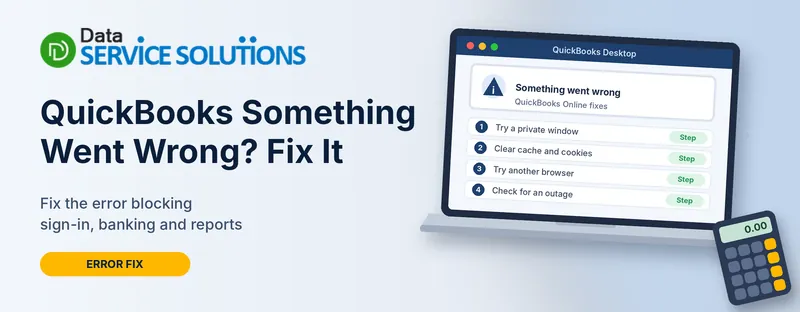
You click a report, open a bank feed or try to sign in, and QuickBooks Online throws a blank screen with five frustrating words: “Something went wrong.”
The message tells you almost nothing, which is why this error is so annoying. It can mean a stale browser cache, an extension getting in the way, a problem on QuickBooks’ side or, occasionally, a bug that only QuickBooks can fix. This guide helps you work out which one you have, then walks you through the fixes in the order that makes sense.
This guide is for QuickBooks Online. If your message says “Something’s not quite right” or “An unexpected error occurred,” see the links in the next section.
Quick Answer: What to Try First
- Open QuickBooks Online in a private (incognito) window and repeat what you were doing.
- If it works there, clear your cache and cookies in your normal browser.
- If it doesn’t, try another supported browser or another device.
- Check whether QuickBooks has a wider outage and, if so, wait.
- If it keeps happening on one task, note the exact page and contact QuickBooks support.
Which “Something Went Wrong” Message Do You See?
QuickBooks uses several similar messages, and the right fix depends on the wording.
| What you see | Where it shows up | Method to use |
|---|---|---|
| “Oops, something went wrong” | Signing in | Check Extensions, Then Sign In Another Way |
| “Something went wrong. Try again later” | Any QuickBooks Online page | Private Window and Cache Reset |
| “Something went wrong. We’re working on it” | Banking, reports, payroll | Check Status, Then Retry |
| “Something went wrong on our end” | Whole app won’t load | Check Status and Wait |
| “Something’s not working. Received HTTP status 429” | Any page | Refresh and Sign Out and In |
| “Something’s not quite right” | Accounts, transactions | See our Something’s Not Quite Right guide |
| “An unexpected error occurred” | Banking, imports | See our Unexpected Error guide |
Why Does QuickBooks Say Something Went Wrong?
QuickBooks rarely says why, but these are the causes that come up in QuickBooks’ help and community threads:
- Old or corrupted browser data. A stale cache or cookie is the most common reason moderators give.
- A browser extension. QuickBooks names the IBM Security Rapport extension as a cause of the sign-in version of this error.
- An unsupported or out-of-date browser.
- A problem on QuickBooks’ side. An outage, a bug or a feature that’s failing for some users.
- A problem with the data being loaded, such as a bank feed or a long report.
- A temporary limit, such as the HTTP 429 error that QuickBooks fixed in April 2026.
Be aware that in many threads the cause was never found. Steps below are the ones QuickBooks and moderators actually recommend, and they don’t work for everyone.
Fix 1: Open QuickBooks in a Private Window
A private window doesn’t use your saved cache, cookies or most extensions, so it’s the fastest test.
- Chrome: Press Ctrl + Shift + N (Windows) or Command + Shift + N (Mac).
- Edge: Press Ctrl + Shift + N for an InPrivate window.
- Firefox: Press Ctrl + Shift + P (Windows) or Command + Shift + P (Mac).
- Safari: Press Command + Shift + N.
Sign in to QuickBooks Online and repeat what failed. If it works, your normal browser is the problem, so go on to Fix 3. If it fails here too, that points to an extension-free cause such as QuickBooks itself or the data you’re loading. In a January 2024 thread, a user got the same error in incognito mode in both Chrome and Edge, and QuickBooks staff later confirmed an ongoing issue on that page.
Fix 2: Try a Different Browser or Device
- Open QuickBooks Online in another supported browser, such as Chrome, Edge, Firefox or Safari.
- Update your main browser to the latest version.
- Try a different computer or your phone’s browser.
- If you’re on a work or school network, try another connection, since some networks block parts of the site.
If it works elsewhere, the problem is with your usual browser or computer. If it fails everywhere, move on to Fix 5.
Fix 3: Clear Your Cache and QuickBooks Cookies
QuickBooks recommends clearing the cache first, then clearing only QuickBooks-related cookies. Clearing everything signs you out of other sites and isn’t needed.
Step 1: Clear the cache. Use your browser’s own guide for Chrome, Edge, Firefox or Safari. Close and reopen the browser afterwards.
Step 2: Clear the QuickBooks cookies. QuickBooks’ cookies carry the company name “intuit,” so that’s what you search for.
- Chrome: Select More (three dots) > Settings > Privacy and security > Cookies and other site data > See all cookies and site data. Search for “intuit,” choose Remove all shown and restart Chrome.
- Firefox: Select Menu > Settings > Privacy & Security. Under Cookies and Site Data, choose Manage Data, search for “intuit,” choose Remove All Shown, then Save Changes and restart.
- Safari: Choose Safari > Settings (or Preferences) > Privacy > Manage Website Data. Search for “intuit,” choose Remove All > Remove Now > Done and restart.
You’ll probably be signed out and asked for a verification code next time. That’s normal. Have your sign-in details ready first.
Fix 4: Check Your Browser Extensions
Extensions that block scripts, ads or cookies can break QuickBooks pages.
If the error happens at sign-in, check for IBM Security Rapport. QuickBooks says this banking-security extension can interfere with signing in to QuickBooks Online.
- Update your browser and the extension to the latest versions.
- Look in the top right of your browser for a square icon with an arrow.
- Sign in using a private window, a browser that doesn’t have it, or by turning the extension off. QuickBooks notes that turning it off removes the extra protection it gives, so think about that first, and turn it back on afterwards.
- QuickBooks says it’s working on a fix that lets you sign in with the extension on.
For other extensions: Pause ad blockers, privacy tools and cookie blockers one at a time and test. Don’t turn off your antivirus or firewall. See QuickBooks login not working for other sign-in problems.
Fix 5: Check Whether QuickBooks Has a Wider Problem
If nothing works in any browser, QuickBooks itself may be having trouble. Staff told one user in 2023 that the status page showed no issues, so the error was local, which shows why checking helps.
- Search for QuickBooks’ status page and look for current incidents.
- Search the QuickBooks Community for your exact message, sorted by newest.
- If there’s an outage, wait. There’s nothing you can fix.
- If there isn’t, return to Fix 2 and Fix 3.
Fix 6: Refresh, Sign Out and Sign Back In (HTTP 429)
If the message says “Something’s not working. Received HTTP status 429,” QuickBooks staff said in April 2026 that engineering deployed a fix and confirmed the problem resolved. If you still see it:
- Refresh the page.
- Sign out of QuickBooks Online and sign back in.
- Try a different browser, or clear the cache.
Fix 7: Fix the Mobile App
Community moderators gave these steps for the app:
- iPhone or iPad: Offload the QuickBooks app in Settings, then reinstall it.
- Android: Open the app’s settings and choose Refresh Data.
- Both: Update to the latest app version and restart the phone.
Fix 8: If It Only Happens on One Task
When the error appears only on one page or action, the cause is often that task, not your browser.
- Bank transactions page: Check your bank’s site for alerts. Go to Bank transactions and click Update, then exclude any duplicate transactions. See QuickBooks cannot connect to bank account.
- Reports: Narrow the date range and filters, then try again.
- 1099 forms: In January 2024, staff acknowledged an ongoing issue previewing 1099s and said to contact support. See whether it’s current before you troubleshoot for hours.
- Printing: See QuickBooks cannot print invoices.
- Adding a Self-Employed client (accountants): If you see “Something isn’t working. It looks like there was a problem on our end,” the client’s email may already have a subscription. QuickBooks says to ask the client to invite you as their accountant, or sign them up with a different email.
Fix 9: Wait a Few Minutes and Try Again
Some users in QuickBooks threads said the error cleared on its own after about five minutes. It isn’t a fix, but if the error appears only occasionally, closing the tab, waiting and reopening is reasonable. If it returns every time, move to Fix 10.
Fix 10: Contact QuickBooks Support With the Right Details
Several threads end with staff asking users to contact support so they can be added to a list of affected accounts. Before you contact them, write down:
- The exact message and the page you were on
- The date and time it happened
- Your browser and version, operating system and whether it also happens in a private window
- What you’ve tried
- Whether other users in your company see it
Reach support through the Help menu in QuickBooks Online. One user in 2024 said the “Contact us” option looped back to the same error. If that happens, try again in a different browser.
QuickBooks Desktop: Does “Something Went Wrong” Apply?
The sources I could confirm are for QuickBooks Online. If your Desktop version shows an error you can’t identify, see QuickBooks has stopped working, QuickBooks not responding or freezing and QuickBooks Tool Hub.
What Not to Do
- Don’t turn off antivirus or a firewall
- Don’t clear every cookie in your browser when only QuickBooks ones are needed
- Don’t add wildcard domains to your trusted sites or change proxy settings unless your IT person says so
- Don’t give your QuickBooks login to anyone who calls or messages you offering to “fix” it
- Don’t keep retrying the same failing action over and over, since a pending or duplicate transaction could result
How to Check That It’s Fixed
- Repeat the exact action that failed, in your normal browser
- Check that your last transaction or change was saved once, not twice
- Check any bank feed for duplicates
- Sign out and back in to confirm sign-in works
How to Avoid This Error
- Keep your browser updated
- Use a supported browser and limit extensions
- Clear your cache and QuickBooks cookies every so often
- Check the status page before you spend time troubleshooting
- Keep one browser profile just for QuickBooks
- Save long forms and reports often
When to Get Help
Get help if the error appears in every browser, only on one specific task for days, or if it blocks you from signing in. Collect the details above. The Data Service Solutions team can go through them with you.
Frequently Asked Questions
Why does QuickBooks say “Something went wrong”?
Usually old browser data, an extension, a temporary problem on QuickBooks’ side or a bug on a specific page. QuickBooks doesn’t always say which.
Is it my computer or QuickBooks?
Try a private window and a second browser. If it works in either, the cause is on your computer. If it fails everywhere, it may be QuickBooks itself.
Will clearing the cache delete my data?
No. Your books are stored online. You may be signed out and need a verification code.
What is the IBM Security Rapport extension?
A security browser extension. QuickBooks says it can interfere with signing in to QuickBooks Online.
What does HTTP status 429 mean in QuickBooks?
QuickBooks staff said in April 2026 that engineering deployed a fix for this error. If it still appears, refresh, sign out and in, or try another browser.
Why do I get this error only on bank transactions?
Often the bank connection or a data issue. Check your bank, update the connection and see our bank connection guide.
Is “something went wrong” the same as “something’s not quite right”?
They’re different messages with similar fixes. See the guides linked in the message table.
Does it happen on the QuickBooks mobile app?
Yes. Update the app, refresh its data, or reinstall.
Is there a permanent fix?
Not for every case. Many community threads show no confirmed fix. The steps above work for many people, not everyone.
Should I turn off my antivirus?
No. Test in a private window and pause extensions instead.
Why does the error appear for about five minutes and then go away?
Some users reported that. It may be a temporary issue on QuickBooks’ side, but there’s no confirmed explanation.
When should I contact a professional?
If the error appears in every browser, blocks sign-in for days or happens only on one important task.
Wrapping Up
When QuickBooks says something went wrong, work from the cheapest test to the most involved: a private window, another browser, a cache and cookie clear, then the status check. If it’s a QuickBooks-side issue, support is the only fix. If you’re stuck, the Data Service Solutions team can help.