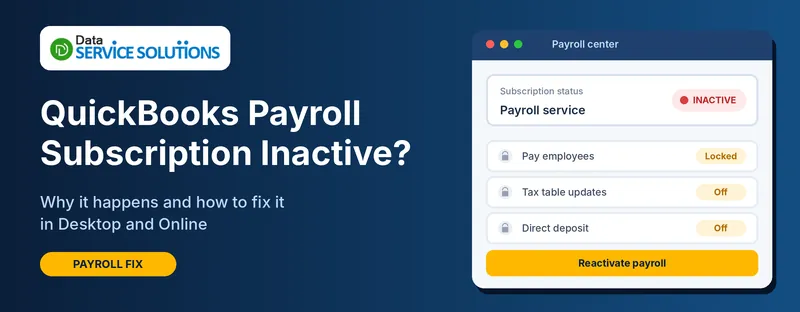
It’s payday. You open the Payroll Center, and instead of the usual Pay Employees button you get a message that your payroll subscription is inactive. Sometimes that’s accurate: a card expired and the renewal failed. Other times you know you paid, your account says everything’s fine, and QuickBooks still won’t budge. If your QuickBooks payroll subscription is inactive, there’s almost always a specific reason, and most of the fixes take a few minutes.
This guide helps you work out which situation you’re in, walks through the fixes for QuickBooks Desktop and QuickBooks Online, and covers what to do if payday can’t wait.
Quick Answer: What to Try First
- Desktop: go to Employees > My Payroll Service > Manage Service Key, check the status, and re-validate the key if it says Active but payroll still won’t run.
- Billing problem: open Account/Billing Information (Desktop) or Subscriptions and billing (Online), update the payment method, and resubscribe.
- After paying: allow up to 24 hours, then run a payroll update.
- Online: sign in as the primary admin and check Settings > Subscriptions and billing.
First, Which Situation Are You In?
- The subscription really lapsed (cancelled, expired, or payment failed): go to the billing fix first.
- Your account says Active, but QuickBooks says Inactive: the service key or the sync is the problem. Go to Fix 3.
- You can’t sign in to the account that holds the subscription: a former employee or an old email may own it. Go to Fix 5.
- It started after an update, reinstall, or new computer: the service key may not have carried over. Go to Fix 3 and Fix 4.
- Your QuickBooks Desktop version is old: payroll may no longer work on it. Go to Fix 6.
- You use QuickBooks Online: skip to the Online section.
What Happens When Payroll Goes Inactive?
You can still open your company file and see past payroll. What you lose is the active service:
- You can’t create paychecks with automatic tax calculation.
- Tax table updates stop, so rates can go out of date.
- Direct deposit stops working.
- E-file and e-pay for payroll taxes can be disabled.
Your tax deposits and filing deadlines don’t pause because the software does. More on that below.
Why Is Your QuickBooks Payroll Subscription Inactive?
- The payment failed. The card expired, was replaced, or the bank declined the charge.
- The subscription was cancelled, by you, a colleague, or after repeated billing problems.
- The service key is missing or not valid in the company file, often after a reinstall or a move to a new computer.
- The billing sync didn’t finish. Your account shows Active, but QuickBooks hasn’t picked it up yet.
- You’re signed in to the wrong account, or the subscription belongs to someone who left the company.
- QuickBooks is out of date, or the payroll tax table is old.
- Your Desktop version is no longer supported. Payroll usually works only on supported releases, typically about three years after launch.
- A damaged installation, bad date and time settings, or a firewall is stopping QuickBooks from checking in with the payroll service.
Before You Start
- Sign in as the primary admin or payroll admin. Many of these screens are hidden from other users.
- Find out which plan you have. Desktop plans are Basic, Enhanced or Assisted, and Online plans are Core, Premium or Elite. Names change, so check your own screen. Assisted Desktop customers usually need to contact support to restart the service.
- Have your payment details ready. If a card expired, you’ll need the new one.
- Locate your payroll service key (Desktop). It’s in your purchase confirmation or your account.
- Back up your company file before changing payroll files or settings.
How to Fix QuickBooks Payroll Subscription Inactive in QuickBooks Desktop
Work through these in order. Stop when payroll shows Active.
Fix 1: Check the Status in QuickBooks
- Go to Employees > Payroll Center and open the Payroll tab. Look at the subscription status.
- Go to Employees > My Payroll Service > Manage Service Key.
- Look at the Status column next to your payroll service. It will say Active or Inactive.
If it says Active here but you still can’t run payroll, jump to Fix 3. If it’s Inactive, continue with Fix 2.
Fix 2: Check Billing and Resubscribe
- Go to Employees > My Payroll Service > Account/Billing Information.
- Sign in with the account used to buy payroll.
- Check the Status and the billing details. Update the payment method if the card is expired or declined, and clear any unpaid balance.
- Choose Resubscribe or Reactivate and confirm.
- Sign out of the account page, close QuickBooks, and reopen it. Signing out syncs the billing information.
Reactivation can take up to 24 hours to show up. Our guide on QuickBooks payroll subscription renewal walks through the full renewal process for each plan.
Fix 3: Re-Validate the Service Key
This is the fix for “my account says Active, but QuickBooks says Inactive.”
- Go to Employees > My Payroll Service > Manage Service Key.
- Select your payroll service and click Edit.
- Check that the service key is correct. Re-enter it if you have it.
- Click Next.
- Untick the box that says Open Payroll Setup.
- Click Finish.
- When the payroll update message appears, click OK and confirm the status shows Active.
If a key error appears instead, see QuickBooks error PS034, which covers service key access problems.
Fix 4: Update QuickBooks and the Payroll Tax Table
- Go to Help > Update QuickBooks Desktop, open Update Now, tick Reset Update, and click Get Updates. Restart QuickBooks when it finishes. If it hangs, see QuickBooks update stuck.
- Go to Employees > Get Payroll Updates.
- Tick Download Entire Update and click Update.
- Check the status again in the Payroll Center.
If the payroll update itself fails, look up the code in our guides on error PS032, error PS038 and error PS058.
Fix 5: Make Sure You’re Using the Right Account and Admin
An inactive subscription isn’t always a payment problem. Sometimes you’re signed in to the wrong place.
- Check which email bought payroll. If you have more than one QuickBooks login, try each one in Account/Billing Information.
- Former employee or old email? If the person who set up payroll has left and their account is the only way in, you’ll need support to change the payroll administrator or primary contact. That usually requires proof of who you are, so start early.
- Check the company file. If you opened a copy or an older file, it may be tied to a different subscription.
Fix 6: Check Your Version, Date, Internet and Firewall
- Version: if your QuickBooks Desktop is several years old, payroll may no longer be supported on it. Check your release year, and see how to download the latest QuickBooks Desktop if you need to upgrade.
- Date and time: make sure your computer’s clock and time zone are correct. A wrong clock stops secure connections.
- Internet: payroll checks in over the internet. If you see connection errors, read our guide on the payroll internet connection read error.
- Firewall: if security software blocks QuickBooks, see Windows Firewall blocking QuickBooks.
Fix 7: Rename the Paysub.ini File
This is a common support workaround, not an official menu step, so use it after the fixes above.
- Close QuickBooks and make a backup of your company file.
- In File Explorer, turn on Hidden items (View tab).
- Search the C: drive for Paysub.ini.
- Right-click it, choose Rename, and change the ending to .old.
- Open QuickBooks, go to Employees > Get Payroll Updates, and run the update again.
QuickBooks creates a fresh file. Our guide on QuickBooks error 30159 shows the same file rename in more detail.
Fix 8: Repair QuickBooks
If nothing above works, the installation may be damaged.
- Open the QuickBooks Tool Hub and run Quick Fix my Program.
- If that doesn’t help, run the QuickBooks Install Diagnostic Tool from Installation Issues.
- If the company file seems damaged, see QuickBooks File Doctor not working.
How to Fix QuickBooks Online Payroll Subscription Inactive
Step 1: Check Subscriptions and Billing
- Sign in to QuickBooks Online as the primary admin.
- Go to Settings > Subscriptions and billing.
- Look at the payroll status. Note whether it’s cancelled, past due, or paused.
Step 2: Fix the Payment and Resubscribe
- In Subscriptions and billing, update the payment method if it’s expired or declined.
- Click Resubscribe next to payroll and confirm the details.
- Wait for the status to change, which can take a while, then refresh the page.
Step 3: Rule Out a Browser Problem
If the status is Active in billing but payroll still looks locked, open QuickBooks Online in a private window. If it works there, clear your browser cache and cookies and sign in again. Our guide on QuickBooks error 400 shows the steps.
Step 4: Review Your Payroll Data
After reactivation, check that nothing was lost:
- Go to Payroll > Employees and review each employee’s pay, deductions and W-4 details.
- Go to Settings > Payroll settings and confirm your tax details and bank account.
What to Do If Payday Is Today and Payroll Is Still Inactive
- Reactivate first. Fix the billing and resubscribe right away, because reactivation can take up to 24 hours to show.
- Don’t guess at withholding. Typing in manual paychecks with estimated taxes can cause errors that are painful to unwind later. Ask your accountant before you do it.
- Talk to your employees early if their pay might be late, and check your state’s rules on pay timing.
- Remember tax deadlines. Federal and state deposits and filings still have due dates. See our guide on QuickBooks Form 941 for the quarterly filing.
We’re not tax advisors, so check deadlines and penalties with your accountant.
After Payroll Is Active Again
- Run Employees > Get Payroll Updates to download the latest tax table.
- Check for stuck paychecks and unsent data. See error PS038 if any paychecks are stuck.
- Confirm direct deposit is on again. It may take extra time to reactivate. If you need to cancel a deposit, see how to reverse a direct deposit.
- Review deductions and rates if taxes look off. Our guides on payroll not deducting taxes and incorrect payroll items can help.
- Check your next paycheck run against the last one, before sending it.
How to Prevent Your Payroll Subscription From Going Inactive
- Keep your payment method current, and update it before the card expires.
- Use a company email for the account, not a personal one, and keep a second admin on file.
- Save your service key somewhere safe.
- Update QuickBooks and the tax table regularly.
- Check your Desktop version’s support date each year.
- Watch for billing emails. A failed payment email is your early warning.
- Check the Payroll Center a few days before each payday, not on the morning of.
Still Inactive? Get Help From Our QuickBooks Team
If you’ve been through these steps and payroll is still inactive, the problem may be on the account side, such as a billing hold or a locked administrator, or a damaged company file. Our team can help you find out which, and get payroll running again. Contact Data Service Solutions or call +1-(855)-955-1942.
Frequently Asked Questions
Why does QuickBooks say my payroll subscription is inactive when I paid?
Usually the billing sync hasn’t finished, or the service key in your company file isn’t valid. Sign in to Account/Billing Information and sign out again, re-validate the key under Manage Service Key, and run Get Payroll Updates. Allow up to 24 hours after paying.
How do I reactivate my QuickBooks payroll subscription?
In Desktop, go to Employees > My Payroll Service > Account/Billing Information, sign in, and choose Resubscribe or Reactivate. In Online, go to Settings > Subscriptions and billing and click Resubscribe next to payroll.
How long does it take for payroll to become active again?
It can take up to 24 hours to show as active. If it still looks inactive after that, re-validate the service key and run a payroll update.
Will I lose my payroll data if the subscription lapses?
Your past payroll records stay in the company file. What stops is the active service: tax calculation, tax table updates and direct deposit. Review your employee and tax details after you reactivate.
Can I run payroll while the subscription is inactive?
Not with the automatic tax calculation and direct deposit. Entering paychecks by hand without correct withholding can create errors, so talk to your accountant first.
Why can’t I see Account/Billing Information or Manage Service Key?
You may not be signed in as an admin, or the company file isn’t set up for payroll on this computer. Sign in as the primary admin or payroll admin and check that you opened the right company file.
Does an old version of QuickBooks Desktop stop payroll from working?
It can. Payroll is typically supported only on current releases, around three years after launch. If your version is out of support, you’ll need to upgrade to keep payroll running.
Who can fix the subscription if the account owner left?
You’ll need to contact support to change the payroll administrator or primary contact. They usually ask for proof of your identity and ownership of the business, so start early.